# Connect your Ledger to NeoLine

![](https://1526652108-files.gitbook.io/~/files/v0/b/gitbook-x-prod.appspot.com/o/spaces%2F-MgP1pkkBF1pQzcGdKtm-2484513939%2Fuploads%2FuSI3UDF6PLbjMpSpnI8t%2F%E5%BE%AE%E4%BF%A1%E5%9B%BE%E7%89%87_20220616180206.png?alt=media\&token=daae9756-7f02-4b02-9a32-fafec624da26)

The extension version 3.5.0 of NeoLine officially supports Ledger hardware wallet. Through the latest NeoLine extension version.

**it allows you:**&#x20;

* Check your account balance&#x20;
* Sign transactions&#x20;
* Sign messages

#### How to connect to your Ledger Hardware Wallet?&#x20;

**Before you begin, make sure that:**&#x20;

* [x] the most up-to-date extension of NeoLine
* [x] up-to-date Google browser&#x20;
* [x] Update Ledger Live to the latest version by using [this link](https://www.ledger.com/ledger-live/download).
* [x] Connect your Ledger device to Ledger Live and check that it has the latest OS (firmware) version. [Learn more](https://support.ledger.com/article/8458939792669-zd?redirect=false).&#x20;
* [x] up-to-date Neo/Neo N3 App on the Ledger
* [x] other apps connected to Ledger closed, such as Ledger Live, it may cause conflicts with NeoLine.
* [x] the device plugged in via USB NOT bluetooth
* [x] the Ledger Hardware Wallet unlocked

#### Now you can start to connect:&#x20;

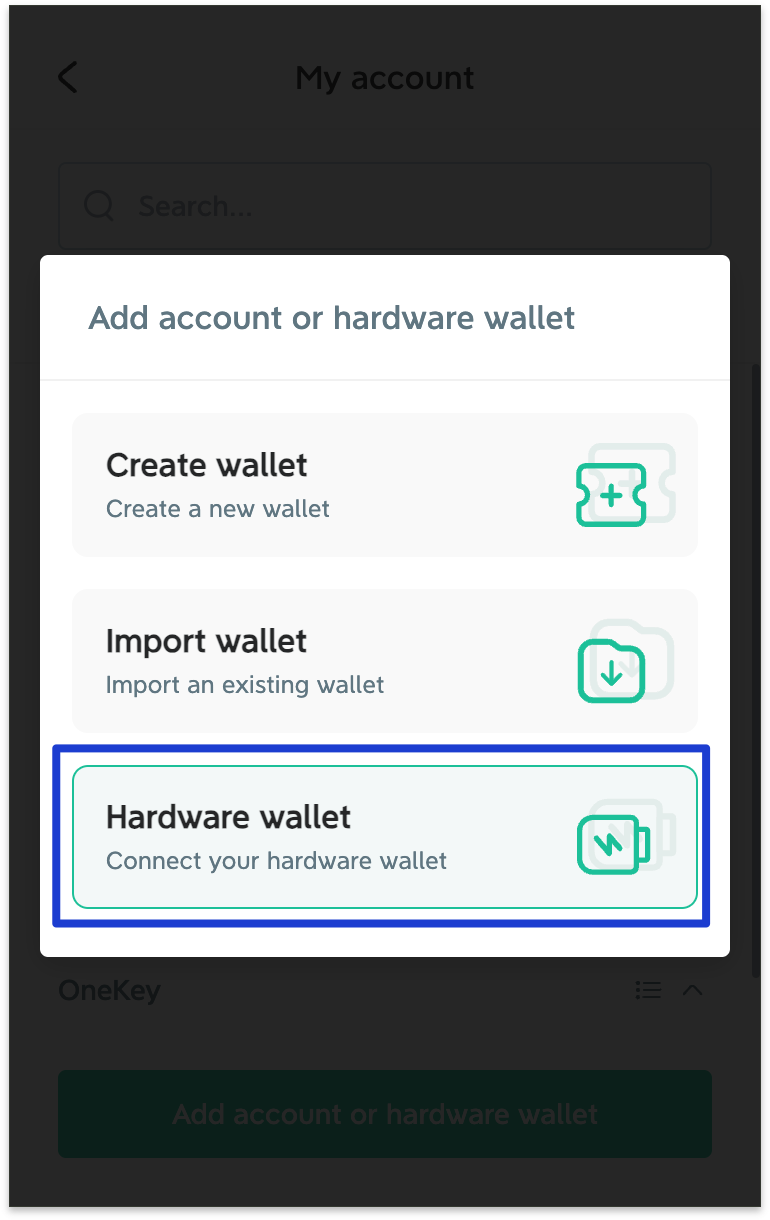
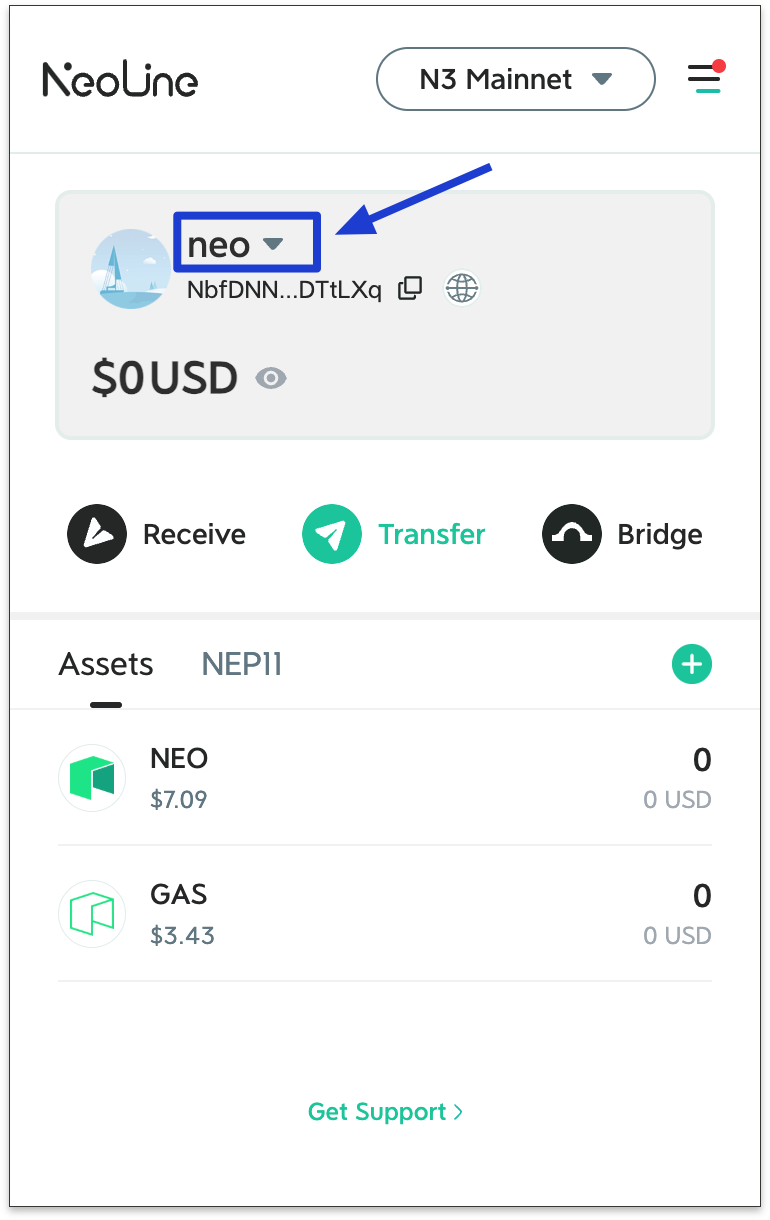
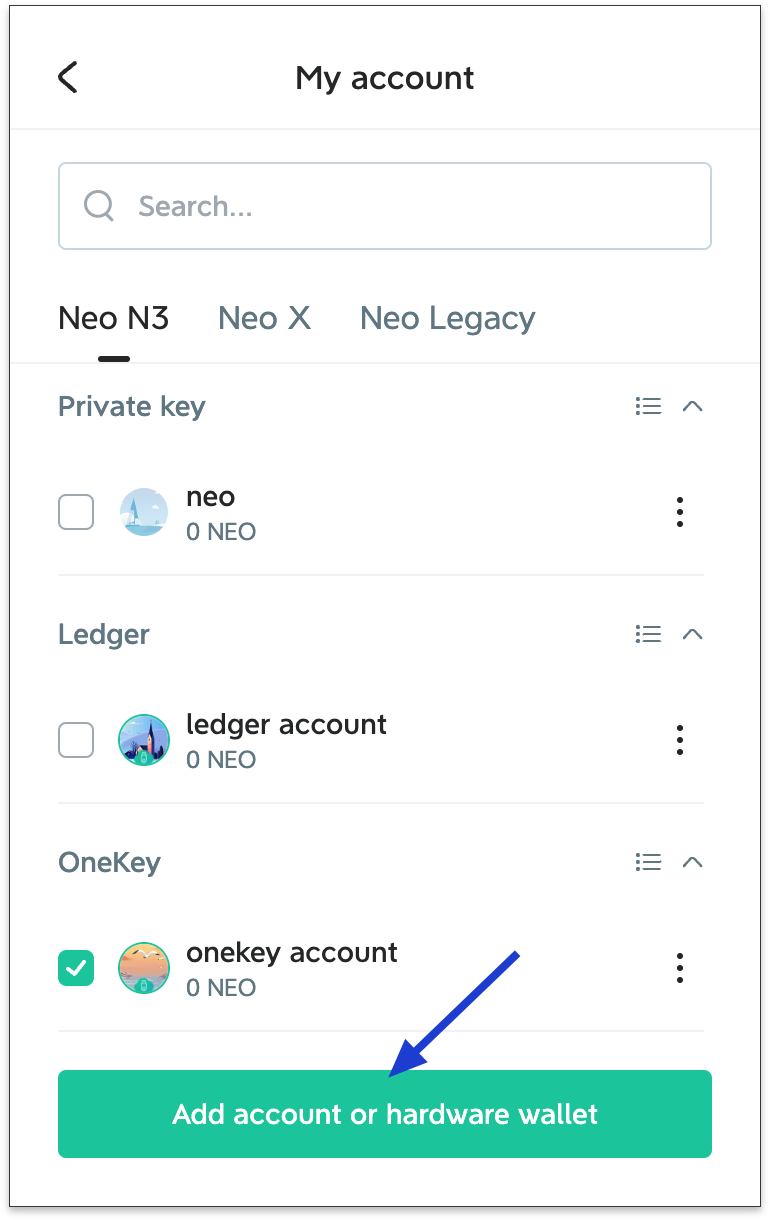
1. Open the NeoLine extension and click on your account name to enter. Select Add Hardware Wallet.

<div><figure><img src="https://1526652108-files.gitbook.io/~/files/v0/b/gitbook-x-prod.appspot.com/o/spaces%2F-MgP1pkkBF1pQzcGdKtm-2484513939%2Fuploads%2F7vamps3NGb5ZKJKfS2fW%2Fimage.png?alt=media&#x26;token=e54cc7ca-d625-47f9-be79-7593d68d2c51" alt="" width="188"><figcaption></figcaption></figure> <figure><img src="https://1526652108-files.gitbook.io/~/files/v0/b/gitbook-x-prod.appspot.com/o/spaces%2F-MgP1pkkBF1pQzcGdKtm-2484513939%2Fuploads%2FDIlpTO6Jvx4fb3s1O1KW%2Fimage.png?alt=media&#x26;token=a4dc592e-8476-453c-9a89-46784001c14e" alt="" width="188"><figcaption></figcaption></figure> <figure><img src="https://1526652108-files.gitbook.io/~/files/v0/b/gitbook-x-prod.appspot.com/o/spaces%2F-MgP1pkkBF1pQzcGdKtm-2484513939%2Fuploads%2FYBsLo162Ixz8fHzP7rQB%2Fimage.png?alt=media&#x26;token=b1c9fbb4-60cc-4249-977c-b311df1dd551" alt="" width="188"><figcaption></figcaption></figure></div>

2.Click \[Ledger], select Neo X/Neo N3/Neo Legacy based on your personal needs, then click \[Next].

<div><figure><img src="https://1526652108-files.gitbook.io/~/files/v0/b/gitbook-x-prod.appspot.com/o/spaces%2F-MgP1pkkBF1pQzcGdKtm-2484513939%2Fuploads%2FUhyllf8una7g4Cr8ajmw%2Fimage.png?alt=media&#x26;token=e4872616-1cdf-4071-89d9-36739d314345" alt="" width="375"><figcaption></figcaption></figure> <figure><img src="https://1526652108-files.gitbook.io/~/files/v0/b/gitbook-x-prod.appspot.com/o/spaces%2F-MgP1pkkBF1pQzcGdKtm-2484513939%2Fuploads%2FxOZhdWvk0ibIFhvC0svq%2Fimage.png?alt=media&#x26;token=57fd83b1-3ec9-4b0f-9351-a426369be4a1" alt="" width="375"><figcaption></figcaption></figure></div>

3\. Start to import the hardware wallet. If the Ledger device isn't be found, please unlock the device and reconnect. If you have multiple wallet addresses after importing, select the one you want to interact with.

After the import is successful, a small icon of the hardware wallet will appear on the left side of your wallet address, **as shown below:**

<figure><img src="https://1526652108-files.gitbook.io/~/files/v0/b/gitbook-x-prod.appspot.com/o/spaces%2F-MgP1pkkBF1pQzcGdKtm-2484513939%2Fuploads%2FvDODi4JUyiO4YYMrDIKT%2Fimage.png?alt=media&#x26;token=95d7b6f8-7e5c-4e8d-811b-c455873e8fcc" alt="" width="375"><figcaption></figcaption></figure>

#### How to remove the connected hardware wallet?&#x20;

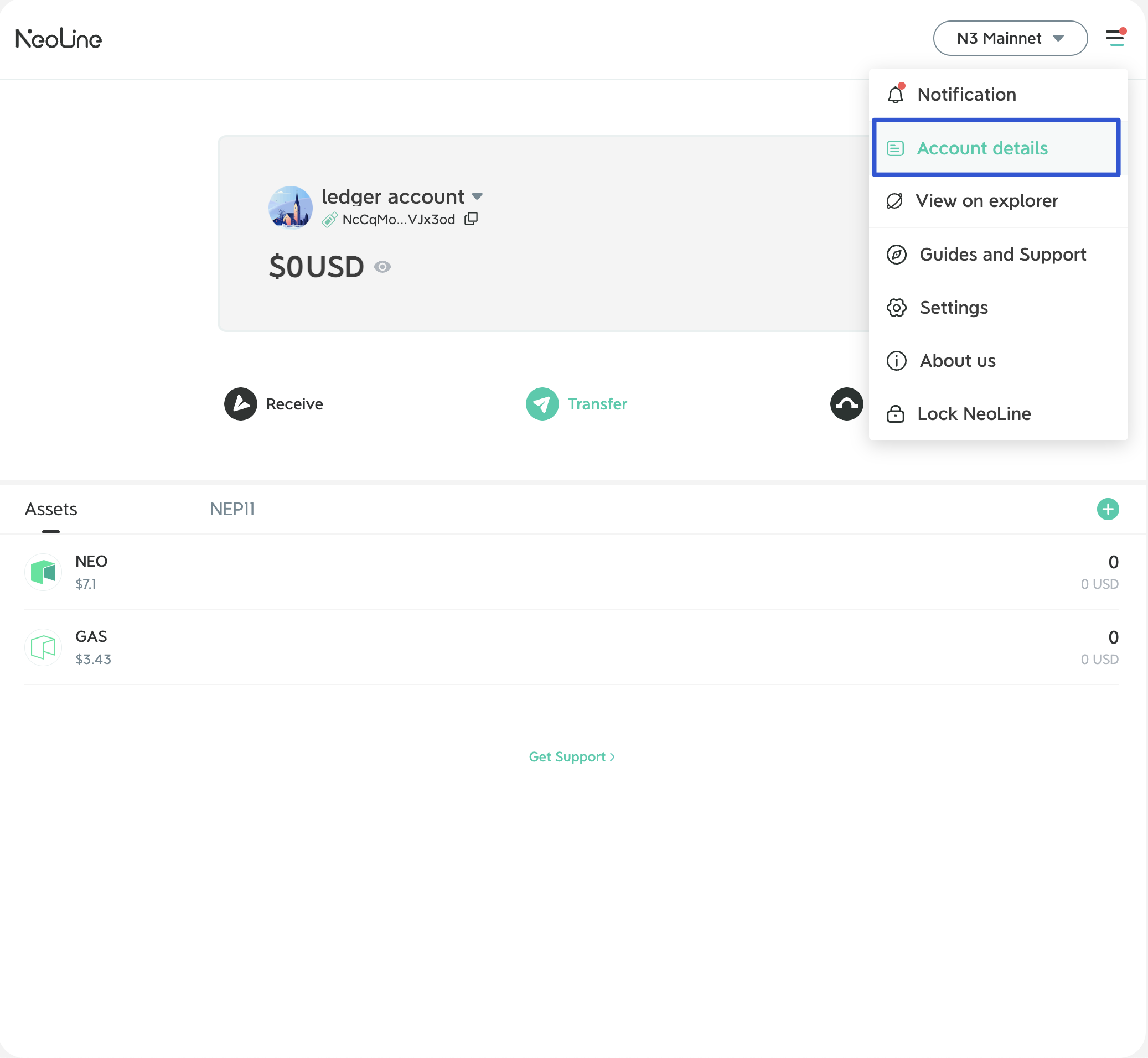
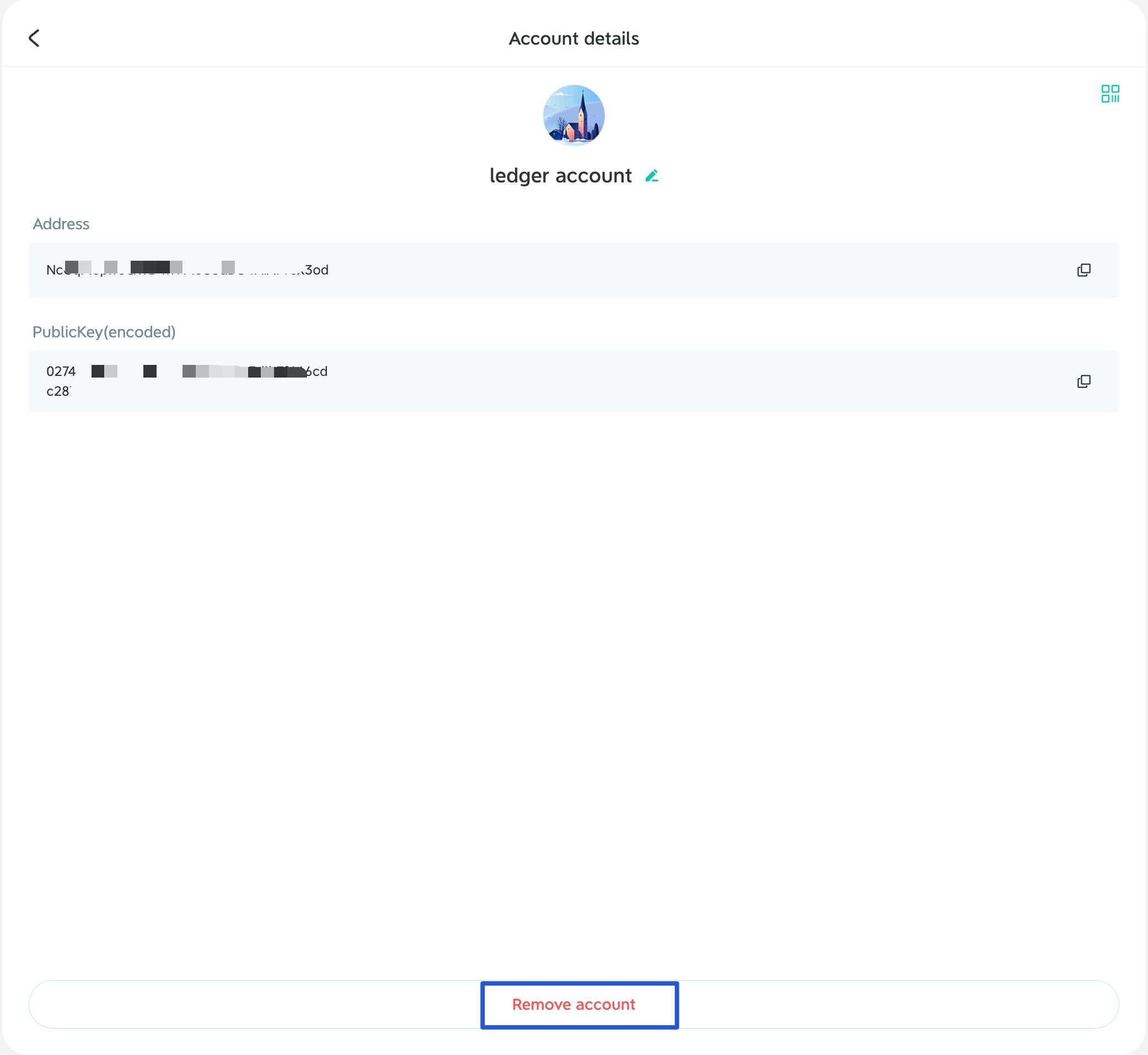
The operation is the same as deleting the address on the wallet Extension. Click \[Account details] in the main menu bar, enter the account details page, and select \[Remove account].
<div><figure><img src="https://1526652108-files.gitbook.io/~/files/v0/b/gitbook-x-prod.appspot.com/o/spaces%2F-MgP1pkkBF1pQzcGdKtm-2484513939%2Fuploads%2FPcDuGXgxJBjLNwXRYBoT%2Fimage.png?alt=media&#x26;token=4b4d5799-6453-40fc-a7ad-8b320b6a16bd" alt="" width="375"><figcaption></figcaption></figure> <figure><img src="https://1526652108-files.gitbook.io/~/files/v0/b/gitbook-x-prod.appspot.com/o/spaces%2F-MgP1pkkBF1pQzcGdKtm-2484513939%2Fuploads%2FZD4XSbDDjRq1qfDLIBgC%2Fb919289a-be26-4e40-9c87-dceeeda504cc.png?alt=media&#x26;token=46a5059c-00a9-4b75-8e52-d52f5b99bed0" alt="" width="375"><figcaption></figcaption></figure></div>