# Welcome to NeoLine

NeoLine: a secure, friendly and professional Neo wallet. To be more precise, NeoLine is not only a wallet, but also a connector between the Neo open network and Neo users, dedicated to providing a safe, convenient and perfect portal service for Neo community users.

{% content-ref url="/pages/vbUKda6qjnDdQfYkuXMA" %}
[Download NeoLine Wallet](/download-neoline-wallet/mobile)
{% endcontent-ref %}

{% content-ref url="/pages/RdtFVDRt0yiSt2PHfGMT" %}
[Create and Manage Neo X Wallet](/create-and-manage-neo-x-wallet/create-neo-x-evm-wallet)
{% endcontent-ref %}

{% content-ref url="/pages/OfsvwrvtqfzCgDKDHpy2" %}
[N3 Wallet](/n3-wallet/neo-n3-qian-bao-chuang-jian-jiao-cheng)
{% endcontent-ref %}

{% content-ref url="/pages/njMB3qgGmNkjBO3cs8qB" %}
[Hardware Wallet](/hardware-wallet/connect-your-ledger-to-neoline)
{% endcontent-ref %}

{% content-ref url="/pages/kdpJhHHdYX2GwOFux7dg" %}
[Getting Started](/getting-started/how-to-securely-and-correctly-backup-your-wallet)
{% endcontent-ref %}

{% content-ref url="/pages/uAKu3VaovMMUevnOibVB" %}
[Contact Us](/contact-us/contact-us)
{% endcontent-ref %}


# Mobile


# Download iOS Version

## **Step one: download NeoLine wallet**

Download from the App Store or the NeoLine website (neoline.io).

![](https://1526652108-files.gitbook.io/~/files/v0/b/gitbook-legacy-files/o/assets%2F-MgP1pkkBF1pQzcGdKtm%2F-Mgdr8I-49bQT00Q_TbM%2F-MgdrUmfwHvxjg6zHe_x%2F%E5%BE%AE%E4%BF%A1%E6%88%AA%E5%9B%BE_20210809154324.png?alt=media\&token=1c4b3d68-b666-4cd4-9f18-4bd101785c31)

## **Step two: create/import wallet**

### **1. create wallet**

&#x20;If you have not used Neo wallet before, click “create wallet”, enter your wallet name and password, make sure you confirm your password.

![](https://1526652108-files.gitbook.io/~/files/v0/b/gitbook-legacy-files/o/assets%2F-MgP1pkkBF1pQzcGdKtm%2F-MgdiKY4nrLprGL5TIS5%2F-Mgdjtzx4kPlqY8YMcNq%2F%E5%BE%AE%E4%BF%A1%E5%9B%BE%E7%89%87%E7%BC%96%E8%BE%91_20210809150959.jpg?alt=media\&token=b8cd60d2-0203-44f2-a134-78c9daea088b)

### **2. import wallet**

If you have used Neo wallet or NeoLine before, you can directly enter the wallet by importing it. There are three ways to import the wallet. **Private key, Encrypted key and NEP6 File.**

Usually we choose a Private key to import our wallet, reset the wallet name and password. If you forgot your Private key, it can be restored by the Json file, which is the NEP6 File, requiring your wallet password as well.&#x20;

![](https://1526652108-files.gitbook.io/~/files/v0/b/gitbook-legacy-files/o/assets%2F-MgP1pkkBF1pQzcGdKtm%2F-MgdiKY4nrLprGL5TIS5%2F-MgdkU7H2Q-LxAVOY1IC%2F%E5%BE%AE%E4%BF%A1%E5%9B%BE%E7%89%87%E7%BC%96%E8%BE%91_20210809151017.jpg?alt=media\&token=1f15b148-abd5-4e75-83eb-46b59b4f88cf)

{% hint style="info" %}
Detail: Click “import wallet” -- choose “NEP6 File” -- click “select Nep6 File” , import your saved Json file and your password, you are able to sign into your wallet. If you delete the App , Iphone will delete the file automatically.&#x20;
{% endhint %}

## **Step three: backup your private key**

After you create your wallet, it will immediately remind you to backup your private key to avoid private key loss and property damage.&#x20;

![](https://1526652108-files.gitbook.io/~/files/v0/b/gitbook-legacy-files/o/assets%2F-MgP1pkkBF1pQzcGdKtm%2F-MgdiKY4nrLprGL5TIS5%2F-MgdpaFEF1BQbYOu1ePL%2F%E5%BE%AE%E4%BF%A1%E5%9B%BE%E7%89%87_20210809152944_%E5%89%AF%E6%9C%AC.jpg?alt=media\&token=37a4839f-42f8-4278-94f7-e829bb93da54)

**There are two ways to display private keys, string and QR code, backup by your own needs.**&#x20;

**String:** follow the correct order, capital and lower-case letter, write on a paper and keep in a safe place. &#x20;

**QR code:** no saves, no screenshot, no pictures. Make sure no one or cameras are surrounding you when you are using it. Lost QR code may cause irreparable loss of assets.&#x20;

{% hint style="info" %}
Do not reveal your private keys information to others, make sure you backup in a safe environment, do not log into unknown, illegal or unsafe websites to avoid your information leakage and irreparable property damage.
{% endhint %}

## Start to use Neoline wallet&#x20;

Wallet home page: Assets, Collection, GAS, Address, Detail, Address manage, Function bar.&#x20;

![](https://1526652108-files.gitbook.io/~/files/v0/b/gitbook-legacy-files/o/assets%2F-MgP1pkkBF1pQzcGdKtm%2F-MgdiKY4nrLprGL5TIS5%2F-MgdnE6SWJ6bSzyFbvLg%2F4.jpg?alt=media\&token=2d8a5473-d811-492d-a99a-29a65adc79ed)

### **1. Address Manage:**

NeoLine wallet supports multiple address management, which means you could have lots of addresses at same time. Click the button at the top right of the wallet. You will go to the switch wallet page, you could switch your wallet here, create or import a new wallet.

![](https://1526652108-files.gitbook.io/~/files/v0/b/gitbook-legacy-files/o/assets%2F-MgP1pkkBF1pQzcGdKtm%2F-MgdiKY4nrLprGL5TIS5%2F-Mgdol06z8-zWOnD7pGH%2F%E5%BE%AE%E4%BF%A1%E5%9B%BE%E7%89%87_20210809152947_%E5%89%AF%E6%9C%AC.jpg?alt=media\&token=f6e59cb3-8fb1-4aae-9722-3188d6749316)

{% hint style="info" %}
Reminder: one password for one wallet.\
Long press and click “confirm” to delete  the wallet you don’t want to use.&#x20;
{% endhint %}

### 2.Wallet Detail:

Click the three points over the right top, you will go to the wallet detail page, you are able to edit wallet name, display private key and export wallet. &#x20;

After clicking “ export wallet” you will save a Json file under my Iphone - NeoLine-Json file path. The path might be different on different phones, check carefully by your own situation.&#x20;

![](https://1526652108-files.gitbook.io/~/files/v0/b/gitbook-legacy-files/o/assets%2F-MgP1pkkBF1pQzcGdKtm%2F-MgdiKY4nrLprGL5TIS5%2F-MgdpaFEF1BQbYOu1ePL%2F%E5%BE%AE%E4%BF%A1%E5%9B%BE%E7%89%87_20210809152944_%E5%89%AF%E6%9C%AC.jpg?alt=media\&token=37a4839f-42f8-4278-94f7-e829bb93da54)

### 3. Asset Management

Click “+” right next to the assets to add currency.

![](https://1526652108-files.gitbook.io/~/files/v0/b/gitbook-legacy-files/o/assets%2F-MgP1pkkBF1pQzcGdKtm%2F-MgdiKY4nrLprGL5TIS5%2F-MgdpkCcCgZmH78Fnkx5%2F%E5%BE%AE%E4%BF%A1%E5%9B%BE%E7%89%87%E7%BC%96%E8%BE%91_20210809153548.jpg?alt=media\&token=cfc47a43-8f49-4f8e-b9e0-a65d4b8058d8)

### 4. General Setting

Click”My” -- “General Settings”, to set up Multi-language, Currency Unit and Face ID.

![](https://1526652108-files.gitbook.io/~/files/v0/b/gitbook-legacy-files/o/assets%2F-MgP1pkkBF1pQzcGdKtm%2F-Mgdtyrx6pBwMHvEKo0Q%2F-Mgdu_CN8md2xXvgag4Y%2F%E5%BE%AE%E4%BF%A1%E5%9B%BE%E7%89%87_20210809152944_%E5%89%AF%E6%9C%AC.jpg?alt=media\&token=84bfde13-271d-4c24-99cc-0e417c6d6c65)

<br>


# Download Android Version

## **Step one: download NeoLine wallet**

Go to NeoLine official website:<https://neoline.io>, get it on Google Play or click”Get Android(APK)”.

![](https://1526652108-files.gitbook.io/~/files/v0/b/gitbook-legacy-files/o/assets%2F-MgP1pkkBF1pQzcGdKtm%2F-MgdiKY4nrLprGL5TIS5%2F-MgditLxLwySTrDCg4In%2F%E5%BE%AE%E4%BF%A1%E6%88%AA%E5%9B%BE_20210809150544.png?alt=media\&token=ab5a49b6-a00d-4dba-877f-91548e1aafa2)

## &#x20;**Step two: create/import wallet**

### **1. Create Wallet**

**If you have not used Neo wallet before, click “create wallet”, enter your wallet name and password, make sure you confirm your password.**

![](https://1526652108-files.gitbook.io/~/files/v0/b/gitbook-legacy-files/o/assets%2F-MgP1pkkBF1pQzcGdKtm%2F-MgdiKY4nrLprGL5TIS5%2F-Mgdjtzx4kPlqY8YMcNq%2F%E5%BE%AE%E4%BF%A1%E5%9B%BE%E7%89%87%E7%BC%96%E8%BE%91_20210809150959.jpg?alt=media\&token=b8cd60d2-0203-44f2-a134-78c9daea088b)

### **2. Import Wallet**

If you have used Neo wallet or NeoLine before, you can directly enter the wallet by importing it. There are three ways to import the wallet. **Private key, Encrypted key and NEP6 File.**

Usually we choose a Private key to import our wallet, reset the wallet name and password. If you forgot your Private key, it can be restored by the Json file, which is the NEP6 File, requiring your wallet password as well.&#x20;

![](https://1526652108-files.gitbook.io/~/files/v0/b/gitbook-legacy-files/o/assets%2F-MgP1pkkBF1pQzcGdKtm%2F-MgdiKY4nrLprGL5TIS5%2F-MgdkU7H2Q-LxAVOY1IC%2F%E5%BE%AE%E4%BF%A1%E5%9B%BE%E7%89%87%E7%BC%96%E8%BE%91_20210809151017.jpg?alt=media\&token=1f15b148-abd5-4e75-83eb-46b59b4f88cf)

{% hint style="info" %}
Detail: Open your wallet, click “import wallet” -- choose “NEP6 File” -- click “select Nep6 File” , import your saved Json file and your password, you are able to sign into your wallet. If you delete the App , Android cell phones won’t delete the file automatically.&#x20;
{% endhint %}

## **Step three: Backup your private key**

After you create your wallet, it will immediately remind you to backup your private key to avoid private key loss and property damage.&#x20;

![](https://1526652108-files.gitbook.io/~/files/v0/b/gitbook-legacy-files/o/assets%2F-MgP1pkkBF1pQzcGdKtm%2F-MgdiKY4nrLprGL5TIS5%2F-MgdlGJJlE0NS3Cg9CPy%2F%E5%BE%AE%E4%BF%A1%E5%9B%BE%E7%89%87_20210809151516_%E5%89%AF%E6%9C%AC.jpg?alt=media\&token=c52d501d-f95f-47e5-bba6-20d4a89b896e)

**There are two ways to display private keys, string and QR code, backup by your own needs.**&#x20;

**String:** follow the correct order, capital and lower-case letter, write on a paper and keep in a safe place. &#x20;

**QR code:** no saves, no screenshot, no pictures. Make sure no one or cameras are surrounding you when you are using it. Lost QR code may cause irreparable loss of assets. <br>

{% hint style="info" %}
Do not reveal your private keys information to others, make sure you backup in a safe environment, do not log into unknown, illegal or unsafe websites to avoid your information leakage and irreparable property damage.
{% endhint %}

## **Start to use Neoline wallet**&#x20;

Wallet home page: assets list, NFT, GAS, address, detail, address manage, function bar.&#x20;

![](https://1526652108-files.gitbook.io/~/files/v0/b/gitbook-legacy-files/o/assets%2F-MgP1pkkBF1pQzcGdKtm%2F-MgdiKY4nrLprGL5TIS5%2F-MgdnE6SWJ6bSzyFbvLg%2F4.jpg?alt=media\&token=2d8a5473-d811-492d-a99a-29a65adc79ed)

### **1. Address Manage:**

Neoline wallet supports multiple address management, which means you could have lots of addresses at same time. Click the button at the top right of the wallet. You will go to the switch wallet page, you could switch your wallet here, create or import a new wallet.

![](https://1526652108-files.gitbook.io/~/files/v0/b/gitbook-legacy-files/o/assets%2F-MgP1pkkBF1pQzcGdKtm%2F-MgdiKY4nrLprGL5TIS5%2F-Mgdol06z8-zWOnD7pGH%2F%E5%BE%AE%E4%BF%A1%E5%9B%BE%E7%89%87_20210809152947_%E5%89%AF%E6%9C%AC.jpg?alt=media\&token=f6e59cb3-8fb1-4aae-9722-3188d6749316)

{% hint style="info" %}
Reminder: one password for one wallet.&#x20;

Long press and click “confirm” to delete  the wallet you don’t want to use.&#x20;
{% endhint %}

### **2.Wallet Detail:**

Click the three points over the right top, you will go to the wallet detail page, you are able to edit wallet name, display private key and export wallet. &#x20;

After clicking “ export wallet” you will save a Json file under the phone - NeoLine-Json file path. The path might be different on different phones, check carefully by your own situation.&#x20;

![](https://1526652108-files.gitbook.io/~/files/v0/b/gitbook-legacy-files/o/assets%2F-MgP1pkkBF1pQzcGdKtm%2F-MgdiKY4nrLprGL5TIS5%2F-MgdpaFEF1BQbYOu1ePL%2F%E5%BE%AE%E4%BF%A1%E5%9B%BE%E7%89%87_20210809152944_%E5%89%AF%E6%9C%AC.jpg?alt=media\&token=37a4839f-42f8-4278-94f7-e829bb93da54)

### **3. Asset Management**

Click “+” right next to the assets to add currency.

![](https://1526652108-files.gitbook.io/~/files/v0/b/gitbook-legacy-files/o/assets%2F-MgP1pkkBF1pQzcGdKtm%2F-MgdiKY4nrLprGL5TIS5%2F-MgdpkCcCgZmH78Fnkx5%2F%E5%BE%AE%E4%BF%A1%E5%9B%BE%E7%89%87%E7%BC%96%E8%BE%91_20210809153548.jpg?alt=media\&token=cfc47a43-8f49-4f8e-b9e0-a65d4b8058d8)

### **4. General Setting**

Click”My” -- “General Settings”, to set up Multi-language, Currency Unit and Fingerprint settings.

![](https://1526652108-files.gitbook.io/~/files/v0/b/gitbook-legacy-files/o/assets%2F-MgP1pkkBF1pQzcGdKtm%2F-MgdiKY4nrLprGL5TIS5%2F-Mgdq5ctDO-XvVWQfoxN%2F%E5%BE%AE%E4%BF%A1%E5%9B%BE%E7%89%87_20210809152944_%E5%89%AF%E6%9C%AC.jpg?alt=media\&token=d074af3a-e7b1-4e35-8819-cc8f3d9edc90)

<br>


# Google Chrome Extension


# Download Google Chrome Extension

## Step One: Add NeoLine Plugin to Chrome

Open Google Chrome. Search for ***NeoLine*** in [Chrome Web Store](https://chrome.google.com/webstore/category/extensions) or go to [NeoLine Official Website](https://neoline.io/en/) to get the NeoLine Chrome Extension, and add it to Chrome.

![](https://1526652108-files.gitbook.io/~/files/v0/b/gitbook-legacy-files/o/assets%2F-MgP1pkkBF1pQzcGdKtm%2F-Mgct2FEigGyKSBd2Ldx%2F-MgctWMey5r1_hWgiqY9%2F%E5%BE%AE%E4%BF%A1%E6%88%AA%E5%9B%BE_20210805180205%20\(1\).png?alt=media\&token=8ec07368-ba34-45b9-b0f5-c4247ec1519a)

![](https://1526652108-files.gitbook.io/~/files/v0/b/gitbook-legacy-files/o/assets%2F-MgP1pkkBF1pQzcGdKtm%2F-Mgct2FEigGyKSBd2Ldx%2F-Mgct_TOTNl036M6dCA4%2Fimage%20\(1\).png?alt=media\&token=d0eccbc6-3169-4cf9-873c-90055c280961)

![](https://1526652108-files.gitbook.io/~/files/v0/b/gitbook-legacy-files/o/assets%2F-MgP1pkkBF1pQzcGdKtm%2F-MgPtDKt2Q6gIAip5fad%2F-MgPtcQGKsckKLUFkoxi%2Fphoto_2021-08-05_18-25-23.jpg?alt=media\&token=8213f17b-8a5e-4fb8-b578-e8aacf3501b6)

## Step Two: Create/Import Neo Wallet

### **1. Create wallet**

The steps to create a new wallet are the same as before: set wallet name, enter password, confirm password and backup the private key.

![](https://1526652108-files.gitbook.io/~/files/v0/b/gitbook-legacy-files/o/assets%2F-MgP1pkkBF1pQzcGdKtm%2F-MgdgTZxOqv_NaTE8ZJs%2F-MgdhiAD7kMrV_vHpk8G%2F%E5%BE%AE%E4%BF%A1%E6%88%AA%E5%9B%BE_20210809150044.png?alt=media\&token=46cfbe31-ca27-4763-9b47-ab84b5eb81a6)

### **2. Import wallet**

There are two methods to import the wallet: Private Key Import and File Import. You can choose the one you'd like. **Note** that the old password is required for File Import. &#x20;

![](https://1526652108-files.gitbook.io/~/files/v0/b/gitbook-legacy-files/o/assets%2F-MgP1pkkBF1pQzcGdKtm%2F-Mgdys-a1cuWAmyUDBex%2F-MgdzYd6EQDkqrVedMCB%2F%E5%BE%AE%E4%BF%A1%E6%88%AA%E5%9B%BE_20210809161840.png?alt=media\&token=4e148d0f-d8ab-4f04-a335-b49ffd21bd11)

## Step Three: Back up the Private Key

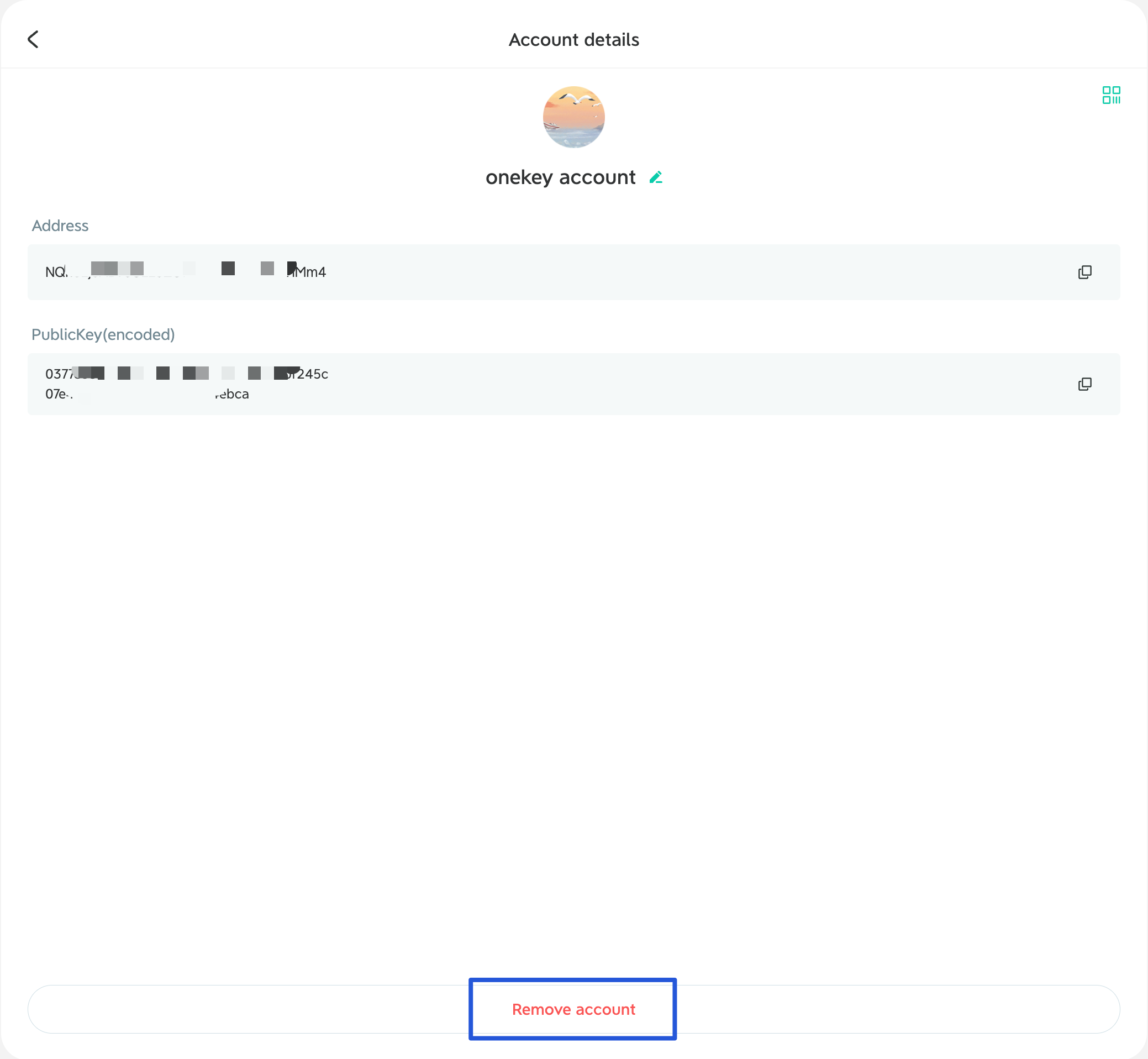
Click the three-line button below the homepage avatar and enter ***Account details.*** Input your wallet password, then you can view and backup your private key for wallet security. &#x20;

![](https://1526652108-files.gitbook.io/~/files/v0/b/gitbook-legacy-files/o/assets%2F-MgP1pkkBF1pQzcGdKtm%2F-MghzqZOmsvCEbt5HGLe%2F-Mgi-8ioDmnevCUdqBIV%2Fimage.png?alt=media\&token=64b24555-b199-4a33-b7cd-7e174e9633c7)

{% hint style="info" %}
**Note:** Please copy the **private key** on a piece of paper in a clear and case-sensitive manner and keep it in a safe place.
{% endhint %}

Here you can also find ***View on NeoTube,*** where you can click and go to NeoTube Block Explorer to check the transaction process details.

***Remove account*** means deleting this wallet, please handle it with caution!

![](https://1526652108-files.gitbook.io/~/files/v0/b/gitbook-legacy-files/o/assets%2F-MgP1pkkBF1pQzcGdKtm%2F-Mgdys-a1cuWAmyUDBex%2F-MgdzsOpd1GmXS1mqCkR%2F%E5%BE%AE%E4%BF%A1%E6%88%AA%E5%9B%BE_20210809162007.png?alt=media\&token=0aac6208-4759-4778-ad62-aaa1bd92bea4)

## Step Four: Tranfer & Receive

Once you've done the above steps, you have your own Neo wallet. Then you'll see the button for ***Receive***, ***Transfer*** and ***Add asset*** on the homepage.

![](https://1526652108-files.gitbook.io/~/files/v0/b/gitbook-legacy-files/o/assets%2F-MgP1pkkBF1pQzcGdKtm%2F-Mgdys-a1cuWAmyUDBex%2F-Mge-5deUkuBhDFnZA5u%2F%E5%BE%AE%E4%BF%A1%E6%88%AA%E5%9B%BE_20210809162105.png?alt=media\&token=5f8c93d0-2b85-43b2-b534-3b2c10a3bd0e)

* Click ***Receive*** and you will go to the receive page. The payment can be completed by copying your wallet address or scanning the code.
* Click ***Transfer*** and you will go to the transfer page. You need to input all tranfer required information and click ***Yes*** to complete the transfer.

![](https://1526652108-files.gitbook.io/~/files/v0/b/gitbook-legacy-files/o/assets%2F-MgP1pkkBF1pQzcGdKtm%2F-Mgdys-a1cuWAmyUDBex%2F-Mge-O1xfji9hES7V_Zt%2F%E5%BE%AE%E4%BF%A1%E6%88%AA%E5%9B%BE_20210809162214.png?alt=media\&token=10d39563-59aa-4811-a81c-8fc45fdef047)

* You can click ***+*** on the homepage to add assets. Except for NEO and GAS, other assets with zero balance will not appear in the asset list and need to be added manually.

{% hint style="info" %}
**Note:** Any transaction made in the NeoLine plugin wallet can be viewed in the ***Transaction*** bar on the homepage.
{% endhint %}

## Step Five: Other Features

* You can click on the avatar and create multiple wallets or import your other wallets to realize multi-address management.
* You can also click ***General Settings*** to switch languages and currency unit.

![](https://1526652108-files.gitbook.io/~/files/v0/b/gitbook-legacy-files/o/assets%2F-MgP1pkkBF1pQzcGdKtm%2F-Mgdys-a1cuWAmyUDBex%2F-Mge-YBzBPqh4N1bpE1_%2F%E5%BE%AE%E4%BF%A1%E6%88%AA%E5%9B%BE_20210809162259.png?alt=media\&token=cc029427-11db-40ef-94e1-f608bb7fcab0)


# Create Neo X (EVM) Wallet

{% hint style="info" %}
This tutorial is divided into sections for first-time users downloading the NeoLine Chrome Extension and for those who already have the NeoLine Chrome Extension. You can refer to the appropriate section based on your situation.
{% endhint %}

Visit the [NeoLine website](https://neoline.io/en/) to install the chrome extension wallet. If you encounter any issues during the installation, you can [click here to view the tutorial](/download-neoline-wallet/google-chrome-extension). **Once the installation is complete:**

### For First-Time Users of the NeoLine Chrome Extension:&#x20;

* Open the NeoLine Chrome Extension.&#x20;
* Click \[Create a new wallet] and select \[Neo X (EVM Network)].&#x20;
* Enter wallet name, set a password and click \[Create] after all required information is set.

<figure><img src="https://1526652108-files.gitbook.io/~/files/v0/b/gitbook-x-prod.appspot.com/o/spaces%2F-MgP1pkkBF1pQzcGdKtm-2484513939%2Fuploads%2Fqjmjpd7jnn1ic6zwKQKJ%2F1.jpg?alt=media&amp;token=f7b4f96f-2262-4e65-833d-d6f4bb00bd43" alt=""><figcaption></figcaption></figure>

* Backup Your Wallet: Backup is the most important step in the wallet creation process and the final step to successfully creating your wallet. Click the \[Now] button to securely and correctly backup your wallet.&#x20;
* Backup Verification: On the "Secret Recovery Phrase Verification" page, enter each word in the correct order and then click the \[Confirm].

<figure><img src="https://1526652108-files.gitbook.io/~/files/v0/b/gitbook-x-prod.appspot.com/o/spaces%2F-MgP1pkkBF1pQzcGdKtm-2484513939%2Fuploads%2FbOc1gRCI9tkg6g85vkOY%2F2.jpg?alt=media&amp;token=0ddc6f48-d19b-45d9-af88-4efc65da3ebf" alt=""><figcaption></figcaption></figure>

Now, your Neo X wallet has been successfully created!

### Already have the NeoLine Chrome Extension

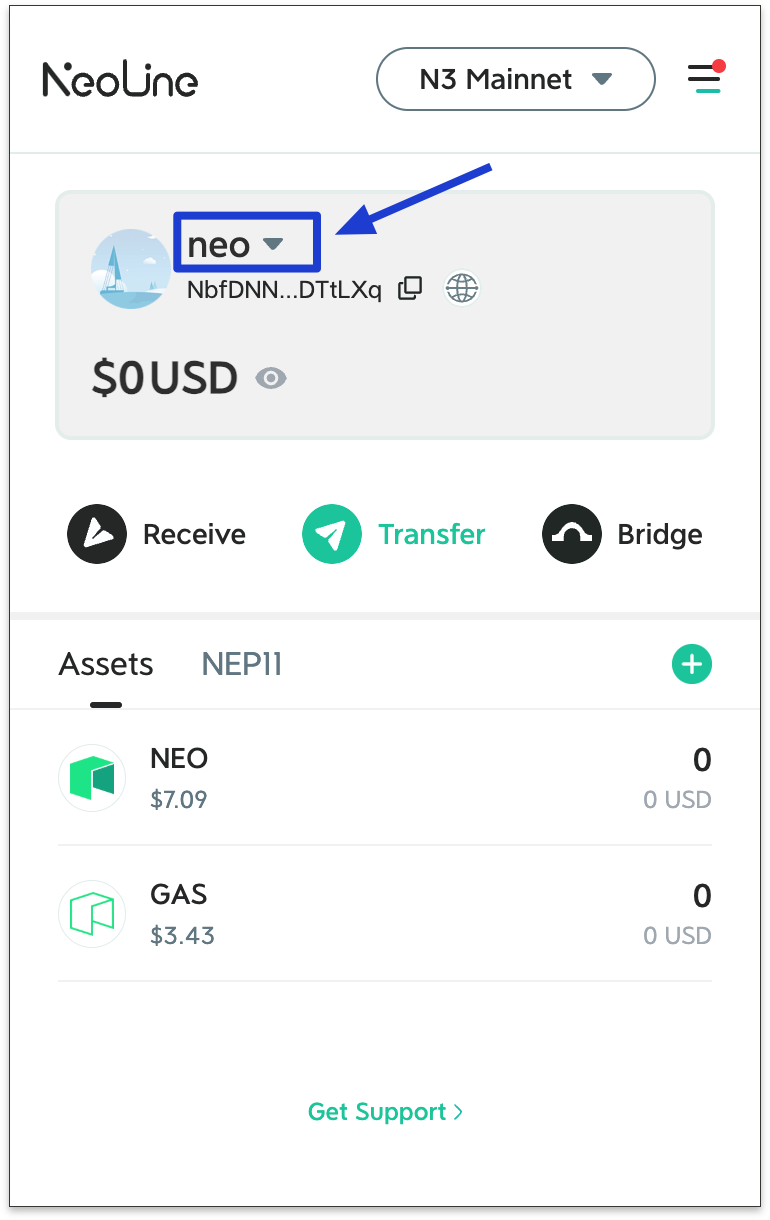
**Open the NeoLine Chrome Extension and click on your avatar in the upper right corner to go to \[My account].**

<figure><img src="https://1526652108-files.gitbook.io/~/files/v0/b/gitbook-x-prod.appspot.com/o/spaces%2F-MgP1pkkBF1pQzcGdKtm-2484513939%2Fuploads%2FxW3fp6cYNU6SZkmJDpn5%2F3.png?alt=media&amp;token=3334e157-46aa-49d8-9179-55a675d535d0" alt=""><figcaption></figcaption></figure>

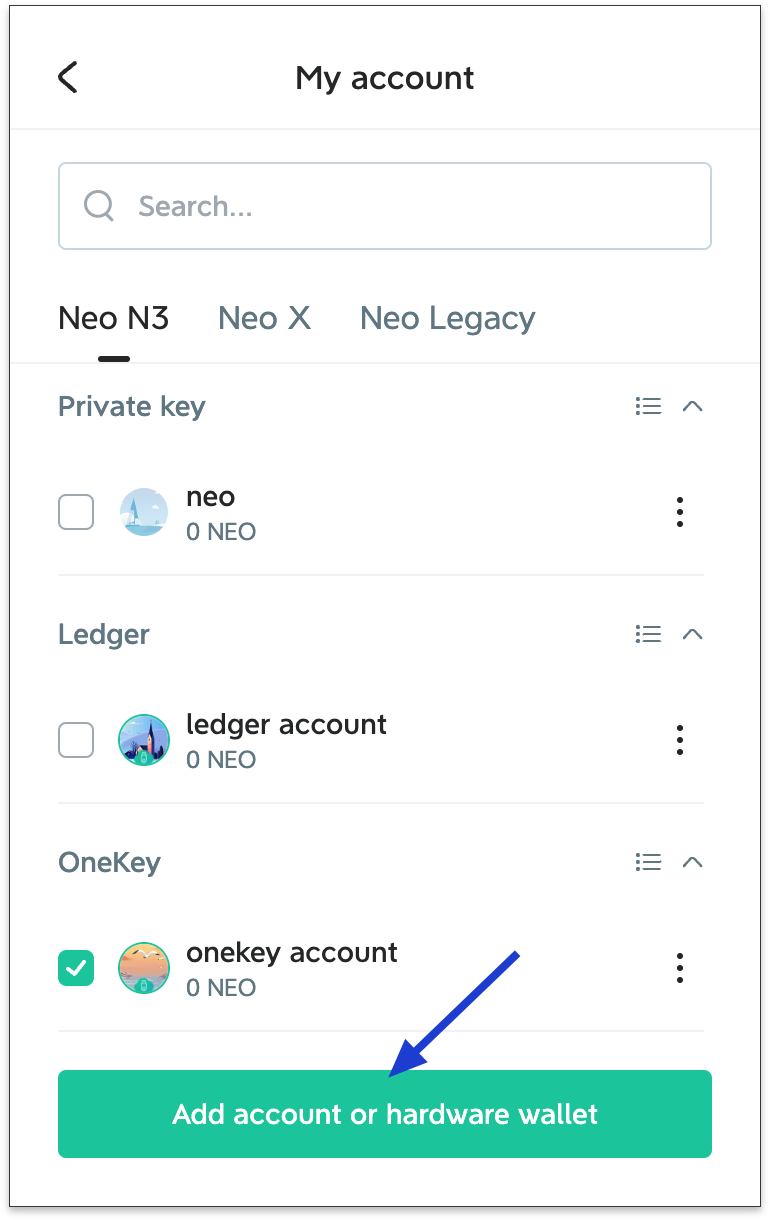
* Click \[Add account or hardware wallet].&#x20;
* Go to \[Create wallet].&#x20;
* Select \[Neo X (EVM Network)].&#x20;

<figure><img src="https://1526652108-files.gitbook.io/~/files/v0/b/gitbook-x-prod.appspot.com/o/spaces%2F-MgP1pkkBF1pQzcGdKtm-2484513939%2Fuploads%2FaUhV7n5pVA5svo4MOcOT%2F4.jpg?alt=media&amp;token=a5ed82a5-cc53-44e8-9cc1-93c13edb3991" alt=""><figcaption></figcaption></figure>

* Set the wallet name-----Click \[Create] .

<figure><img src="https://1526652108-files.gitbook.io/~/files/v0/b/gitbook-x-prod.appspot.com/o/spaces%2F-MgP1pkkBF1pQzcGdKtm-2484513939%2Fuploads%2FgexmyJx9FxomT22BF8d8%2F%E5%BE%AE%E4%BF%A1%E6%88%AA%E5%9B%BE_20240802105435.png?alt=media&amp;token=4f1aa19d-7bda-4f38-be06-d13390f28d53" alt=""><figcaption></figcaption></figure>

* Backup Your Wallet: Click the \[Now] button to securely and correctly backup your wallet.&#x20;
* Backup Verification: On the "Secret Recovery Phrase Verification" page, enter each word in the correct order and then click the \[Confirm] button.

<figure><img src="https://1526652108-files.gitbook.io/~/files/v0/b/gitbook-x-prod.appspot.com/o/spaces%2F-MgP1pkkBF1pQzcGdKtm-2484513939%2Fuploads%2FbOc1gRCI9tkg6g85vkOY%2F2.jpg?alt=media&amp;token=0ddc6f48-d19b-45d9-af88-4efc65da3ebf" alt=""><figcaption></figcaption></figure>

**After completing the backup verification of the mnemonic, the Neo X wallet will be created successfully.**


# Import Neo X (EVM) wallet

{% hint style="info" %}
If you have another EVM wallet and don't want to create a new one, you can import it using your private key or secret recovery phrase. When importing, avoid copying this information to your clipboard to prevent information leakage. It's recommended to write down these details on paper and enter them manually.
{% endhint %}

### If You Already Have the NeoLine Extension Wallet

Open the NeoLine Extension Wallet and click on your avatar in the upper right corner to access \[My account].&#x20;

* Click \[Add account or hardware wallet] .&#x20;
* Select \[Import Wallet].
* Choose "Neo X (EVM Network).

<figure><img src="https://1526652108-files.gitbook.io/~/files/v0/b/gitbook-x-prod.appspot.com/o/spaces%2F-MgP1pkkBF1pQzcGdKtm-2484513939%2Fuploads%2FFwbya3htJQ6lDRf7aNqQ%2F5.jpg?alt=media&amp;token=9e77f7e8-a53f-436a-b8d4-b3bf9de09a12" alt=""><figcaption></figcaption></figure>

* Select the import method: Private key or Secret recovery phrase.&#x20;
* Set the wallet name and complete the import process.&#x20;

<figure><img src="https://1526652108-files.gitbook.io/~/files/v0/b/gitbook-x-prod.appspot.com/o/spaces%2F-MgP1pkkBF1pQzcGdKtm-2484513939%2Fuploads%2FXIwjG2zkVmzKJ5DDNXJ8%2F6.jpg?alt=media&amp;token=93aa2345-8f7b-4ee1-9f6c-26bf520df46f" alt=""><figcaption></figcaption></figure>

NeoLine defaults to displaying the Neo X network. If you need to switch to another EVM network, navigate to the wallet homepage, switch to the \[Networks] page, and add other EVM networks. For further details, please refer to the tutorial.&#x20;

### If This Is Your First Time Using the NeoLine Extension Wallet First

complete the installation of the NeoLine Chrome Extension. If you encounter any issues during the installation, [please refer to the tutorial.](/download-neoline-wallet/google-chrome-extension)&#x20;

**After the installation is complete:**

* Open the NeoLine Extension Wallet and click \[Import Wallet].
* Select Neo X (EVM Network).&#x20;
* Choose the import method: Private key/Secret recovery phrase. Set the wallet name and password.&#x20;
* Click \[Import].&#x20;

<figure><img src="https://1526652108-files.gitbook.io/~/files/v0/b/gitbook-x-prod.appspot.com/o/spaces%2F-MgP1pkkBF1pQzcGdKtm-2484513939%2Fuploads%2FWrqKE4CaNN72nP50Y2Hw%2F7.jpg?alt=media&amp;token=6f1b1c72-99ea-4c82-aa25-9c78ccbb7b51" alt=""><figcaption></figcaption></figure>

Upon completion of these steps, your Neo X wallet will be successfully created.


# How to Bridge GAS Using the NeoLine Chrome Extension?

The NeoLine Chrome Extension has integrated the Neo Native BRIDGE, supporting GAS \[Deposit] and \[Withdraw] between Neo N3 and Neo X within the wallet.

**The specific steps are as follows:**

### 1. Switch to the correct network

Open the NeoLine chrome extension and select the source network you want to bridge.&#x20;

For example, if you want to bridge GAS from Neo N3 to Neo X, you must first switch the wallet's current network to Neo N3 before proceeding with the bridging process.

<figure><img src="https://1526652108-files.gitbook.io/~/files/v0/b/gitbook-x-prod.appspot.com/o/spaces%2F-MgP1pkkBF1pQzcGdKtm-2484513939%2Fuploads%2FHJkdrm2XEfvixffMu51M%2F1.jpg?alt=media&amp;token=4c47db1e-a4dd-4e87-8bd2-234c840367ab" alt=""><figcaption></figcaption></figure>

### 2. Enter the Bridge Amount

* After switching networks, go to the wallet home page and click \[Bridge];&#x20;
* Enter the amount you want to bridge;&#x20;
* If your source chain is Neo N3, the destination chain will default to Neo X.

{% hint style="info" %}
**Footnote:**

1. Please note that for the initial phase of the Neo X main net launch, only the GAS bilaterally bridging service will be available. There will be a cap of 100,000 GAS bridged from N3 to X for the first weeks to ensure the bridge service operates properly and smoothly. This measure is in place to mitigate risks and ensure a seamless user experience. As the bridge service proves its stability, the provider will gradually lift the GAS amount cap and expand the service to include NEO tokens and other assets.<br>
2. The bridge contract charges 0.1 GAs, and the platform does not charge any other fees.
   {% endhint %}

### 3. Select Target Chain Address

* Click on \[Select address] next to the target chain.
* Choose the target chain address you want to bridge to.

You can enter the target chain address manually, select an existing account, or choose from the address book.

### 4. Confirm Information

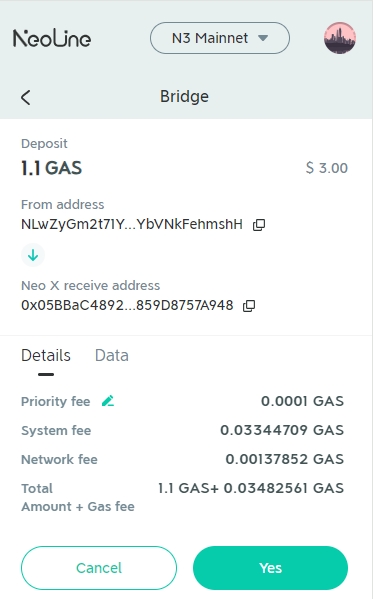
* After clicking \[Deposit], carefully verify the amount, source chain address, and target chain address.&#x20;
* Once confirmed, click \[Yes].&#x20;

<figure><img src="https://1526652108-files.gitbook.io/~/files/v0/b/gitbook-x-prod.appspot.com/o/spaces%2F-MgP1pkkBF1pQzcGdKtm-2484513939%2Fuploads%2FY5D487Lon93HWkDMPM6W%2F%E5%BE%AE%E4%BF%A1%E6%88%AA%E5%9B%BE_20240805115736.png?alt=media&amp;token=ea7e08da-fa1a-4b15-a0c4-f322484ca9e4" alt=""><figcaption></figcaption></figure>

### 5. View Transaction

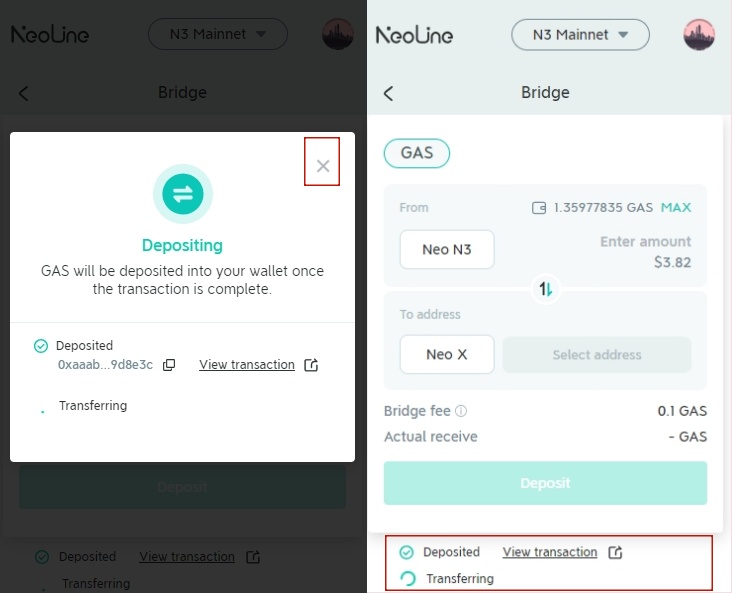
* After clicking \[Yes], you will enter the transaction processing page. You can stay on this page to view the progress or close it and check the status in the "Bridge" section.
* The transaction record on the Bridge page only shows the last completed or ongoing transaction. Clicking on the spinning icon will display the details of the current transaction.

<figure><img src="https://1526652108-files.gitbook.io/~/files/v0/b/gitbook-x-prod.appspot.com/o/spaces%2F-MgP1pkkBF1pQzcGdKtm-2484513939%2Fuploads%2FTKFKDeCx0RJQcO5YtVYc%2F3.jpg?alt=media&amp;token=9fb2dd54-ee68-4434-bb25-2e8001165fcb" alt=""><figcaption></figcaption></figure>

To view more transaction records, go to the Assets page, click on the asset to view or copy the address, and then visit the explorer.


# How to add and switch networks?

{% hint style="info" %}
NeoLine Chrome Extension now supports Neo X (EVM Network) and allows users to add any EVM network of their choice. \
\
**Customization can be done as follows:**
{% endhint %}

### Add Custom Networks

1. Click the network name at the top of the wallet homepage to enter the \[Networks] page.
2. Click \[Add network] at the bottom.
3. Select Neo N3 or Neo X (EVM Network).

<figure><img src="https://1526652108-files.gitbook.io/~/files/v0/b/gitbook-x-prod.appspot.com/o/spaces%2F-MgP1pkkBF1pQzcGdKtm-2484513939%2Fuploads%2FGIC7uZNvfpxiA29kYwaF%2F4.jpg?alt=media&amp;token=91bd8140-0d2f-41fe-a4d2-893a3073e212" alt=""><figcaption></figcaption></figure>

4. On the \[Add network(EVM)] page, enter the required information such as the Network Name, RPC URL and chain ID, then click \[Save].

<figure><img src="https://1526652108-files.gitbook.io/~/files/v0/b/gitbook-x-prod.appspot.com/o/spaces%2F-MgP1pkkBF1pQzcGdKtm-2484513939%2Fuploads%2FHO8yTkWeyGo2cEqpGry3%2F%E5%BE%AE%E4%BF%A1%E6%88%AA%E5%9B%BE_20240802175637.png?alt=media&amp;token=1b06f29b-cc2d-422c-bef2-6f39665adfae" alt=""><figcaption></figcaption></figure>

{% hint style="info" %}
**Note:** \
1\. When adding a custom network, please make sure the information that you entered are sourced from credible authorities or trusted third-party providers.

2.Custom-added EVM networks will be displayed under Neo X (EVM Network).
{% endhint %}

### Switch Networks

Go to the wallet homepage and click the network name at the top to access the \[Networks] page, then select the network you wish to switch to.


# About NeoLine Activity

NeoLine Activity is designed to help users gain a better understanding of **EVM network transactions** conducted through the NeoLine Chrome Extension.

With Activity, you can view comprehensive transaction details, including transaction time, associated addresses, token information, and the type of transaction executed.

<figure><img src="https://1526652108-files.gitbook.io/~/files/v0/b/gitbook-x-prod.appspot.com/o/spaces%2F-MgP1pkkBF1pQzcGdKtm-2484513939%2Fuploads%2FewoUELy5o6W4XFpNQ4Je%2F%E6%9C%AA%E5%91%BD%E5%90%8D.jpg?alt=media&amp;token=1d101f0e-132f-4485-928a-ae9320757292" alt=""><figcaption></figcaption></figure>

**Please note: The NeoLine Chrome Extension does not sync transaction data across devices to ensure the safety of your data. This means that Activity only displays transactions performed through NeoLine for the address.**

For more detailed transaction history, please visit the blockchain explorer. If you have any questions or suggestions for improving NeoLine, feel free to contact us through the following channels—we look forward to your feedback!

· Email: <support@neoline.io>&#x20;

· Telegram: <https://t.me/neoline\\_community>


# Neo N3 Wallet User Guide


# Neo N3 Wallet | Mobile

{% hint style="info" %}
**Note:**&#x20;

This guide is provided for those who already have NeoLine mobile wallet. If you haven't installed NeoLine mobile wallet, it is highly recommended to view the following guides, install and create one first. &#x20;

Before creating a Neo N3 wallet, please upgrade your wallet to the latest version: Android v2.16.3，iOS v2.9.6.
{% endhint %}

{% content-ref url="/pages/-MgUs2ozPYoEg1gFjP-4" %}
[Download iOS Version](/download-neoline-wallet/mobile/download-ios-version)
{% endcontent-ref %}

{% content-ref url="/pages/-MgUs2XVL6vffrw1zUrX" %}
[Download Android Version](/download-neoline-wallet/mobile/download-android-version)
{% endcontent-ref %}

## Step One: Create Neo N3 Wallet

Open your NeoLine mobile wallet, click on the three-line button at the upper right corner, select ***Neo N3*** and click ***Create wallet*** at the bottom.

![](https://1526652108-files.gitbook.io/~/files/v0/b/gitbook-legacy-files/o/assets%2F-MgP1pkkBF1pQzcGdKtm%2F-MhSAgbo5rHwyuXF2I1x%2F-MhSGIlK6Rbd-WtXhyaz%2F%E5%BE%AE%E4%BF%A1%E5%9B%BE%E7%89%87_20210819144826_%E5%89%AF%E6%9C%AC.png?alt=media\&token=a9452ea7-0f8b-4aa5-9bc0-8a64e82041ed)

Set the wallet name, enter the wallet password (no less than 8 characters) and click ***Create*** after all required information is set.

![](https://1526652108-files.gitbook.io/~/files/v0/b/gitbook-legacy-files/o/assets%2F-MgP1pkkBF1pQzcGdKtm%2F-MgdiKY4nrLprGL5TIS5%2F-Mgdjtzx4kPlqY8YMcNq%2F%E5%BE%AE%E4%BF%A1%E5%9B%BE%E7%89%87%E7%BC%96%E8%BE%91_20210809150959.jpg?alt=media\&token=b8cd60d2-0203-44f2-a134-78c9daea088b)

## Step Two: Back up the Private Key

Once a wallet is created, it will remind you to back up the private key the first time, in case the asset cannot be retrieved due to the lost private key.

![](https://1526652108-files.gitbook.io/~/files/v0/b/gitbook-legacy-files/o/assets%2F-MgP1pkkBF1pQzcGdKtm%2F-MgdiKY4nrLprGL5TIS5%2F-MgdlGJJlE0NS3Cg9CPy%2F%E5%BE%AE%E4%BF%A1%E5%9B%BE%E7%89%87_20210809151516_%E5%89%AF%E6%9C%AC.jpg?alt=media\&token=c52d501d-f95f-47e5-bba6-20d4a89b896e)

There are two ways to display the private key: String and QR code. You can backup the one you need.

* **String**: Please copy it carefully on a piece of paper in a clear manner, distinguish between upper and lower case and keep it in a safe place.
* **QR Code**: Saving, taking screenshots or taking pictures on this page are prohibited. It's only for users to directly scan and import the wallet in a secure environment. Please be sure that no one is around when using the camera. Once the QR code is obtained by others, it will cause irretrievable loss of assets. &#x20;

{% hint style="info" %}
**Note:** Please keep the private key properly and do not disclose it to others. Once the private key is lost, it cannot be retrieved. Also, make sure you are in a safety environment and do not connect to any unknown network or view any unknown, illegal or insecure URL link, in order to prevent the theft of wallet information and irretrievable loss of assets.
{% endhint %}

After completing the final step of private key backup, your Neo N3 wallet is successfully created.

{% hint style="info" %}
**Note:** Neo N3 wallet address and Neo Legacy wallet address are completely different:&#x20;

Neo N3 wallet address begins with letter ***N***, while Neo Legacy wallet address begins with letter ***A***.
{% endhint %}

For user's convenience, we made a distinction in the color system on NeoLine mobile, where Neo N3 is black and grey.

As Neo N3 wallet has been created, you can now migrate your assets following the **migration guide** below:

{% content-ref url="/pages/-MgUrlNGqjPaAU-TbPo1" %}
[Neo N3 Migration Guide | Mobile](/n3-wallet/neo-n3-qian-yi-zhi-nan/untitled-1)
{% endcontent-ref %}


# Neo N3 Wallet | NeoLine Chrome Extension

{% hint style="info" %}
**Note:** This guide is provided for those who already have NeoLine Chrome plugin wallet. If you haven't installed NeoLine Chrome plugin wallet, it is highly recommended to view the following guides, install and create a Neo Legacy wallet first. &#x20;
{% endhint %}

{% content-ref url="/pages/-MgPAAc4SibWj\_bHfBiV" %}
[Download Google Chrome Extension](/download-neoline-wallet/google-chrome-extension/neoline-chrome-cha-jian)
{% endcontent-ref %}

## Step One: Create Neo N3 Wallet

Open your NeoLine Chrome plugin wallet, click on the avatar, select ***Neo N3*** and click ***Create wallet***.

![](https://1526652108-files.gitbook.io/~/files/v0/b/gitbook-legacy-files/o/assets%2F-MgP1pkkBF1pQzcGdKtm%2F-MgdyCOKFP5GSx58iSZN%2F-Mgdyi8m6qHoBtW9ScEf%2F%E5%BE%AE%E4%BF%A1%E6%88%AA%E5%9B%BE_20210809161426.png?alt=media\&token=91aa2574-b841-4cd6-9c9b-894b61324534)

After clicking ***Create wallet***, select ***Neo N3*** on the pop-up ***Select a Chain*** page.

![](https://1526652108-files.gitbook.io/~/files/v0/b/gitbook-legacy-files/o/assets%2F-MgP1pkkBF1pQzcGdKtm%2F-MgdyCOKFP5GSx58iSZN%2F-MgdymUDfM1HDKI3E7VM%2F%E5%BE%AE%E4%BF%A1%E6%88%AA%E5%9B%BE_20210809161443.png?alt=media\&token=8b34459e-e147-4866-9560-1122e5595504)

Set the wallet name, enter the wallet password and click ***Create*** after all required information is set.

![](https://1526652108-files.gitbook.io/~/files/v0/b/gitbook-legacy-files/o/assets%2F-MgP1pkkBF1pQzcGdKtm%2F-MgdyCOKFP5GSx58iSZN%2F-MgdyqGUp9QoOQpqZNPX%2F%E5%BE%AE%E4%BF%A1%E6%88%AA%E5%9B%BE_20210809161455.png?alt=media\&token=24e51c61-ce35-4c27-a8a6-3cec77a56484)

## Step Two: Back up the Private Key

Once a wallet is created, the first and extremely important thing for you to do is to back up your private key. Please be 100% sure to back up the private key as soon as it is created rather than later.

![](https://1526652108-files.gitbook.io/~/files/v0/b/gitbook-legacy-files/o/assets%2F-MgP1pkkBF1pQzcGdKtm%2F-MgdurnvxQYa3nPqQMvZ%2F-MgdvX-EfILBg8o77skT%2F%E5%BE%AE%E4%BF%A1%E6%88%AA%E5%9B%BE_20210809160057.png?alt=media\&token=16e0dafa-981a-41db-801f-ad0cb5b437f2)

Please copy the private key on a piece of paper in a clear and case-sensitive manner and keep it in a safe place.

After the private key backup is completed, your Neo N3 wallet can be considered successfully created.

{% hint style="info" %}
**Note:** N3 wallet address and Neo Legacy wallet address are completely different:&#x20;

N3 wallet address begins with letter ***N***, while Neo Legacy wallet address begins with letter ***A***.
{% endhint %}

**Now, your Neo N3 wallet is successfully created!**

{% hint style="info" %}
**Note:** NeoLine wallet supports multi-address management, which means you can create multiple N3 wallets on NeoLine wallet.
{% endhint %}

As Neo N3 wallet has been created, you can now migrate your assets following the **migration guide** below:

{% content-ref url="/pages/-MgUrko6CRRKJurIna95" %}
[Neo N3 Migration Guide | NeoLine Chrome Extension](/n3-wallet/neo-n3-qian-yi-zhi-nan/untitled)
{% endcontent-ref %}


# Neo N3 Migration Guide


# Neo N3 Migration Guide | Mobile

## I. Pre-Migration

### 1. Upgrade NeoLine to the latest version

Before migrating Neo N3 assets, be sure to upgrade your NeoLine mobile to the latest version.

### 2. Create Neo N3 Wallet

{% hint style="info" %}
**Before migration, create a new Neo N3 wallet based on the latest version of the wallet，and back up your private keys securely and correctly. The guide is as follow:**
{% endhint %}

{% content-ref url="/pages/-MgPAD1Jvm6hjq3lgGFB" %}
[Neo N3 Wallet | Mobile](/n3-wallet/neo-n3-qian-bao-chuang-jian-jiao-cheng/yi-dong-duan-neo-n3-qian-bao)
{% endcontent-ref %}

## II、Asset Migration

### Step One: Find **Migration** Dapp

{% hint style="info" %}
**Note:** Please make sure your wallet is on Neo Legacy before migration.
{% endhint %}

Open your NeoLine mobile wallet, click ***Discover*** at the bottom and find **Migration** Dapp in the ***Tools*** bar.

![](https://1526652108-files.gitbook.io/~/files/v0/b/gitbook-legacy-files/o/assets%2F-MgP1pkkBF1pQzcGdKtm%2F-MhOvOODQsCo622ThtFR%2F-MhOwhi9sITpI28ikpW5%2F%E5%BE%AE%E4%BF%A1%E5%9B%BE%E7%89%87_20210818231044_%E5%89%AF%E6%9C%AC.png?alt=media\&token=69c1d42c-bd24-47d6-bbf6-cabb395952a4)

{% hint style="info" %}
**Make sure you have the latest version of your wallet, and recreate a new Neo N3 wallet before you migrate your assets!**
{% endhint %}

### Step Two: Select Migration Asset

On the Migration page, select the asset and the amount you'd like to migrate.

![](https://gblobscdn.gitbook.com/assets%2F-MgP1pkkBF1pQzcGdKtm%2F-MhOvOODQsCo622ThtFR%2F-MhOyCtM8wqCLAZP-BhP%2F%E5%BE%AE%E4%BF%A1%E5%9B%BE%E7%89%87_20210818235222_%E5%89%AF%E6%9C%AC.png?alt=media\&token=6aa5681d-83f8-47eb-a59f-3081a3524680)

### Step Three: Select N3 Wallet

After confirming the assets to be migrated and the quantity, click on Select Address under Addresses (as shown below) or click on the "Address Book" button and select the N3 wallet you want to migrate to from the list of N3 wallets that pops up.

{% hint style="info" %}
**The Neo N3 wallet address here has to be recreated as a new one, please be 100% sure to back up its private key as soon as it is recreated!**
{% endhint %}

![](https://1526652108-files.gitbook.io/~/files/v0/b/gitbook-legacy-files/o/assets%2F-MgP1pkkBF1pQzcGdKtm%2F-MkBkayYBfsSH-LNZMxK%2F-MkBnKQc8C1LLKJujKU2%2F%E5%BE%AE%E4%BF%A1%E5%9B%BE%E7%89%87_20210922171639.jpg?alt=media\&token=10a4bd2e-91a6-4294-8437-5ca5c07fe609)

### Step Four: Check Asset Migration Information

{% hint style="info" %}
**Note:** 1 GAS is required as a migration fee when you migrate less than 10 NEO or less than 20 GAS.
{% endhint %}

Check the asset to be migrated, the amount, ***the target address,*** and little reminders carefully. Click ***Migrate*** after confirmation and click ***Confirm*** after double-checking the migration information.

![](https://1526652108-files.gitbook.io/~/files/v0/b/gitbook-legacy-files/o/assets%2F-MgP1pkkBF1pQzcGdKtm%2F-MhOvOODQsCo622ThtFR%2F-MhOzvzNi96emmcXU7r1%2F%E5%BE%AE%E4%BF%A1%E5%9B%BE%E7%89%87_20210818235733_%E5%89%AF%E6%9C%AC.png?alt=media\&token=e9e67be4-8ce4-41a2-9c40-082b046b487e)

### Step Five：Confirm Asset Migration

Click ***Confirm*** and wait for the migration to complete, or go to NeoTube, the blockchain browser, to check the progress of the migration.

**NeoTube official website: neo3.neotube.io**

{% hint style="info" %}
Migrating assets will take 3 days to complete, please be patient!
{% endhint %}

![](https://1526652108-files.gitbook.io/~/files/v0/b/gitbook-legacy-files/o/assets%2F-MgP1pkkBF1pQzcGdKtm%2F-MgdYl6NoqSIH6DwqZ7v%2F-MgddPzpj56NT2N5mW-H%2F%E5%BE%AE%E4%BF%A1%E6%88%AA%E5%9B%BE_20210809144155.png?alt=media\&token=1c5ad95a-8d44-4e7f-b2f2-2b4db2b492d8)

{% hint style="info" %}
If you are migrating GAS and you are prompted that your balance is insufficient, or the migration is unsuccessful, please go to <https://utxo-manager.o3.app/> to merge UTXO first.
{% endhint %}

<figure><img src="https://1526652108-files.gitbook.io/~/files/v0/b/gitbook-x-prod.appspot.com/o/spaces%2F-MgP1pkkBF1pQzcGdKtm-2484513939%2Fuploads%2FsgXnMbSwOYgxQVVJgQyj%2Fphoto_2023-11-09_15-17-21.jpg?alt=media&amp;token=1df1fa75-cbd2-43e2-893d-c09e4f1043e4" alt=""><figcaption></figcaption></figure>


# Neo N3 Migration Guide | NeoLine Chrome Extension

## I. Pre-Migration

### **1. Install NeoLine Chrome Extension**

Open Google Chrome. Search for ***NeoLine*** in [Chrome Web Store](https://chrome.google.com/webstore/category/extensions) or go to [NeoLine Official Website](https://neoline.io/en/) to get the NeoLine Chrome Extension, and add it to Chrome.

![](https://1526652108-files.gitbook.io/~/files/v0/b/gitbook-legacy-files/o/assets%2F-MgP1pkkBF1pQzcGdKtm%2F-Mgct2FEigGyKSBd2Ldx%2F-MgctWMey5r1_hWgiqY9%2F%E5%BE%AE%E4%BF%A1%E6%88%AA%E5%9B%BE_20210805180205%20\(1\).png?alt=media\&token=8ec07368-ba34-45b9-b0f5-c4247ec1519a)

![](https://1526652108-files.gitbook.io/~/files/v0/b/gitbook-legacy-files/o/assets%2F-MgP1pkkBF1pQzcGdKtm%2F-Mgct2FEigGyKSBd2Ldx%2F-Mgct_TOTNl036M6dCA4%2Fimage%20\(1\).png?alt=media\&token=d0eccbc6-3169-4cf9-873c-90055c280961)

![](https://1526652108-files.gitbook.io/~/files/v0/b/gitbook-legacy-files/o/assets%2F-MgP1pkkBF1pQzcGdKtm%2F-Mgct2FEigGyKSBd2Ldx%2F-MgcteXqFaKHsQrR2Tbh%2Fphoto_2021-08-05_18-28-35.jpg?alt=media\&token=317714c7-58ad-4eae-8071-22fa55e9bbab)

{% hint style="info" %}
If this is your first time using NeoLine plugin wallet, be sure to back up your private key as soon as you install it.

**If you already have NeoLine plugin wallet, please update it to the latest version.**
{% endhint %}

### **2. Create/Import Neo N3 Wallet**

{% hint style="info" %}
**Before migrating, please create a new Neo N3 wallet on the latest version of the plugin wallet.** The guide is as follow:
{% endhint %}

{% content-ref url="/pages/-MgPACbysg7tw7A9MhW9" %}
[Neo N3 Wallet | NeoLine Chrome Extension](/n3-wallet/neo-n3-qian-bao-chuang-jian-jiao-cheng/neoline-chrome-cha-jian-qian-bao)
{% endcontent-ref %}

## II、Asset Migration

### Step One: Connect NeoLine Chrome Extension

Open Migration To N3 and click ***Connect NeoLine*** or ***CONNECT WALLET***.

![](https://1526652108-files.gitbook.io/~/files/v0/b/gitbook-legacy-files/o/assets%2F-MgP1pkkBF1pQzcGdKtm%2F-MgeAZzjZPEK6n4oEJZS%2F-MgeAjWyVMGEbHuNRiw8%2F%E5%BE%AE%E4%BF%A1%E6%88%AA%E5%9B%BE_20210809171148.png?alt=media\&token=40fbf0b9-33d2-4009-9a7f-c8d865033bcd)

{% hint style="info" %}
**Note:** Before the migration, please be sure that your NeoLine wallet is on **Neo Legacy (N2).** If you are on Neo N3, please click on the avatar and switch to Neo Legacy. Be aware the switch is not successful until ***✔*** appears in front of the wallet picture.
{% endhint %}

![](https://1526652108-files.gitbook.io/~/files/v0/b/gitbook-legacy-files/o/assets%2F-MgP1pkkBF1pQzcGdKtm%2F-Mgct2FEigGyKSBd2Ldx%2F-Mgcv37hSPXuO7eLUSBk%2Fimage%20\(4\).png?alt=media\&token=0f579518-56db-4ac5-afc0-165b064270ff)

### Step Two: Select Migration Asset

After successfully connect the wallet, the page is as follow：

![](https://1526652108-files.gitbook.io/~/files/v0/b/gitbook-legacy-files/o/assets%2F-MgP1pkkBF1pQzcGdKtm%2F-MgeN8-fSVsGiJh-eSbb%2F-MgeNiJltvjqFILGtTcL%2F11111.png?alt=media\&token=be82f74a-5b96-42ab-8012-6251389aa50e)

* Select the asset and amount you intend to migrate at ***Assets*** and ***Amount***.
* Click ***Select an N3 address***. Then click on the target address you want to migrate to until ***✔*** appears in front of it as following:

![](https://1526652108-files.gitbook.io/~/files/v0/b/gitbook-legacy-files/o/assets%2F-MgP1pkkBF1pQzcGdKtm%2F-MgeN8-fSVsGiJh-eSbb%2F-MgeNumB3ed0jcjidBVm%2F2222.png?alt=media\&token=23317ff0-360c-4eb1-ab34-384f9b759141)

### Step Three: Check Migration Information

Check the asset and the amount to be migrated, and the target N3 address. Click ***Next*** after confirmation.

![](https://1526652108-files.gitbook.io/~/files/v0/b/gitbook-legacy-files/o/assets%2F-MgP1pkkBF1pQzcGdKtm%2F-MgeN8-fSVsGiJh-eSbb%2F-MgeO8BjUFEGHmhy7R5y%2F3333.png?alt=media\&token=d4ad26dd-53cc-4237-9930-0a0f93ae1976)

{% hint style="info" %}
**Note:** 1 GAS is required as migration fee when you migrate less than 10 NEO or less than 20 GAS.
{% endhint %}

![](https://1526652108-files.gitbook.io/~/files/v0/b/gitbook-legacy-files/o/assets%2F-MgP1pkkBF1pQzcGdKtm%2F-Mgct2FEigGyKSBd2Ldx%2F-MgcvYBYaJNsPlU-RZXj%2Fimage%20\(8\).png?alt=media\&token=64a539fd-a0fe-4c1d-8261-c1ba35f1035b)

![](https://1526652108-files.gitbook.io/~/files/v0/b/gitbook-legacy-files/o/assets%2F-MgP1pkkBF1pQzcGdKtm%2F-MgeN8-fSVsGiJh-eSbb%2F-MgeOLMpCdO_ILRCFKgW%2F%E5%BE%AE%E4%BF%A1%E6%88%AA%E5%9B%BE_20210809181111.png?alt=media\&token=52fe73a3-5347-4f36-b58d-e71b77771459)

If any information needs to be modified, click ***Back***.

### Step Four：Confirm Asset Migration

Click ***Yes*** on the pop-up NeoLine page and wait for the migration to be completed.

![](https://1526652108-files.gitbook.io/~/files/v0/b/gitbook-legacy-files/o/assets%2F-MgP1pkkBF1pQzcGdKtm%2F-MgeN8-fSVsGiJh-eSbb%2F-MgeOWuKypH1i5iznaJV%2F%E5%BE%AE%E4%BF%A1%E6%88%AA%E5%9B%BE_20210809181209.png?alt=media\&token=ea733f38-cbbb-4da1-be05-6232011593ad)

{% hint style="info" %}
Please make sure there are certain amount of **GAS** in your wallet in the process of asset migration.

**Before migrating, always make sure your wallet is up to date, that the N3 wallet was recreated on the latest version, and that the private key has been securely backed up.**
{% endhint %}

![](https://1526652108-files.gitbook.io/~/files/v0/b/gitbook-legacy-files/o/assets%2F-MgP1pkkBF1pQzcGdKtm%2F-MgeN8-fSVsGiJh-eSbb%2F-MgeOkFCYlxKXxx-8bvr%2F%E5%BE%AE%E4%BF%A1%E6%88%AA%E5%9B%BE_20210809181257.png?alt=media\&token=6d7183c0-91f8-4618-805b-ea67c3c86992)

Click ***View*** ***Details*** to check the migration progress.

![](https://1526652108-files.gitbook.io/~/files/v0/b/gitbook-legacy-files/o/assets%2F-MgP1pkkBF1pQzcGdKtm%2F-MgeN8-fSVsGiJh-eSbb%2F-MgeP9fl2f24GpnyEjIn%2F%E5%BE%AE%E4%BF%A1%E6%88%AA%E5%9B%BE_20210809181455.png?alt=media\&token=d150e3aa-0b7d-4c3b-a385-5fe0264c9168)

After the migration completed, click ***Confirm***. Then you can go to the NeoLine plugin wallet, switch to Neo N3 and check the migrated assets.

![](https://1526652108-files.gitbook.io/~/files/v0/b/gitbook-legacy-files/o/assets%2F-MgP1pkkBF1pQzcGdKtm%2F-Mgct2FEigGyKSBd2Ldx%2F-Mgcw8QBERQDlHGzf0HC%2Fimage%20\(13\).png?alt=media\&token=46838db7-e4ed-4ca1-8af9-2c84fdde93ac)

Or you can also go to the blockchain explorer [NeoTube](https://neo3.neotube.io/) for checking.&#x20;

**NeoTube Website: neo3.neotube.io**

{% hint style="info" %}
Migrating assets will take 3 days to complete, please be patient!
{% endhint %}

![](https://1526652108-files.gitbook.io/~/files/v0/b/gitbook-legacy-files/o/assets%2F-MgP1pkkBF1pQzcGdKtm%2F-MgdYl6NoqSIH6DwqZ7v%2F-MgddPzpj56NT2N5mW-H%2F%E5%BE%AE%E4%BF%A1%E6%88%AA%E5%9B%BE_20210809144155.png?alt=media\&token=1c5ad95a-8d44-4e7f-b2f2-2b4db2b492d8)

{% hint style="info" %}
&#x20;**Note:**&#x20;

If the NEO migration amount meets the Token Migration Incentive Program, the status of rewards will turn to **Done** while sending. You can check the detailed transaction information by clicking the ***Done*** button.

If you are migrating GAS and you are prompted that your balance is insufficient, or the migration is unsuccessful, please go to <https://utxo-manager.o3.app/> to merge UTXO first.
{% endhint %}

<figure><img src="https://1526652108-files.gitbook.io/~/files/v0/b/gitbook-x-prod.appspot.com/o/spaces%2F-MgP1pkkBF1pQzcGdKtm-2484513939%2Fuploads%2FsgXnMbSwOYgxQVVJgQyj%2Fphoto_2023-11-09_15-17-21.jpg?alt=media&amp;token=1df1fa75-cbd2-43e2-893d-c09e4f1043e4" alt=""><figcaption></figcaption></figure>

## Click below for the Chinese Migration Guide:

#### &#x20;[【NeoLine 插件钱包】Neo N3 迁移教程](https://migration-docs.neoline.io/neo-n3-qian-yi-zhi-nan/neoline-cha-jian-qian-bao-neo-n3-qian-yi-jiao-cheng)


# Connect your Ledger to NeoLine

![](https://1526652108-files.gitbook.io/~/files/v0/b/gitbook-x-prod.appspot.com/o/spaces%2F-MgP1pkkBF1pQzcGdKtm-2484513939%2Fuploads%2FuSI3UDF6PLbjMpSpnI8t%2F%E5%BE%AE%E4%BF%A1%E5%9B%BE%E7%89%87_20220616180206.png?alt=media\&token=daae9756-7f02-4b02-9a32-fafec624da26)

The extension version 3.5.0 of NeoLine officially supports Ledger hardware wallet. Through the latest NeoLine extension version.

**it allows you:**&#x20;

* Check your account balance&#x20;
* Sign transactions&#x20;
* Sign messages

#### How to connect to your Ledger Hardware Wallet?&#x20;

**Before you begin, make sure that:**&#x20;

* [x] the most up-to-date extension of NeoLine
* [x] up-to-date Google browser&#x20;
* [x] Update Ledger Live to the latest version by using [this link](https://www.ledger.com/ledger-live/download).
* [x] Connect your Ledger device to Ledger Live and check that it has the latest OS (firmware) version. [Learn more](https://support.ledger.com/article/8458939792669-zd?redirect=false).&#x20;
* [x] up-to-date Neo/Neo N3 App on the Ledger
* [x] other apps connected to Ledger closed, such as Ledger Live, it may cause conflicts with NeoLine.
* [x] the device plugged in via USB NOT bluetooth
* [x] the Ledger Hardware Wallet unlocked

#### Now you can start to connect:&#x20;

1. Open the NeoLine extension and click on your account name to enter. Select Add Hardware Wallet.

<div><figure><img src="https://1526652108-files.gitbook.io/~/files/v0/b/gitbook-x-prod.appspot.com/o/spaces%2F-MgP1pkkBF1pQzcGdKtm-2484513939%2Fuploads%2F7vamps3NGb5ZKJKfS2fW%2Fimage.png?alt=media&amp;token=e54cc7ca-d625-47f9-be79-7593d68d2c51" alt="" width="188"><figcaption></figcaption></figure> <figure><img src="https://1526652108-files.gitbook.io/~/files/v0/b/gitbook-x-prod.appspot.com/o/spaces%2F-MgP1pkkBF1pQzcGdKtm-2484513939%2Fuploads%2FDIlpTO6Jvx4fb3s1O1KW%2Fimage.png?alt=media&amp;token=a4dc592e-8476-453c-9a89-46784001c14e" alt="" width="188"><figcaption></figcaption></figure> <figure><img src="https://1526652108-files.gitbook.io/~/files/v0/b/gitbook-x-prod.appspot.com/o/spaces%2F-MgP1pkkBF1pQzcGdKtm-2484513939%2Fuploads%2FYBsLo162Ixz8fHzP7rQB%2Fimage.png?alt=media&amp;token=b1c9fbb4-60cc-4249-977c-b311df1dd551" alt="" width="188"><figcaption></figcaption></figure></div>

2.Click \[Ledger], select Neo X/Neo N3/Neo Legacy based on your personal needs, then click \[Next].

<div><figure><img src="https://1526652108-files.gitbook.io/~/files/v0/b/gitbook-x-prod.appspot.com/o/spaces%2F-MgP1pkkBF1pQzcGdKtm-2484513939%2Fuploads%2FUhyllf8una7g4Cr8ajmw%2Fimage.png?alt=media&amp;token=e4872616-1cdf-4071-89d9-36739d314345" alt="" width="375"><figcaption></figcaption></figure> <figure><img src="https://1526652108-files.gitbook.io/~/files/v0/b/gitbook-x-prod.appspot.com/o/spaces%2F-MgP1pkkBF1pQzcGdKtm-2484513939%2Fuploads%2FxOZhdWvk0ibIFhvC0svq%2Fimage.png?alt=media&amp;token=57fd83b1-3ec9-4b0f-9351-a426369be4a1" alt="" width="375"><figcaption></figcaption></figure></div>

3\. Start to import the hardware wallet. If the Ledger device isn't be found, please unlock the device and reconnect. If you have multiple wallet addresses after importing, select the one you want to interact with.

After the import is successful, a small icon of the hardware wallet will appear on the left side of your wallet address, **as shown below:**

<figure><img src="https://1526652108-files.gitbook.io/~/files/v0/b/gitbook-x-prod.appspot.com/o/spaces%2F-MgP1pkkBF1pQzcGdKtm-2484513939%2Fuploads%2FvDODi4JUyiO4YYMrDIKT%2Fimage.png?alt=media&amp;token=95d7b6f8-7e5c-4e8d-811b-c455873e8fcc" alt="" width="375"><figcaption></figcaption></figure>

#### How to remove the connected hardware wallet?&#x20;

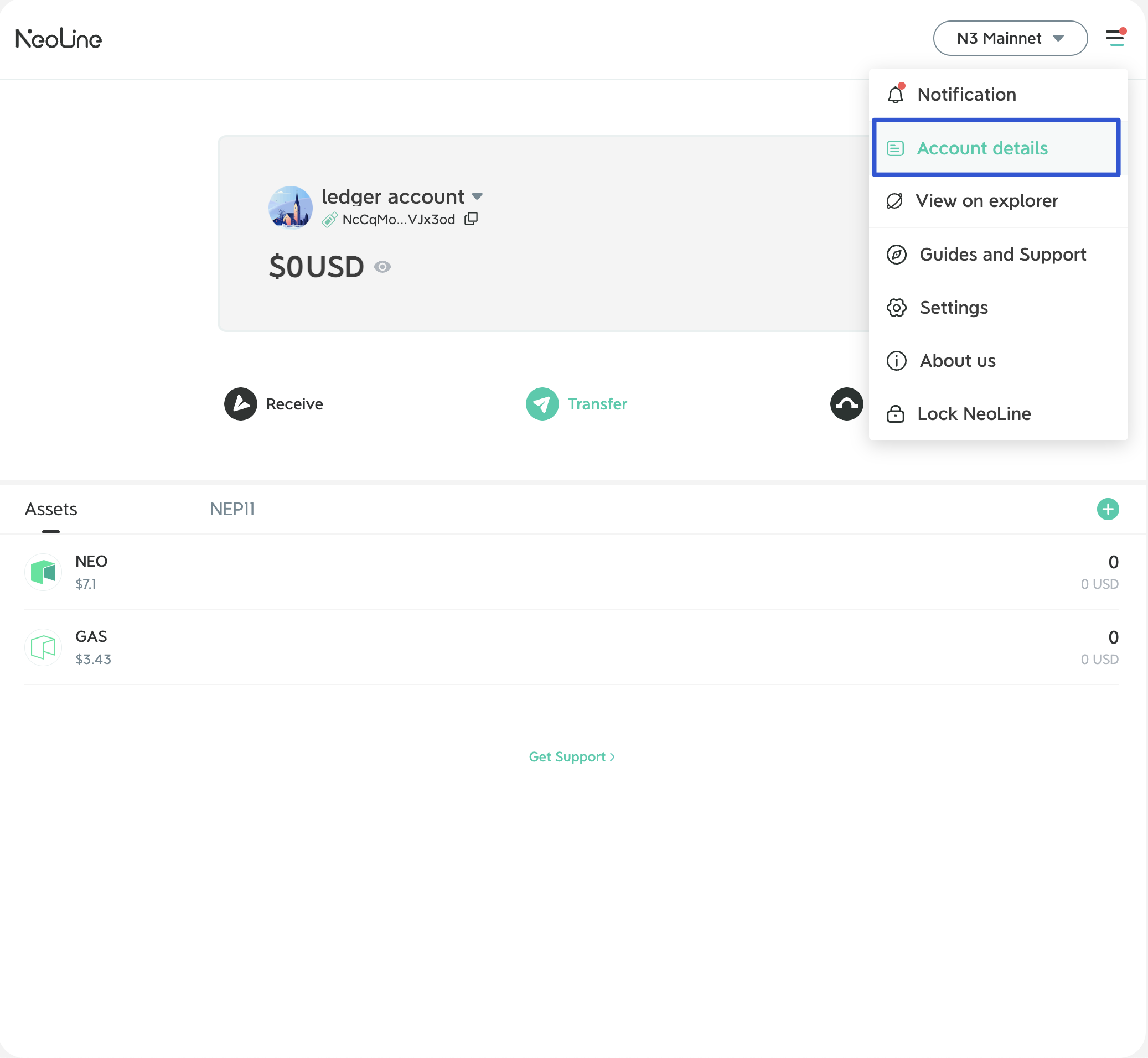
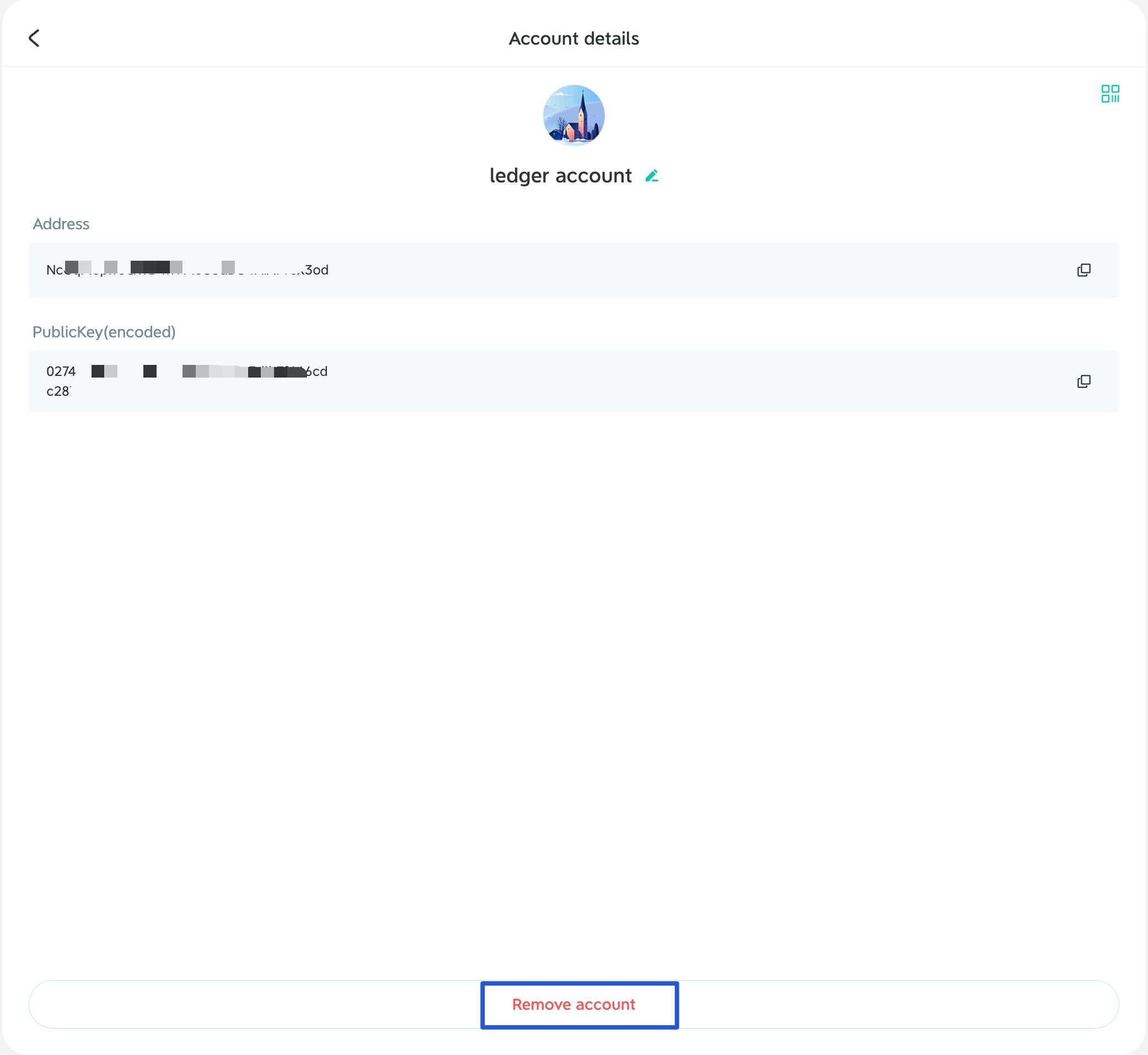
The operation is the same as deleting the address on the wallet Extension. Click \[Account details] in the main menu bar, enter the account details page, and select \[Remove account].

<div><figure><img src="https://1526652108-files.gitbook.io/~/files/v0/b/gitbook-x-prod.appspot.com/o/spaces%2F-MgP1pkkBF1pQzcGdKtm-2484513939%2Fuploads%2FPcDuGXgxJBjLNwXRYBoT%2Fimage.png?alt=media&amp;token=4b4d5799-6453-40fc-a7ad-8b320b6a16bd" alt="" width="375"><figcaption></figcaption></figure> <figure><img src="https://1526652108-files.gitbook.io/~/files/v0/b/gitbook-x-prod.appspot.com/o/spaces%2F-MgP1pkkBF1pQzcGdKtm-2484513939%2Fuploads%2FZD4XSbDDjRq1qfDLIBgC%2Fb919289a-be26-4e40-9c87-dceeeda504cc.png?alt=media&amp;token=46a5059c-00a9-4b75-8e52-d52f5b99bed0" alt="" width="375"><figcaption></figcaption></figure></div>


# Connect your OneKey to NeoLine

<figure><img src="https://1526652108-files.gitbook.io/~/files/v0/b/gitbook-x-prod.appspot.com/o/spaces%2F-MgP1pkkBF1pQzcGdKtm-2484513939%2Fuploads%2FWlsUcAEx0KiIvhfYnsWk%2Fimage.png?alt=media&amp;token=69f237a5-f002-4f8f-a6c2-0a48ff5c1cde" alt=""><figcaption></figcaption></figure>

NeoLine extension wallet officially supports the OneKey hardware wallet. Through the latest NeoLine extension version.

**it allows you:**&#x20;

* Check your account balance&#x20;
* Sign transactions&#x20;
* Sign messages

#### How to connect to your OneKey Hardware Wallet?&#x20;

**Before you begin, make sure that:**&#x20;

* [x] the most up-to-date extension of NeoLine
* [x] up-to-date Google browser&#x20;
* [x] Install [Bridge](https://onekey.so/download/?client=bridge), the web terminal can communicate with hardware only after a hardware bridge is installed.
* [x] the device plugged in via USB NOT bluetooth
* [x] the OneKey Hardware Wallet unlocked

#### Now you can start to connect:&#x20;

1. Open the NeoLine extension and click on your account name to enter. Select Add Hardware Wallet.

<div><figure><img src="https://1526652108-files.gitbook.io/~/files/v0/b/gitbook-x-prod.appspot.com/o/spaces%2F-MgP1pkkBF1pQzcGdKtm-2484513939%2Fuploads%2F7vamps3NGb5ZKJKfS2fW%2Fimage.png?alt=media&amp;token=e54cc7ca-d625-47f9-be79-7593d68d2c51" alt="" width="188"><figcaption></figcaption></figure> <figure><img src="https://1526652108-files.gitbook.io/~/files/v0/b/gitbook-x-prod.appspot.com/o/spaces%2F-MgP1pkkBF1pQzcGdKtm-2484513939%2Fuploads%2FDIlpTO6Jvx4fb3s1O1KW%2Fimage.png?alt=media&amp;token=a4dc592e-8476-453c-9a89-46784001c14e" alt="" width="188"><figcaption></figcaption></figure> <figure><img src="https://1526652108-files.gitbook.io/~/files/v0/b/gitbook-x-prod.appspot.com/o/spaces%2F-MgP1pkkBF1pQzcGdKtm-2484513939%2Fuploads%2FYBsLo162Ixz8fHzP7rQB%2Fimage.png?alt=media&amp;token=b1c9fbb4-60cc-4249-977c-b311df1dd551" alt="" width="188"><figcaption></figcaption></figure></div>

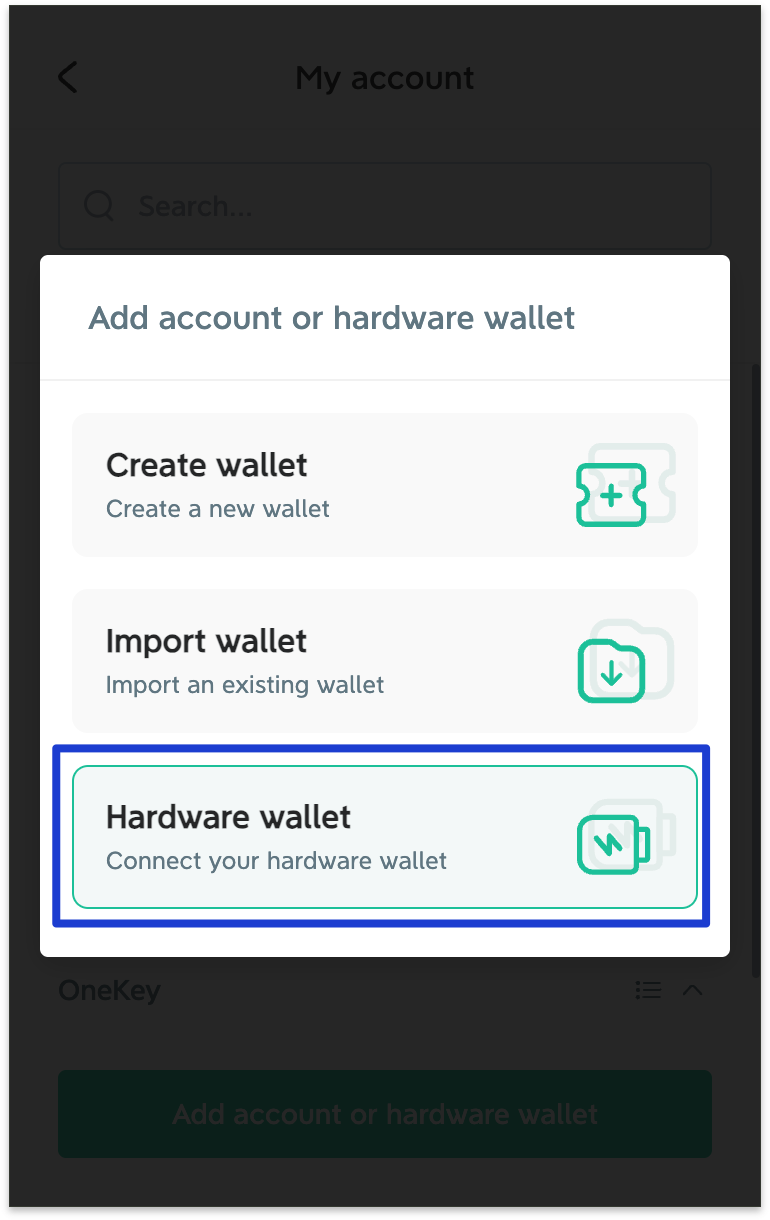
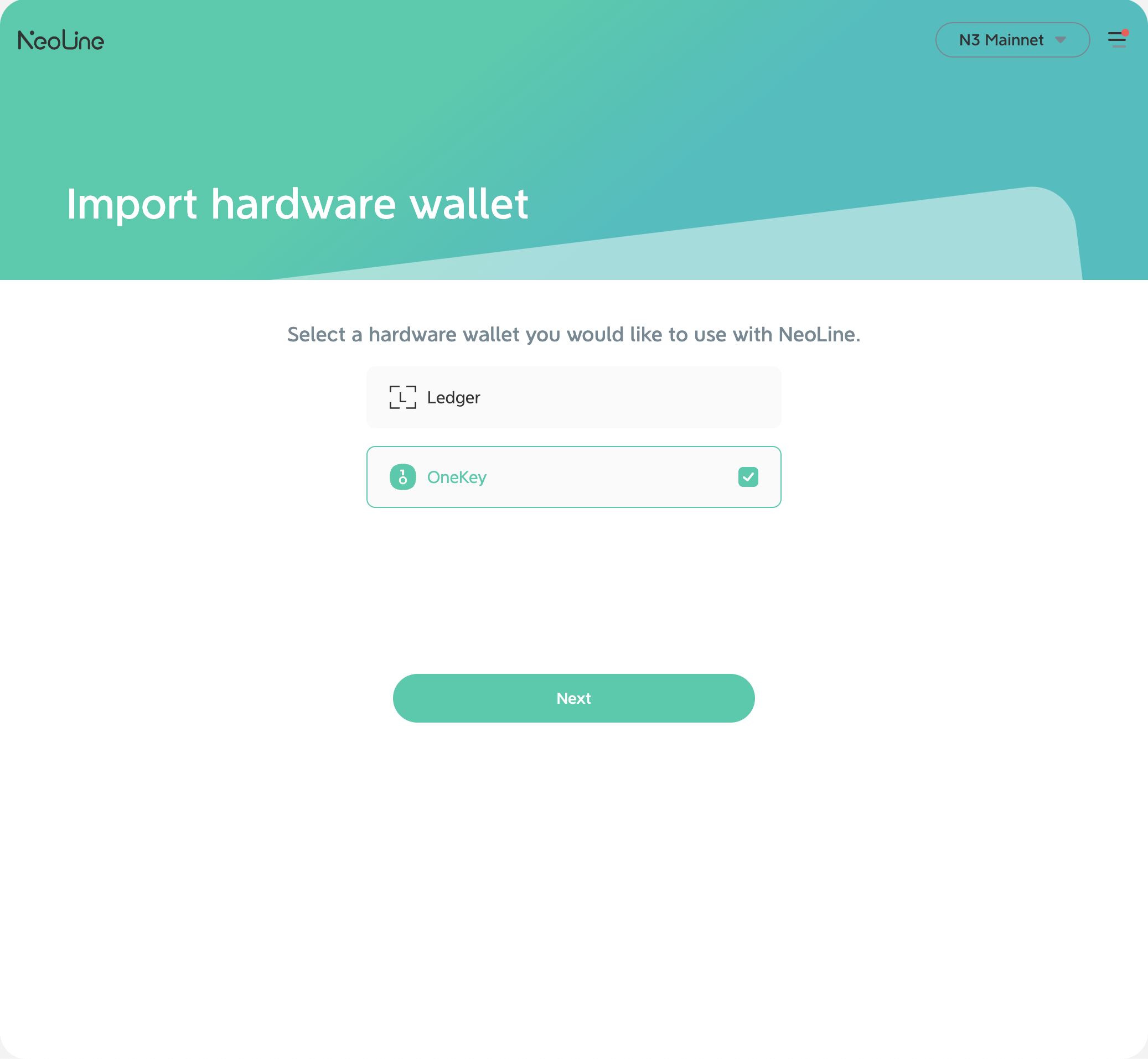
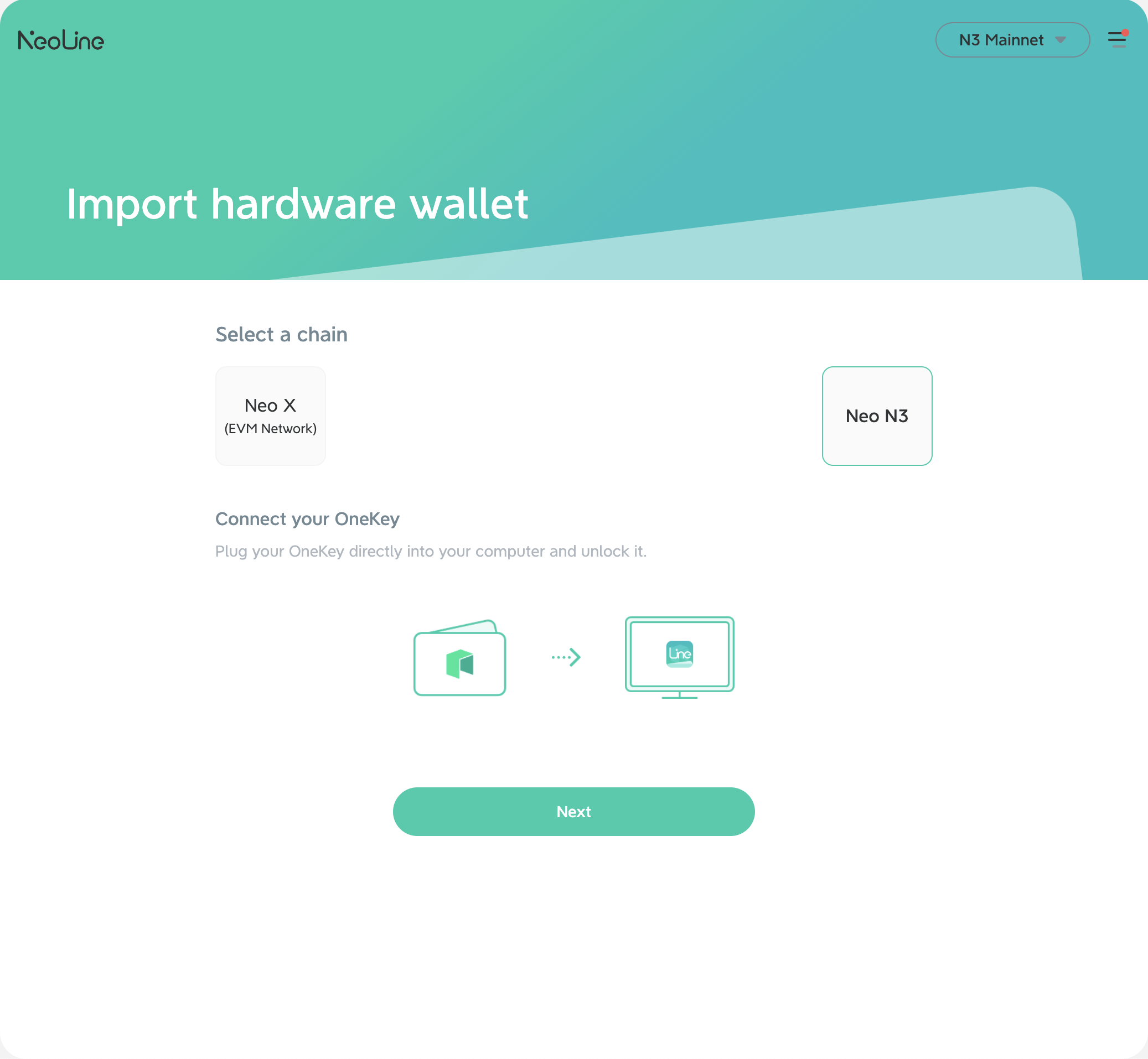
2.Click \[OneKey], select Neo X/Neo N3 based on your personal needs, then click \[Next].

<div><figure><img src="https://1526652108-files.gitbook.io/~/files/v0/b/gitbook-x-prod.appspot.com/o/spaces%2F-MgP1pkkBF1pQzcGdKtm-2484513939%2Fuploads%2FTl8oetVIRrH7G2Q1jqKk%2Fimage.png?alt=media&amp;token=f5d82f75-e802-4292-8ab1-d024580fe7b0" alt="" width="375"><figcaption></figcaption></figure> <figure><img src="https://1526652108-files.gitbook.io/~/files/v0/b/gitbook-x-prod.appspot.com/o/spaces%2F-MgP1pkkBF1pQzcGdKtm-2484513939%2Fuploads%2F8zUzKAuwq59bmOE28GcT%2Fimage.png?alt=media&amp;token=f71a2603-fb8b-424b-aa04-46b7ee2373a2" alt="" width="375"><figcaption></figcaption></figure></div>

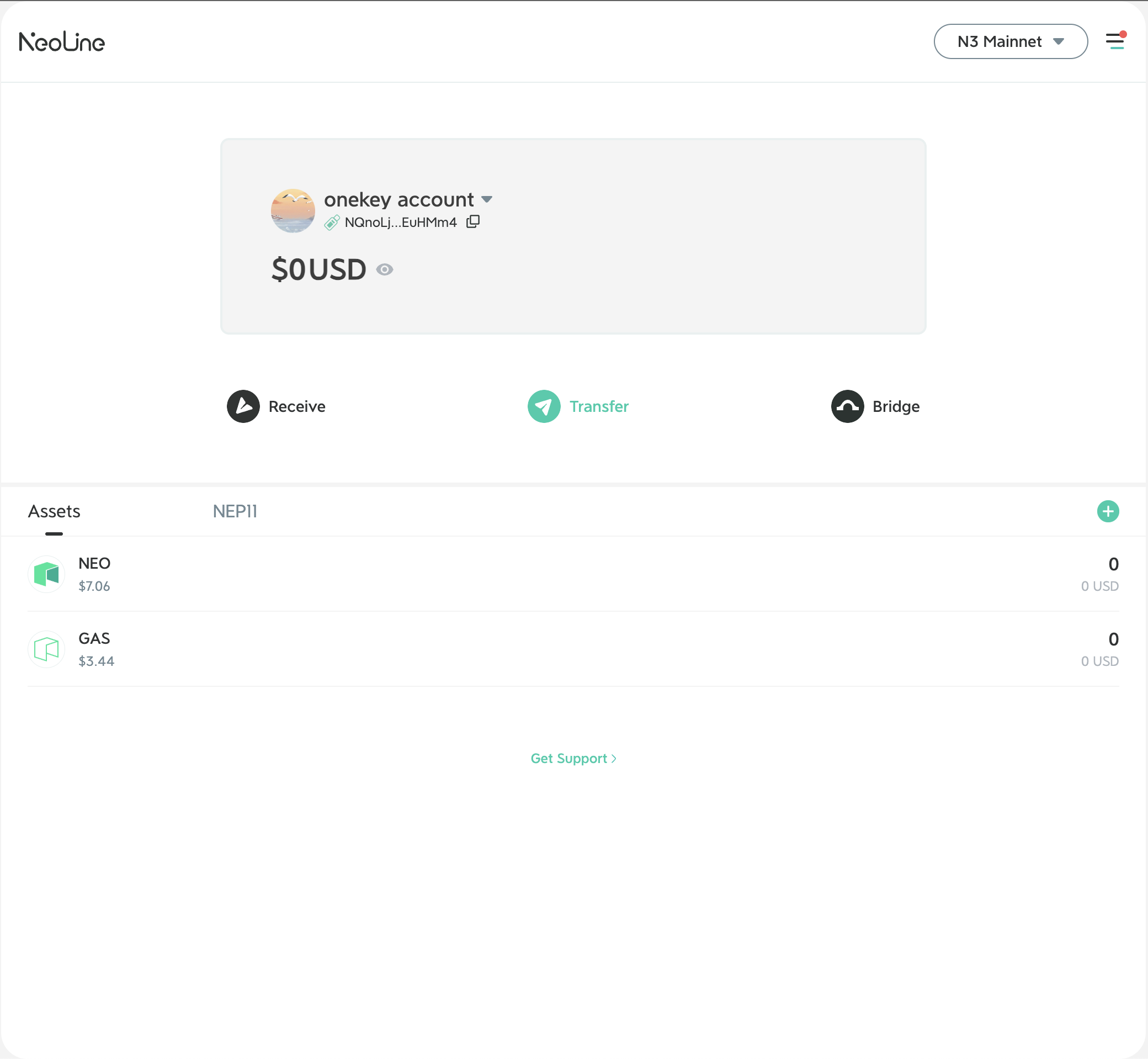
3\. Start to import the hardware wallet. If the OneKey device isn't be found, please unlock the device and reconnect. If you have multiple wallet addresses after importing, select the one you want to interact with.

After the import is successful, a small icon of the hardware wallet will appear on the left side of your wallet address, **as shown below:**

<figure><img src="https://1526652108-files.gitbook.io/~/files/v0/b/gitbook-x-prod.appspot.com/o/spaces%2F-MgP1pkkBF1pQzcGdKtm-2484513939%2Fuploads%2F97iyMV2zVOOt5plSjHQT%2Fimage.png?alt=media&amp;token=5a0da12f-2a1b-462d-9e55-127cfa3116d9" alt="" width="375"><figcaption></figcaption></figure>

#### How to remove the connected hardware wallet?&#x20;

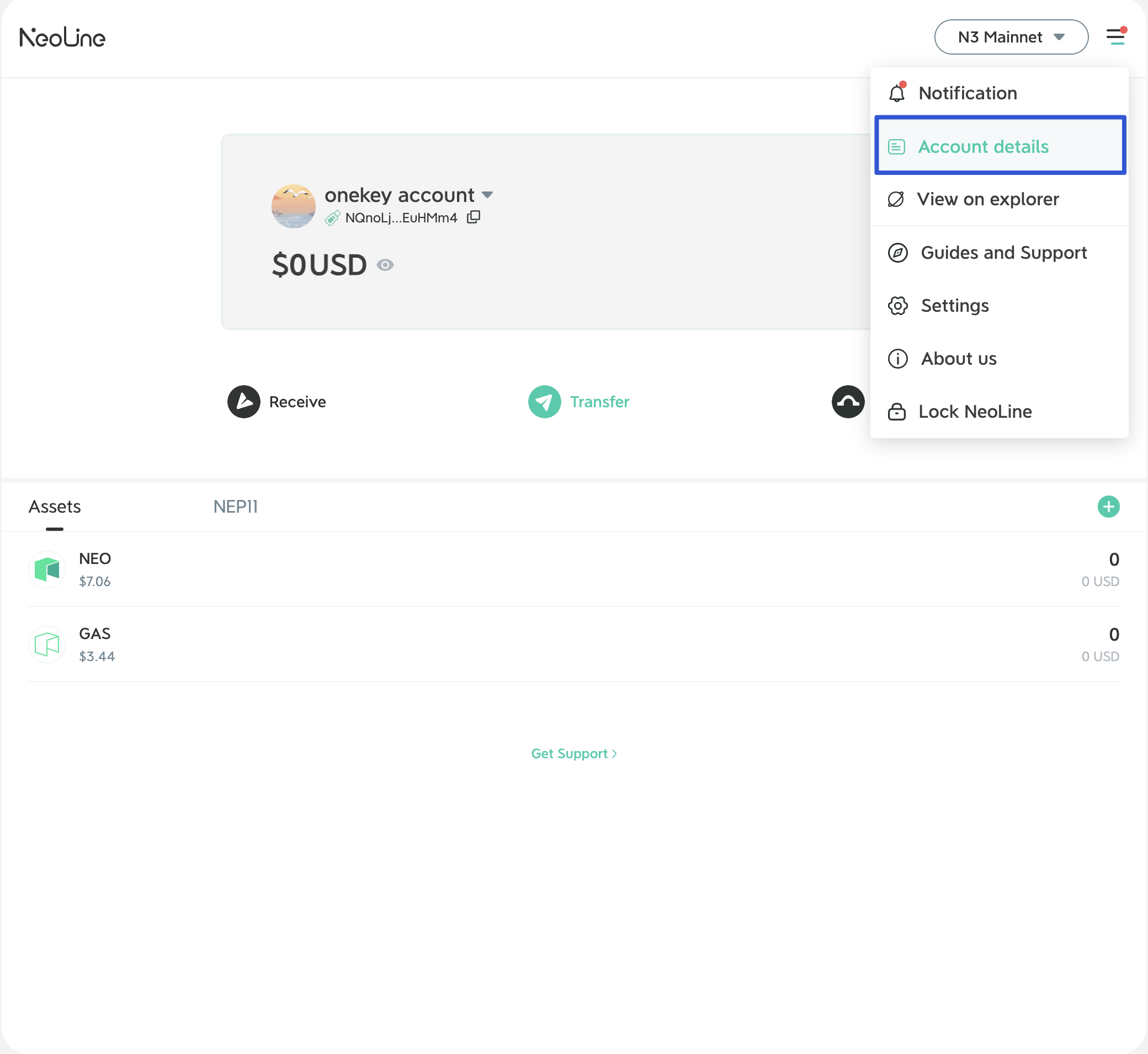
The operation is the same as deleting the address on the wallet Extension. Click \[Account details] in the main menu bar, enter the account details page, and select \[Remove account].

<div><figure><img src="https://1526652108-files.gitbook.io/~/files/v0/b/gitbook-x-prod.appspot.com/o/spaces%2F-MgP1pkkBF1pQzcGdKtm-2484513939%2Fuploads%2FWupULpMDnpwVeQAe0XuO%2Fimage.png?alt=media&amp;token=b23a37c8-89ed-4f4d-81ba-4e6123221ff9" alt="" width="375"><figcaption></figcaption></figure> <figure><img src="https://1526652108-files.gitbook.io/~/files/v0/b/gitbook-x-prod.appspot.com/o/spaces%2F-MgP1pkkBF1pQzcGdKtm-2484513939%2Fuploads%2FBcGInVRWsR2zaUDUEwfs%2F87bbca6a-f78a-453e-8c3d-913df97a063a.png?alt=media&amp;token=c2444933-563a-41f3-a86f-6498f8b1a5a5" alt="" width="375"><figcaption></figcaption></figure></div>


# How to Securely and Correctly Backup Your Wallet?

{% hint style="info" %}
NeoLine is a decentralized wallet that does not store your private keys or secret recovery phrase. This means that if you lose your private key and secret recovery phrase, you lose control of your assets. Therefore, it is crucial to back up your wallet and keep it safe.
{% endhint %}

### Here are the steps:&#x20;

Click the icon next to your address on the wallet homepage and select \[Account details] — \[Show private key] / \[Show secret recovery phrase], then enter your wallet password to securely back up your wallet.

<figure><img src="https://1526652108-files.gitbook.io/~/files/v0/b/gitbook-x-prod.appspot.com/o/spaces%2F-MgP1pkkBF1pQzcGdKtm-2484513939%2Fuploads%2FQFhueefH1JYweNTj9H9G%2F1.jpg?alt=media&amp;token=947f76be-239b-44a9-b04b-dadc92941663" alt=""><figcaption></figcaption></figure>

### Backup Private Key:&#x20;

The private key consists of numbers and both uppercase and lowercase letters. When backing up, users should pay special attention to distinguishing between numbers and letters. Write it down by hand and store it securely to avoid leakage.

### Backup Secret Recovery Phrase:

The secret recovery phrase is another form of the private key, typically composed of 12 random words. Compared to the private key, it is recommended to back up the secret recovery phrase because words are easier to back up. In the NeoLine Chrome Extension, one secret recovery phrase can manage assets across multiple EVM-compatible chains. When backing up, make sure to write down the words in the correct order.


# One Pass Setting for NeoLine Extension Wallet

{% hint style="info" %}
The NeoLine extension wallet v4.0.0 has a new password setting function, which supports users to create One Pass to manage multiple wallet accounts. This function is only relevant to users previous to v4.0.0. Once the One Pass setting is completed, the set password mode will remain as is.
{% endhint %}

As a safe, user-friendly, and professional wallet for the Neo ecosystem, NeoLine Wallet has been striving to provide safe, convenient, and comprehensive services for the Neo community. In the latest version of the NeoLine extension wallet, we have optimized the wallet password setting, changing the previous setting of one password per account to one general password (One Pass) for managing all wallet accounts.

This function update is only for older users of the NeoLine extension wallet previous to v4.0.0. If you are a new user of v4.0.0 and have downloaded and used the NeoLine extension wallet for the first time, you are automatically set to One Pass.

### How to set One Pass for your wallet:

#### 1. Update wallet to v4.0.0

#### 2. Click “Switch Now” as shown below

Learn more about One Pass function by clicking “<mark style="color:green;">**learn more**</mark>”.

<figure><img src="https://1526652108-files.gitbook.io/~/files/v0/b/gitbook-x-prod.appspot.com/o/spaces%2F-MgP1pkkBF1pQzcGdKtm-2484513939%2Fuploads%2FaWrZgSCLeOv5InILnO1n%2Fphoto_2023-04-11_10-49-16.jpg?alt=media&amp;token=5e168d2c-1fe8-4c6a-9d53-1e0de39477fc" alt=""><figcaption></figcaption></figure>

#### **3. Mode switching**

{% hint style="info" %}
Before switching password modes, make sure you have safely backed up your wallet!
{% endhint %}

When switching to One Pass, you need to enter the password corresponding to each wallet account, and the switch will be completed once the passwords match each account.

**As shown below:**

<figure><img src="https://1526652108-files.gitbook.io/~/files/v0/b/gitbook-x-prod.appspot.com/o/spaces%2F-MgP1pkkBF1pQzcGdKtm-2484513939%2Fuploads%2F1DIiuVQYIDm0UsmHyIMK%2Fphoto_2023-02-14_11-28-11.jpg?alt=media&amp;token=bdb82449-ce70-48f9-9e60-ab7103d305f9" alt=""><figcaption></figcaption></figure>

**If you have any questions or feedback while using the wallet, you can contact us via email.**

**· Email: <support@neoline.io>**


# How to Use the Address Book?

NeoLine supports managing frequently used addresses through the Address Book. Here’s how to set it up:

### Mobile:

* Go to \[My];
* Select \[Contact Address];
* Tap the \[+] icon in the upper right corner;
* Select chain;
* Add the address.&#x20;

<figure><img src="https://1526652108-files.gitbook.io/~/files/v0/b/gitbook-x-prod.appspot.com/o/spaces%2F-MgP1pkkBF1pQzcGdKtm-2484513939%2Fuploads%2FSYo7kfCIsv3R48p9RZPo%2F2.jpg?alt=media&amp;token=fecb0ab4-fc43-420f-abcc-b70895b37585" alt=""><figcaption></figcaption></figure>

### NeoLine Chrome Extension:&#x20;

* Click the avatar on the wallet homepage to enter \[My account];
* Find the \[settings] button and enter \[General Settings];

<figure><img src="https://1526652108-files.gitbook.io/~/files/v0/b/gitbook-x-prod.appspot.com/o/spaces%2F-MgP1pkkBF1pQzcGdKtm-2484513939%2Fuploads%2FYJJP71qzFtxTT5pSkMZM%2F3.jpg?alt=media&amp;token=f42fec1a-56dc-4387-bcda-fcbeef60f666" alt=""><figcaption></figcaption></figure>

* Under the General Settings page, click \[Address book];&#x20;
* Click \[Add address] at the bottom;
* On the \[Add address] page: edit the address name and select the network. Enter the address to be added. Click \[Yes] if the information is correct.

After successfully adding, you can view it on the address book page!

<figure><img src="https://1526652108-files.gitbook.io/~/files/v0/b/gitbook-x-prod.appspot.com/o/spaces%2F-MgP1pkkBF1pQzcGdKtm-2484513939%2Fuploads%2F11fwwPoHQLY4Xir5X5jv%2F4.jpg?alt=media&amp;token=3e1528da-5145-4154-aac8-c599153498d3" alt=""><figcaption></figcaption></figure>


# How to Speed Up or Cancel a Pending Transaction?

## Speeding Up a Transaction <a href="#speeding-up-a-transaction" id="speeding-up-a-transaction"></a>

Click the \[Speed Up]button. This option allows you to resubmit the same transaction with a higher gas fee, increasing the likelihood of faster processing. Since this process re-uses the same nonce as the original, you do not need to pay for gas twice.

\
Note: Speeding up a transaction will increase the total cost.

<figure><img src="https://1526652108-files.gitbook.io/~/files/v0/b/gitbook-x-prod.appspot.com/o/spaces%2F-MgP1pkkBF1pQzcGdKtm-2484513939%2Fuploads%2FdFKdaEa3MB6B9guyOWWN%2Fimage.png?alt=media&amp;token=92b9b092-595a-47d4-b7ec-ab0196a70e38" alt="" width="375"><figcaption></figcaption></figure>

## Canceling a Transaction <a href="#canceling-a-transaction" id="canceling-a-transaction"></a>

### Method 1: In-app Cancellation <a href="#method-1-in-app-cancellation" id="method-1-in-app-cancellation"></a>

Click the \[Cancel Transaction] button. This option is only available if the transaction is still pending. Once a transaction is confirmed, it cannot be reversed.

<figure><img src="https://1526652108-files.gitbook.io/~/files/v0/b/gitbook-x-prod.appspot.com/o/spaces%2F-MgP1pkkBF1pQzcGdKtm-2484513939%2Fuploads%2FMUvxFulUf27UMsT1mT2m%2Fimage.png?alt=media&amp;token=5184a18f-f436-4cb2-aec0-4466df2f6e39" alt="" width="375"><figcaption></figcaption></figure>

### Method 2: Custom Nonce <a href="#method-2-custom-nonce" id="method-2-custom-nonce"></a>

This process involves sending a new transaction with the same nonce (an identifying number for every transaction, derived from the phrase 'number only used once'). The transaction does not actually have to have any value — e.g., you could send 0 ETH. What matters is that you pay enough gas for the network to prioritize it.

When using this method, you will need to work backwards from the oldest pending transaction in the queue that you want to cancel. For example, you cannot attempt to cancel a transaction with a nonce of 10 before canceling nonce 9.

Note also that you may be able to cancel multiple transactions at once if they have the same nonce. Since a nonce—by definition—can only be used once, canceling one of them will cancel all that have the same nonce.

1. In the \[settings], enable \[Custom Nonce]. This feature must be turned on to send a replacement transaction using the same nonce.

<figure><img src="https://1526652108-files.gitbook.io/~/files/v0/b/gitbook-x-prod.appspot.com/o/spaces%2F-MgP1pkkBF1pQzcGdKtm-2484513939%2Fuploads%2FDjKIQBEOfYhQL0we839J%2Fimage.png?alt=media&amp;token=6237ced6-120d-42e9-b7bd-d56ede9c42e6" alt="" width="375"><figcaption></figcaption></figure>

2. Send a new transaction. In the new transaction, send TO yourself, meaning your NeoLine public address. Fill in 'Custom Nonce' with the same nonce as the transaction that is still pending.

<figure><img src="https://1526652108-files.gitbook.io/~/files/v0/b/gitbook-x-prod.appspot.com/o/spaces%2F-MgP1pkkBF1pQzcGdKtm-2484513939%2Fuploads%2FkuZckJIg4migKwoQnoMC%2Fimage.png?alt=media&amp;token=27a90796-a11f-4ace-b2fc-3269c30ff27c" alt="" width="375"><figcaption></figcaption></figure>

To ensure your cancellation request is prioritized over the original transaction, you'll need to increase the gas fee. Follow these steps:

* Set the gas limit equal to or slightly higher than the original transaction.
* Set the priority fee at least 10% higher (in Gwei) than the original transaction's gas fee (e.g., if the original transaction had a gas fee of 30 Gwei, set the max priority fee for the replacement/cancellation transaction to 33-35 Gwei).
* Ensure the max fee is at least 30% higher than the max fee of the transaction you're replacing. For example, if the previous fee was 150 Gwei, set the new fee closer to 200 Gwei.


# How to Delete Unused Wallet Accounts in the NeoLine Wallet?

{% hint style="info" %}
In certain circumstances, such as for security reasons or if you're no longer using the wallet address, you may need to delete it. Before proceeding, ensure you have backed up your private key or secret recovery phrase. Failing to do so means that once the address is deleted, you will lose access to the wallet permanently, potentially leading to irrecoverable loss of assets.
{% endhint %}

**Steps to Delete a Wallet Accounts:**

### NeoLine Chrome Extension:&#x20;

Method 1:

1. After backing up your private key or secret recovery phrase, return to the wallet homepage;
2. Click the small icon to the right of the wallet name;
3. Select \[Remove account] from the dropdown menu.

<figure><img src="https://1526652108-files.gitbook.io/~/files/v0/b/gitbook-x-prod.appspot.com/o/spaces%2F-MgP1pkkBF1pQzcGdKtm-2484513939%2Fuploads%2FUCiQWlDyrBtR2UdIAn6D%2F%E5%BE%AE%E4%BF%A1%E6%88%AA%E5%9B%BE_20240726170028.png?alt=media&amp;token=fda0949b-0e9c-4d71-8228-761e79dec64e" alt=""><figcaption></figcaption></figure>

Method 2:

1. Navigate to \[My account] from the top right corner of the wallet homepage;
2. Select the wallet you wish to delete;
3. Click the three dots on the right side;
4. Click \[Remove account].

<figure><img src="https://1526652108-files.gitbook.io/~/files/v0/b/gitbook-x-prod.appspot.com/o/spaces%2F-MgP1pkkBF1pQzcGdKtm-2484513939%2Fuploads%2FsqCB8TbkOrDA6o9h6N8W%2F%E5%BE%AE%E4%BF%A1%E6%88%AA%E5%9B%BE_20240726170049.png?alt=media&amp;token=c1cdf8cf-9276-4b15-ba75-8424701cfce1" alt=""><figcaption></figcaption></figure>

### Mobile:&#x20;

Click on the avatar on the wallet homepage to enter the wallet details page. Click \[Remove this wallet], then enter your password to confirm and delete the wallet.

<figure><img src="https://1526652108-files.gitbook.io/~/files/v0/b/gitbook-x-prod.appspot.com/o/spaces%2F-MgP1pkkBF1pQzcGdKtm-2484513939%2Fuploads%2FfsHwYE3pqoDWbnuQVPd2%2F%E5%BE%AE%E4%BF%A1%E6%88%AA%E5%9B%BE_20240726170303.png?alt=media&amp;token=7e8f00da-dfc9-4f61-91db-1e74ad6f046b" alt=""><figcaption></figcaption></figure>

Notes:&#x20;

1. Data from the deleted wallet cannot be recovered, please proceed with extreme caution.&#x20;
2. Ensure that any assets in the wallet are transferred to another wallet address before deletion.&#x20;
3. Exercise caution when deleting wallet addresses. If you have any questions, email \[<support@neoline.io>] for assistance.


# Manage Assets

{% content-ref url="/pages/nejwxIyqRlxkOpQAtLFc" %}
[How to Add/Manage Assets?](/getting-started/manage-assets/how-to-add-manage-assets)
{% endcontent-ref %}

{% content-ref url="/pages/hqNUPR9v0a5y68glVExb" %}
[How to Add NFTs](/getting-started/manage-assets/how-to-add-nfts)
{% endcontent-ref %}

{% content-ref url="/pages/txNnRelWBCv3ukuhHPxe" %}
[How to Use NeoLine Wallet for Transfer and Receive](/getting-started/manage-assets/how-to-use-neoline-wallet-for-transfer-and-receive)
{% endcontent-ref %}

{% content-ref url="/pages/rstzlhixqVKC2GItTouw" %}
[How to Transfer to Other Wallets/Exchanges](/getting-started/manage-assets/how-to-transfer-to-other-wallets-exchanges)
{% endcontent-ref %}


# How to Add/Manage Assets?

1. Open the NeoLine wallet, click the \[+] button on your wallet homepage to enter the \[Add asset] page;
2. Enter the token symbol (e.g., GAS) in the search box and press Enter to add it;
3. For already added assets, you can manage them by clicking the icon at the top right of the asset management page and going to \[My Assets].

<figure><img src="https://1526652108-files.gitbook.io/~/files/v0/b/gitbook-x-prod.appspot.com/o/spaces%2F-MgP1pkkBF1pQzcGdKtm-2484513939%2Fuploads%2FOM8Qxing7e0Y81HMvc6d%2F5.jpg?alt=media&amp;token=88492328-f664-47b2-b974-d11ab8d1ab78" alt=""><figcaption></figcaption></figure>


# How to Add NFTs

NeoLine Chrome Extension only supports adding NFTs already held by the wallet address.

1. Open the wallet and click \[NFT] on the homepage;
2. Click the \[+] and enter the \[NFT contract address] and \[Token ID];
3. Confirm the information and click \[Confirm].

Once added, the NFT will appear on the asset list. Click to view NFT details.

<figure><img src="https://1526652108-files.gitbook.io/~/files/v0/b/gitbook-x-prod.appspot.com/o/spaces%2F-MgP1pkkBF1pQzcGdKtm-2484513939%2Fuploads%2FLatmr2Z2VL31IxA4bBgX%2F13.jpg?alt=media&amp;token=4747e98c-ed0f-4c88-b5fe-cdceb71c1bd8" alt=""><figcaption></figcaption></figure>

**Notice:**

* For NFTs with images that cannot be retrieved, a default image will be displayed. You can click to view the specific NFT on a browser or marketplace.
* If you did not add a browser when customizing the network, clicking to jump to the browser will not work.


# How to Use NeoLine Wallet for Transfer and Receive

**Mobile:** Open the wallet, and select the asset , then choose \[Receive] or \[Transfer].&#x20;

**NeoLine Chrome Extension:** Directly click \[Receive] or \[Transfer] on the homepage to access the respective page.

<figure><img src="https://1526652108-files.gitbook.io/~/files/v0/b/gitbook-x-prod.appspot.com/o/spaces%2F-MgP1pkkBF1pQzcGdKtm-2484513939%2Fuploads%2FygDUIcBwy4j9JJxwrTPp%2F7.jpg?alt=media&amp;token=3446d1a5-186c-493d-aac1-8d34d3f36c9b" alt=""><figcaption></figcaption></figure>

### Receive:

Click the \[Receive], copy your wallet address, or share the QR code with the sender.

<figure><img src="https://1526652108-files.gitbook.io/~/files/v0/b/gitbook-x-prod.appspot.com/o/spaces%2F-MgP1pkkBF1pQzcGdKtm-2484513939%2Fuploads%2FvHq60CyYbPC3I1Uj3ZtE%2F%E5%BE%AE%E4%BF%A1%E6%88%AA%E5%9B%BE_20240726173724.png?alt=media&amp;token=6942cf71-9d01-44e2-995d-3bdd0fe68417" alt=""><figcaption></figcaption></figure>

### Transfer:&#x20;

To transfer from your NeoLine wallet to another wallet or exchange:

* On the wallet homepage, click \[Transfer];
* Enter the \[Transfer Address],If it's a frequently used address, we recommend adding it to your \[Address book]. You can find the tutorial here;
* Select the \[Asset] and enter the \[Amount];
* Click \[Next] to confirm the transfer details. If everything is correct, click \[Confirm] to complete the transaction.

<figure><img src="https://1526652108-files.gitbook.io/~/files/v0/b/gitbook-x-prod.appspot.com/o/spaces%2F-MgP1pkkBF1pQzcGdKtm-2484513939%2Fuploads%2FjVyBhGDatpcvqZK9eSqS%2F%E6%9C%AA%E5%91%BD%E5%90%8D.jpg?alt=media&amp;token=3900990a-56b9-44b3-a0f8-982b643ce3ec" alt=""><figcaption></figcaption></figure>


# How to Transfer to Other Wallets/Exchanges

Before transferring, ensure the network and wallet address are correct. If everything is OK, follow these steps:

* Click \[Transfer] on the wallet homepage.
* Enter the \[Transfer Address],If it's a frequently used address, we recommend adding it to your \[Address book]. You can find the tutorial here;
* Select the \[Asset] and enter the \[Amount];
* Click \[Next] to confirm the transfer details. If everything is correct, click \[Confirm] to complete the transaction.

<figure><img src="https://1526652108-files.gitbook.io/~/files/v0/b/gitbook-x-prod.appspot.com/o/spaces%2F-MgP1pkkBF1pQzcGdKtm-2484513939%2Fuploads%2FjVyBhGDatpcvqZK9eSqS%2F%E6%9C%AA%E5%91%BD%E5%90%8D.jpg?alt=media&amp;token=3900990a-56b9-44b3-a0f8-982b643ce3ec" alt=""><figcaption></figcaption></figure>

Note:

1. Before transferring, please check whether the receiving address platform accepts the token;
2. Before transferring, please make sure there are enough funds for gas fees to avoid transfer failure.
3. When transferring, please ensure that the asset being transferred and the recipient address are on the same blockchain network. For example, if the recipient address is a Neo N3 address, the transfer should be made on the Neo N3 network.


# FAQ

### 1. Assets Not Found After Importing Wallet

If you don’t see your assets after importing your wallet, please check if the imported wallet address matches your previous wallet address. If there are no differences, you can try manually searching for your tokens in the search bar. If the addresses differ, you have likely entered the wrong private key or secret recovery phrase.

### 2. Incorrect/Forgotten Password: How to Recover?

If your password is incorrect or forgotten, you can reset your wallet password by importing your private key or secret recovery phrase.

### 3. Lost Secret Recovery Phrase/Private Key or Stolen Assets: Can They Be Retrieved?

NeoLine is a decentralized wallet, and your digital assets are entirely managed by you. NeoLine cannot help you recover them. Anyone with access to your secret recovery phrase or private key can access your wallet. If you lose your secret recovery phrase or private key, you will lose control of your wallet. Therefore, please back it up properly and do not disclose it to others.

### 4. Wallet Deleted: Can Assets Be Recovered with Address and Transaction History?

If you have backed up your secret recovery phrase or private key, you can import your wallet. If not, assets cannot be recovered using only the address and transaction history. NeoLine is a decentralized wallet; please back up your secret recovery phrase or private key properly.

### 5. Why Did My Transaction Fail? What Does Insufficient Gas Fee Mean?

If your transaction failed, please check if you have enough GAS balance in your wallet to cover the transaction fees. Insufficient balance will cause the transaction to fail. Most on-chain transactions require a certain amount of fees. Different chains require different tokens to pay these fees. Please check your GAS balance before initiating a transaction.

### 6. How to View the Wallet's Private Key/Secret Recovery Phrase?

**Mobile:**

Click the avatar to enter the wallet details page, then click \[Show Private Key] and enter the wallet password to view it.<br>

**Chrome Extension:**

Click the icon next to the wallet name, then click \[Account Details] and enter the wallet password to view it.

{% hint style="info" %}
To ensure the security of your assets, we recommend not taking screenshots of your secret recovery phrase and private key.
{% endhint %}

### 7.Transfer button not showing or showing a transaction failure message

If you are transferring on the EVM network and the **\[YES]** button does not respond or shows a failure message after clicking, please try changing the RPC and try again!


# Neo3 Provider API

The NeoLine extension wallet can expose a Neo N3 provider that follows the NEP-21 `IDapiProvider` interface.

You can use this provider in your dapp to discover a compatible wallet, inspect provider metadata, call Neo3 methods, and listen for account and network changes.

{% hint style="info" %}
NOTE

Throughout this documentation, we refer to the selected Neo3 NEP-21 provider instance as `provider`.
{% endhint %}

## Provider Discovery

NEP-21 providers announce themselves through the `Neo.DapiProvider.ready` event on `window`.

```js
let provider;

window.addEventListener('Neo.DapiProvider.ready', (event) => {
  if (event.detail.provider.name === 'NeoLine') {
    provider = event.detail.provider;
  }
});
```

If you want to proactively request a provider, dispatch `Neo.DapiProvider.request` with the dAPI version you expect:

```js
window.dispatchEvent(new Event('Neo.DapiProvider.request'));
```

## Properties

An NEP-21 provider exposes the following properties:

| Property            | Type       | Description                                                                  |
| ------------------- | ---------- | ---------------------------------------------------------------------------- |
| `name`              | `string`   | Provider name.                                                               |
| `version`           | `string`   | Provider version.                                                            |
| `dapiVersion`       | `string`   | dAPI version. For NEP-21 this should currently be `1.0`.                     |
| `compatibility`     | `string[]` | Supported standards, for example `["NEP-11", "NEP-17", "NEP-21"]`.           |
| `connected`         | `boolean`  | Whether the wallet is currently connected to the dapp.                       |
| `network`           | `number`   | Current Neo N3 network magic number.                                         |
| `supportedNetworks` | `number[]` | Networks supported by the provider.                                          |
| `icon`              | `string`   | Provider icon URL, the scheme of the URL should be either "https" or "data". |
| `website`           | `string`   | Provider website.                                                            |
| `extra`             | `any`      | Additional provider-specific metadata.                                       |

#### Example

```js
console.log(provider.name);
console.log(provider.dapiVersion);
console.log(provider.network);
console.log(provider.compatibility);
```

## Methods

### Neo3 provider methods

The Neo3 provider exposes standardized NEP-21 provider methods such as:

* [authenticate](/reference/neo3-provider-api/authenticate)
* [getAccounts](/reference/neo3-provider-api/getaccounts)
* [pickAddress](/reference/neo3-provider-api/pickaddress)
* [getBalance](/reference/neo3-provider-api/getbalance)
* [send](/reference/neo3-provider-api/send)
* [call](/reference/neo3-provider-api/call)
* [invoke](/reference/neo3-provider-api/invoke)
* [makeTransaction](/reference/neo3-provider-api/maketransaction)
* [sign](/reference/neo3-provider-api/sign)
* [signMessage](/reference/neo3-provider-api/signmessage)
* [relay](/reference/neo3-provider-api/relay)
* [getBlock](/reference/neo3-provider-api/getblock)
* [getBlockCount](/reference/neo3-provider-api/getblockcount)
* [getTransaction](/reference/neo3-provider-api/gettransaction)
* [getApplicationLog](/reference/neo3-provider-api/getapplicationlog)
* [getStorage](/reference/neo3-provider-api/getstorage)
* [getTokenInfo](/reference/neo3-provider-api/gettokeninfo)

The following is an example of using `authenticate()`:

```js
provider
  .authenticate({
    action: "Authentication",
    grant_type: "Signature",
    allowed_algorithms: ["ECDSA-P256"],
    domain: "127.0.0.1",
    networks: [860833102],
    nonce: "1844674407370955161",
    timestamp: 1710000000,
  })
  .then((result) => {
    // Returns the NEP-20 authentication response payload.
  })
  .catch((error) => {
    // If the request fails, the Promise rejects with an error.
  });
```

## Events

The NeoLine provider emits events through the standard `on()` and `removeListener()` API. The following is an example of listening to the [`accountchanged`](#accountchanged) event.

You should remove listeners after you are done listening to an event, for example when a React component unmounts.

```js
function handleAccountsChanged(accounts) {
  // Handle new accounts, or lack thereof.
}

provider.on("accountchanged", handleAccountsChanged);

// Later

provider.removeListener("accountchanged", handleAccountsChanged);
```

### `accountchanged`

```js
provider.on("accountchanged", handler: (accounts: Account[]) => void);
```

The provider emits this event when the connected account set changes. The event payload is `accounts: Account[]`.

### `networkchanged`

```js
provider.on("networkchanged", handler: (network: number) => void);
```

The provider emits this event when the currently connected Neo network changes. The event payload is `network: number`.

### Remove event listeners <a href="#remove-event-listeners" id="remove-event-listeners"></a>

#### `removeListener`

Use `removeListener` to remove a specific listener from the provider.

```js
provider.on("accountchanged", updateWallet);
provider.on("networkchanged", updateNetwork);

provider.removeListener("accountchanged", updateWallet);
provider.removeListener("networkchanged", updateNetwork);
```

## Errors

All errors returned by the Neo3 provider follow this interface:

```ts
interface ProviderError extends Error {
  code: number;
  message: string;
  data?: any;
}
```

NEP-21 methods reject eagerly. You can use the error `code` property to determine why the request failed.

| Code    | Name                 | Description                                             |
| ------- | -------------------- | ------------------------------------------------------- |
| `10000` | `UNKNOWN`            | An unknown error has occurred.                          |
| `10001` | `UNSUPPORTED`        | The requested feature or operation is not supported.    |
| `10002` | `INVALID`            | The input data is in an invalid format.                 |
| `10003` | `NOTFOUND`           | The requested data does not exist.                      |
| `10004` | `FAILED`             | Contract execution failed.                              |
| `10005` | `TIMEOUT`            | The requested operation timed out.                      |
| `10006` | `CANCELED`           | The requested operation was canceled by the user.       |
| `10007` | `INSUFFICIENT_FUNDS` | The request failed because the balance is insufficient. |
| `10008` | `RPC_ERROR`          | The RPC server threw an exception.                      |

When `code` is `10004`, providers may include the failed `InvocationResult` in `data`.

```ts
interface FailedError extends ProviderError {
  code: 10004;
  message: "Contract execution failed";
  data: InvocationResult;
}
```

## Notes

* `Network` values are Neo N3 magic numbers, such as `860833102` for MainNet and `894710606` for TestNet.
* All callable Neo3 methods are documented in this section of the Neo3 provider API reference.
* `authenticate()` follows the NEP-20 authentication challenge and response format.


# authenticate

Requests authentication using the NEP-20 authentication challenge payload.

## Parameters

#### 1. payload *(required)*

`AuthenticationChallengePayload`

```ts
type AuthenticationChallengePayload = {
  action: "Authentication";
  grant_type: "Signature";
  allowed_algorithms: ["ECDSA-P256"];
  domain: string;
  networks: Network[];
  nonce: string;
  timestamp: number;
};
```

## Returns

`Promise<AuthenticationResponsePayload>`

```ts
type AuthenticationResponsePayload = {
  algorithm: "ECDSA-P256";
  network: Network;
  pubkey: ECPoint;
  address: Address;
  nonce: string;
  timestamp: number;
  signature: Base64Encoded;
};
```

## Errors

| Code    | Name          | Description                                    |
| ------- | ------------- | ---------------------------------------------- |
| `10001` | `UNSUPPORTED` | Authentication is not supported by the wallet. |
| `10002` | `INVALID`     | The challenge payload is invalid.              |
| `10005` | `TIMEOUT`     | The authentication request timed out.          |
| `10006` | `CANCELED`    | The user rejected the authentication request.  |

## Example

### Request

```js
const response = await provider.authenticate({
  action: "Authentication",
  grant_type: "Signature",
  allowed_algorithms: ["ECDSA-P256"],
  domain: "example.com",
  networks: [860833102],
  nonce: "13458238842203010919",
  timestamp: 1616131368,
});
```

### Response

```js
{
  algorithm: "ECDSA-P256",
  network: 860833102,
  pubkey: "0355912bc4e61c9715c5912397ea53a5ac6c103c4893fbd9c2a9f3be13b7a3e29d",
  address: "NfMFWYxaUUQy9SYo6AhRiGmRxfPxe9Edj7",
  nonce: "13458238842203010919",
  timestamp: 1616131369,
  signature: "BAS7Ljufj3vrhOrTAi21D/5Cf62n4r64Suf/do8dq/OCMHiLJl+hLJeMFZwTajVjhcpFLz6FuSEp13vvEqWf1w==",
}
```


# getAccounts

Returns the accounts currently connected to the dapp.

## Parameters

None.

## Returns

`Promise<Account[]>`

```ts
type Account = {
  hash: UInt160;
  address: Address;
  label?: string;
  contract?: {
    script?: Base64Encoded;
    parameters: Parameter[];
    deployed: boolean;
  };
  extra?: any;
};
```

## Errors

This method follows the standard NEP-21 error object shape.

## Example

### Request

```js
const accounts = await provider.getAccounts();
```

### Response

```js
[
  {
    address: 'NLtYAu3z1fmSqisfAhfNpX81BKZ5ZrSpH5',
    label: 'test2',
    hash: '9a7c5085dcdd4adf9ec12f2d1a7d6b741ad4b20a',
    extra: {
      isLedger: false
    }
  }
]
```


# pickAddress

Prompts the user to select an address from the wallet and returns the selected address.

## Parameters

#### 1. prompt *(optional)*

`string`

Optional text shown to the user to explain why the dapp is requesting an address selection.

## Returns

`Promise<Address>`

`Address` is a Neo N3 address string.

## Errors

| Code    | Name       | Description                              |
| ------- | ---------- | ---------------------------------------- |
| `10006` | `CANCELED` | The user canceled the selection request. |

## Example

### Request

```js
const address = await provider.pickAddress();
```

### Response

```js
"NLtYAu3z1fmSqisfAhfNpX81BKZ5ZrSpH5"
```


# getBalance

Gets the balance of the specified asset for the specified account.

## Parameters

#### 1. asset *(required)*

`UInt160`

The contract hash of the asset or token.

#### 2. account *(required)*

`UInt160`

The script hash of the account to query.

## Returns

`Promise<Integer>`

`Integer` can be returned as a string or number.

## Errors

| Code    | Name        | Description                           |
| ------- | ----------- | ------------------------------------- |
| `10002` | `INVALID`   | One or more inputs are invalid.       |
| `10003` | `NOTFOUND`  | The account or asset cannot be found. |
| `10004` | `FAILED`    | Contract execution failed.            |
| `10008` | `RPC_ERROR` | The RPC server returned an error.     |

## Example

### Request

```js
const balance = await provider.getBalance(
  "0xd2a4cff31913016155e38e474a2c06d08be276cf",
  "0x9a7c5085dcdd4adf9ec12f2d1a7d6b741ad4b20a",
);
```

### Response

```js
"2166122424085"
```


# send

Sends an asset from one account to another and returns the transaction hash.

## Parameters

#### 1. asset *(required)*

`UInt160`

Asset or token contract hash.

#### 2. from *(required)*

`UInt160`

Sender account script hash.

#### 3. to *(required)*

`UInt160`

Receiver account script hash.

#### 4. amount *(required)*

`Integer`

Amount to transfer.

#### 5. data *(optional)*

`Argument`

Additional transfer data passed to the contract.

## Returns

`Promise<UInt256>`

The relayed transaction hash.

## Errors

| Code    | Name                 | Description                                        |
| ------- | -------------------- | -------------------------------------------------- |
| `10002` | `INVALID`            | One or more inputs are invalid.                    |
| `10003` | `NOTFOUND`           | The requested account or asset cannot be found.    |
| `10004` | `FAILED`             | Contract execution failed.                         |
| `10005` | `TIMEOUT`            | The request timed out.                             |
| `10006` | `CANCELED`           | The user rejected the transfer.                    |
| `10007` | `INSUFFICIENT_FUNDS` | The selected account does not have enough balance. |
| `10008` | `RPC_ERROR`          | The RPC server returned an error.                  |

## Example

### Request

```js
const txid = await provider.send(
  "0xd2a4cff31913016155e38e474a2c06d08be276cf",
  "0x9a7c5085dcdd4adf9ec12f2d1a7d6b741ad4b20a",
  "0x79f3ac32a7b68280da5cf4207139c7349261f7bd",
  "1",
  {
    type: "String",
    value: "neoline",
  },
);
```

### Response

```js
"0x1f4d1defa46faa5e7b9b8d3f79a06bec777d7c26c4aa5f6f5899a291daa87c15"
```


# call

Calls a contract off-chain and returns the execution result.

## Parameters

#### 1. invocation *(required)*

`InvocationArguments`

```ts
type InvocationArguments = {
  hash: UInt160;
  operation: string;
  args?: Argument[];
  abortOnFail?: boolean;
};
```

## Returns

`Promise<InvocationResult>`

```ts
type InvocationResult = {
  script: Base64Encoded;
  state: VMState;
  gasconsumed: Integer;
  exception?: string;
  notifications: Notification[];
  stack: StackItem[];
};
```

## Errors

| Code    | Name        | Description                       |
| ------- | ----------- | --------------------------------- |
| `10002` | `INVALID`   | One or more inputs are invalid.   |
| `10008` | `RPC_ERROR` | The RPC server returned an error. |

## Example

### Request

```js
const result = await provider.call({
  hash: "0xd2a4cff31913016155e38e474a2c06d08be276cf",
  operation: "transfer",
  args: [
    {
      type: "Hash160",
      value: "0x9a7c5085dcdd4adf9ec12f2d1a7d6b741ad4b20a",
    },
    {
      type: "Hash160",
      value: "0x79f3ac32a7b68280da5cf4207139c7349261f7bd",
    },
    {
      type: "Integer",
      value: "200000",
    },
    {
      type: "Any",
      value: null,
    },
  ],
});
```

### Response

```js
{
  script: 'CwJADQMADBR+pC/JJsH98scvBTlYWERFt4F5EgwUp+6GCOYP0MQkB348kXfiHVYgFnYUwB8MCHRyYW5zZmVyDBTPduKL0AYsSkeO41VhARMZ88+k0kFifVtS',
  state: 'HALT',
  gasconsumed: '215925',
  exception: null,
  notifications: [],
  stack: [
    {
      type: 'Boolean',
      value: false
    }
  ]
}
```


# invoke

Calls one or more contracts on-chain and returns the relayed transaction hash.

## Parameters

#### 1. invocations *(required)*

`InvocationArguments[]`

Each invocation defines a contract hash, operation, arguments, and optional `abortOnFail`.

#### 2. signers *(optional)*

`Signer[]`

Witness scope information for the transaction.

#### 3. attributes *(optional)*

`TransactionAttribute[]`

Supported standard attributes include `HighPriority` and `OracleResponse`.

#### 4. options *(optional)*

`TransactionOptions`

```ts
type TransactionOptions = {
  suggestedSystemFee?: Integer;
  extraSystemFee?: Integer;
  validUntilBlock?: number;
};
```

## Returns

`Promise<UInt256>`

The relayed transaction hash.

## Errors

| Code    | Name        | Description                        |
| ------- | ----------- | ---------------------------------- |
| `10002` | `INVALID`   | One or more inputs are invalid.    |
| `10004` | `FAILED`    | Contract execution failed.         |
| `10005` | `TIMEOUT`   | The request timed out.             |
| `10006` | `CANCELED`  | The user rejected the transaction. |
| `10008` | `RPC_ERROR` | The RPC server returned an error.  |

## Example

### Request

```js
const txid = await provider.invoke(
  [
    {
      hash: "0xd2a4cff31913016155e38e474a2c06d08be276cf",
      operation: "transfer",
      args: [
        { type: "Hash160", value: "0x682cca3ebdc66210e5847d7f8115846586079d4a" },
        { type: "Hash160", value: "0xd45b7756498f83c9af7c2f71c66f8d6a8f6d6d11" },
        { type: "Integer", value: "100000000" },
        { type: "Any" },
      ],
      abortOnFail: true,
    },
  ],
  [
    {
      account: "0x682cca3ebdc66210e5847d7f8115846586079d4a",
      scopes: "CalledByEntry",
    },
  ],
  [],
  {
    extraSystemFee: "10000",
    suggestedSystemFee: "1000000",
  },
);
```

### Response

```js
"0x1f4d1defa46faa5e7b9b8d3f79a06bec777d7c26c4aa5f6f5899a291daa87c15"
```


# makeTransaction

Builds a transaction and returns a `ContractParametersContext` without relaying it.

This method is commonly used for multi-signature or external signing flows.

## Parameters

#### 1. invocations *(required)*

`InvocationArguments[]`

#### 2. signers *(optional)*

`Signer[]`

#### 3. attributes *(optional)*

`TransactionAttribute[]`

#### 4. options *(optional)*

`TransactionOptions`

## Returns

`Promise<ContractParametersContext>`

```ts
type ContractParametersContext = {
  type: "Neo.Network.P2P.Payloads.Transaction";
  hash: UInt256;
  data: Base64Encoded;
  items: Record<
    UInt160,
    {
      script: Base64Encoded;
      parameters: Argument[];
      signatures: Record<ECPoint, Base64Encoded>;
    }
  >;
  network: Network;
};
```

## Errors

| Code    | Name        | Description                                      |
| ------- | ----------- | ------------------------------------------------ |
| `10002` | `INVALID`   | One or more inputs are invalid.                  |
| `10004` | `FAILED`    | Contract execution failed.                       |
| `10005` | `TIMEOUT`   | The request timed out.                           |
| `10006` | `CANCELED`  | The user rejected the transaction build request. |
| `10008` | `RPC_ERROR` | The RPC server returned an error.                |

## Example

### Request

```js
const context = await provider.makeTransaction(
  [
    {
      hash: "0xd2a4cff31913016155e38e474a2c06d08be276cf",
      operation: "transfer",
      args: [
        { type: "Hash160", value: "0x9a7c5085dcdd4adf9ec12f2d1a7d6b741ad4b20a" },
        { type: "Hash160", value: "0x79f3ac32a7b68280da5cf4207139c7349261f7bd" },
        { type: "Integer", value: "200000" },
        { type: "Any" },
      ],
    },
  ],
  [
    {
      account: "0x9a7c5085dcdd4adf9ec12f2d1a7d6b741ad4b20a",
      scopes: "CalledByEntry",
    },
  ],
  [],
  {
    extraSystemFee: "10000",
    suggestedSystemFee: "1000000",
  },
);
```

### Response

```js
{
  type: 'Neo.Network.P2P.Payloads.Transaction',
  hash: '9ec26f10d2da8d4dc6ddf68893318660ed234e9d5173ddb146fe955067c17a8d',
  data: 'AJ80ThdAQg8AAAAAAHCTAAAAAAAAdmjmAAEKstQadGt9Gi0vwZ7fSt3chVB8mgEAWgsCQA0DAAwUvfdhkjTHOXEg9FzagIK2pzKs83kMFAqy1Bp0a30aLS/Bnt9K3dyFUHyaFMAfDAh0cmFuc2ZlcgwUz3bii9AGLEpHjuNVYQETGfPPpNJBYn1bUgA=',
  items: {
    '9a7c5085dcdd4adf9ec12f2d1a7d6b741ad4b20a': {
      script: '',
      parameters: [],
      signatures: {}
    }
  },
  network: 894710606
}
```


# sign

Signs a `ContractParametersContext` with the current wallet.

This method is usually used in multi-signature workflows.

## Parameters

#### 1. context *(required)*

`ContractParametersContext`

## Returns

`Promise<ContractParametersContext>`

The same context object with one or more signatures added.

## Errors

| Code    | Name          | Description                                        |
| ------- | ------------- | -------------------------------------------------- |
| `10001` | `UNSUPPORTED` | The wallet does not support this operation.        |
| `10002` | `INVALID`     | The context payload is invalid.                    |
| `10003` | `NOTFOUND`    | The signing account cannot be found in the wallet. |
| `10005` | `TIMEOUT`     | The signing request timed out.                     |
| `10006` | `CANCELED`    | The user rejected the signature request.           |

## Example

### Request

```js
const signedContext = await provider.sign({
  type: 'Neo.Network.P2P.Payloads.Transaction',
  hash: '9ec26f10d2da8d4dc6ddf68893318660ed234e9d5173ddb146fe955067c17a8d',
  data: 'AJ80ThdAQg8AAAAAAHCTAAAAAAAAdmjmAAEKstQadGt9Gi0vwZ7fSt3chVB8mgEAWgsCQA0DAAwUvfdhkjTHOXEg9FzagIK2pzKs83kMFAqy1Bp0a30aLS/Bnt9K3dyFUHyaFMAfDAh0cmFuc2ZlcgwUz3bii9AGLEpHjuNVYQETGfPPpNJBYn1bUgA=',
  items: {
    '9a7c5085dcdd4adf9ec12f2d1a7d6b741ad4b20a': {
      script: '',
      parameters: [],
      signatures: {}
    }
  },
  network: 894710606
});
```

### Response

```js
{
  type: 'Neo.Network.P2P.Payloads.Transaction',
  hash: '9ec26f10d2da8d4dc6ddf68893318660ed234e9d5173ddb146fe955067c17a8d',
  data: 'AJ80ThdAQg8AAAAAAHCTAAAAAAAAdmjmAAEKstQadGt9Gi0vwZ7fSt3chVB8mgEAWgsCQA0DAAwUvfdhkjTHOXEg9FzagIK2pzKs83kMFAqy1Bp0a30aLS/Bnt9K3dyFUHyaFMAfDAh0cmFuc2ZlcgwUz3bii9AGLEpHjuNVYQETGfPPpNJBYn1bUgFCDEBnDmZinpnEG685XDQMsPj9na88G1cbShrMC61QDuZaE1Fq/f+qG94gT4UtWpYcCjS6lbr8sLSfyls1cls34qiIKAwhAiZPRP6EiofBMkyH3bF7Ks3anXm8APlUncIpMGTDwH5fQVbnsyc=',
  items: {
    '9a7c5085dcdd4adf9ec12f2d1a7d6b741ad4b20a': {
      script: 'DCECJk9E/oSKh8EyTIfdsXsqzdqdebwA+VSdwikwZMPAfl9BVuezJw==',
      parameters: [
        {
          name: 'signature',
          type: 'Signature',
          value: 'Zw5mYp6ZxBuvOVw0DLD4/Z2vPBtXG0oazAutUA7mWhNRav3/qhveIE+FLVqWHAo0upW6/LC0n8pbNXJbN+KoiA=='
        }
      ],
      signatures: {
        '02264f44fe848a87c1324c87ddb17b2acdda9d79bc00f9549dc2293064c3c07e5f': 'Zw5mYp6ZxBuvOVw0DLD4/Z2vPBtXG0oazAutUA7mWhNRav3/qhveIE+FLVqWHAo0upW6/LC0n8pbNXJbN+KoiA=='
      }
    }
  },
  network: 894710606
}
```


# signMessage

Signs a message with a wallet account using ECDSA with SHA-256.

## Parameters

#### 1. message *(required)*

`string | Base64Encoded`

The message to sign.

#### 2. account *(optional)*

`UInt160`

The account script hash to sign with. If omitted, the wallet may select or prompt for an account.

#### 3. options *(optional)*

`SignOptions`

```ts
type SignOptions = {
  isBase64Encoded?: boolean;
  isTypedData?: boolean;
  isLedgerCompatible?: boolean;
};
```

## Returns

`Promise<SignedMessage>`

```ts
type SignedMessage = {
  payload: Base64Encoded;
  signature: Base64Encoded;
  account: UInt160;
  pubkey: ECPoint;
};
```

## Errors

| Code    | Name       | Description                                    |
| ------- | ---------- | ---------------------------------------------- |
| `10002` | `INVALID`  | The message or options are invalid.            |
| `10003` | `NOTFOUND` | The specified signing account cannot be found. |
| `10005` | `TIMEOUT`  | The signing request timed out.                 |
| `10006` | `CANCELED` | The user rejected the signature request.       |

## Example

### Request

```js
const signedMessage = await provider.signMessage(
  "Hello from NEP-21",
  "0x9a7c5085dcdd4adf9ec12f2d1a7d6b741ad4b20a",
  {
    isBase64Encoded: false,
    isTypedData: false,
    isLedgerCompatible: false,
  },
);
```

### Response

```js
{
  payload: 'Hello from NEP-21',
  signature: 'b8VsKY1ih+qMxgqHrRtg80AXzke2edJFNOKJG22hY0NBjLH14BVcWinqbfQjpr0wVbnFEI31fMfsfN+kUdfTrQ==',
  account: '9a7c5085dcdd4adf9ec12f2d1a7d6b741ad4b20a',
  pubkey: '02264f44fe848a87c1324c87ddb17b2acdda9d79bc00f9549dc2293064c3c07e5f'
}
```


# relay

Relays a signed `ContractParametersContext` to the network and returns the transaction hash.

## Parameters

#### 1. context *(required)*

`ContractParametersContext`

The signed transaction context to relay.

## Returns

`Promise<UInt256>`

The relayed transaction hash.

## Errors

| Code    | Name                 | Description                                                            |
| ------- | -------------------- | ---------------------------------------------------------------------- |
| `10002` | `INVALID`            | The context payload is invalid.                                        |
| `10005` | `TIMEOUT`            | The relay request timed out.                                           |
| `10006` | `CANCELED`           | The user rejected the relay request.                                   |
| `10007` | `INSUFFICIENT_FUNDS` | The transaction cannot be relayed because the balance is insufficient. |
| `10008` | `RPC_ERROR`          | The RPC server returned an error.                                      |

## Example

### Request

```js
const txid = await provider.relay({
  type: 'Neo.Network.P2P.Payloads.Transaction',
  hash: '9ec26f10d2da8d4dc6ddf68893318660ed234e9d5173ddb146fe955067c17a8d',
  data: 'AJ80ThdAQg8AAAAAAHCTAAAAAAAAdmjmAAEKstQadGt9Gi0vwZ7fSt3chVB8mgEAWgsCQA0DAAwUvfdhkjTHOXEg9FzagIK2pzKs83kMFAqy1Bp0a30aLS/Bnt9K3dyFUHyaFMAfDAh0cmFuc2ZlcgwUz3bii9AGLEpHjuNVYQETGfPPpNJBYn1bUgFCDEBnDmZinpnEG685XDQMsPj9na88G1cbShrMC61QDuZaE1Fq/f+qG94gT4UtWpYcCjS6lbr8sLSfyls1cls34qiIKAwhAiZPRP6EiofBMkyH3bF7Ks3anXm8APlUncIpMGTDwH5fQVbnsyc=',
  items: {
    '9a7c5085dcdd4adf9ec12f2d1a7d6b741ad4b20a': {
      script: 'DCECJk9E/oSKh8EyTIfdsXsqzdqdebwA+VSdwikwZMPAfl9BVuezJw==',
      parameters: [
        {
          name: 'signature',
          type: 'Signature',
          value: 'Zw5mYp6ZxBuvOVw0DLD4/Z2vPBtXG0oazAutUA7mWhNRav3/qhveIE+FLVqWHAo0upW6/LC0n8pbNXJbN+KoiA=='
        }
      ],
      signatures: {
        '02264f44fe848a87c1324c87ddb17b2acdda9d79bc00f9549dc2293064c3c07e5f': 'Zw5mYp6ZxBuvOVw0DLD4/Z2vPBtXG0oazAutUA7mWhNRav3/qhveIE+FLVqWHAo0upW6/LC0n8pbNXJbN+KoiA=='
      }
    }
  },
  network: 894710606
});
```

### Response

```js
"0x1f4d1defa46faa5e7b9b8d3f79a06bec777d7c26c4aa5f6f5899a291daa87c15"
```


# getBlock

Gets the block specified by hash or block index.

## Parameters

#### 1. hashOrIndex *(required)*

`UInt256 | number`

Pass either a block hash or a block index.

## Returns

`Promise<Block>`

```ts
type Block = {
  hash: UInt256;
  size: number;
  confirmations: number;
  nextBlockHash?: UInt256;
  version: number;
  previousBlockHash: UInt256;
  merkleRoot: UInt256;
  time: number;
  nonce: HexString;
  index: number;
  primary: number;
  nextConsensus: UInt160;
  tx: Transaction[];
};
```

## Errors

| Code    | Name        | Description                         |
| ------- | ----------- | ----------------------------------- |
| `10002` | `INVALID`   | The block hash or index is invalid. |
| `10003` | `NOTFOUND`  | The block does not exist.           |
| `10008` | `RPC_ERROR` | The RPC server returned an error.   |

## Example

### Request

```js
const block = await provider.getBlock(1);
```

### Response

```js
{
  hash: '0x577ee5cf7c589f608937287f11da965c0462a8fae77f29959c834cbce38cacac',
  size: 697,
  version: 0,
  previousblockhash: '0x9d3276785e7306daf59a3f3b9e31912c095598bbfb8a4476b821b0e59be4c57a',
  merkleroot: '0x0000000000000000000000000000000000000000000000000000000000000000',
  time: 1650637687704,
  nonce: '220F1C0AE004D552',
  index: 1,
  primary: 0,
  nextconsensus: 'NZHf1NJvz1tvELGLWZjhpb3NqZJFFUYpxT',
  witnesses: [
    {
      invocation: 'DECKcAUgm3Wr/U4aw52mVqheobvslZNtdyi8vac2zPVfCyvXLVZzkxe4ZqLF6qT01xX3efMU8eP5a8X7Ee8ilhXpDED+/dpsuuck9zkp7EF3vvADzXX6UQisEKPDpFFTsDrBfTpFN+O7+PKZEstHzFkTDnhggPiXAs6RNpTCRlpX+bGFDEDI4wMpE94KTKEuozDVOxbp7izVB2bpHJoPp30J3ednoXooVQTLRdYa7jMakNdG5lgAcEAUYjQnvosCFsTQHXBwDEDp6V6z1aLR45CteSCyTF0/hT4rrzqKw52FBGXIz6OtFH9bDdpfd2+sSYCRiBTI9roze0EZbZOsjyDD8IQTA+jbDECRQHx7dVyHA8nXXaZjJocSNVSPVDRNAdZHEXy+zftVSdNL50ogbybxqEXg2SNjqOsreCnyS5B+xCNIDofcrCJd',
      verification: 'FQwhAwCbdUDhDyVi5f2PrJ6uwlFmpYsm5BI0j/WoaSe/rCKiDCEDAgXpzvrqWh38WAryDI1aokaLsBSPGl5GBfxiLIDmBLoMIQIUuvDO6jpm8X5+HoOeol/YvtbNgua7bmglAYkGX0T/AQwhAj6bMuqJuU0GbmSbEk/VDjlu6RNp6OKmrhsRwXDQIiVtDCEDQI3NQWOW9keDrFh+oeFZPFfZ/qiAyKahkg6SollHeAYMIQKng0vpsy4pgdFXy1u9OstCz9EepcOxAiTXpE6YxZEPGwwhAroscPWZbzV6QxmHBYWfriz+oT4RcpYoAHcrPViKnUq9F0Ge0Nw6'
    }
  ],
  tx: [],
  confirmations: 15099845,
  nextblockhash: '0xc77f88ea63c593a045e74ad041d7d343ec91eacc1a5ed2cc7447b60ed4bde1ed'
}
```


# getBlockCount

Gets the current block count of the connected Neo N3 network.

## Parameters

None.

## Returns

`Promise<number>`

## Errors

| Code    | Name        | Description                       |
| ------- | ----------- | --------------------------------- |
| `10008` | `RPC_ERROR` | The RPC server returned an error. |

## Example

### Request

```js
const blockCount = await provider.getBlockCount();
```

### Response

```js
5123456
```


# getTransaction

Gets the transaction of the specified transaction hash.

## Parameters

#### 1. txid *(required)*

`UInt256`

The transaction hash to query.

## Returns

`Promise<Transaction>`

```ts
type Transaction = {
  hash: UInt256;
  size: number;
  blockHash: UInt256;
  blockTime: number;
  confirmations: number;
  version: number;
  nonce: number;
  systemFee: Integer;
  networkFee: Integer;
  validUntilBlock: number;
  sender: UInt160;
  signers: Signer[];
  attributes: TransactionAttribute[];
  script: Base64Encoded;
};
```

## Errors

| Code    | Name        | Description                       |
| ------- | ----------- | --------------------------------- |
| `10002` | `INVALID`   | The transaction hash is invalid.  |
| `10003` | `NOTFOUND`  | The transaction does not exist.   |
| `10008` | `RPC_ERROR` | The RPC server returned an error. |

## Example

### Request

```js
const tx = await provider.getTransaction(
  "0x28b47996fa62690e85ec54399a745eb1bd5c17c11a8b37c1cf83a1ee6f7bf5e7",
);
```

### Response

```js
{
  txid: '0x28b47996fa62690e85ec54399a745eb1bd5c17c11a8b37c1cf83a1ee6f7bf5e7',
  executions: [
    {
      trigger: 'Application',
      vmstate: 'HALT',
      exception: null,
      gasconsumed: '284442',
      stack: [
        {
          type: 'Any'
        }
      ],
      notifications: [
        {
          contract: '0x9bea75cf702f6afc09125aa6d22f082bfd2ee064',
          eventname: 'FeedUpdated',
          state: {
            type: 'Array',
            value: [
              {
                type: 'ByteString',
                value: 'VFdFTFZFREFUQTpTT0wtVVNE'
              },
              {
                type: 'Integer',
                value: '1773432438'
              },
              {
                type: 'Integer',
                value: '83370000'
              },
              {
                type: 'Integer',
                value: '1775813652'
              },
              {
                type: 'ByteString',
                value: 'C2At7Fcp1GNBp+k3xZ3pGWsmdDwUsxoFfuNWBXNS9q8='
              },
              {
                type: 'Integer',
                value: '1'
              }
            ]
          }
        }
      ]
    }
  ]
}
```


# getApplicationLog

Gets the application log for the specified transaction.

## Parameters

#### 1. txid *(required)*

`UInt256`

The transaction hash to inspect.

## Returns

`Promise<ApplicationLog>`

```ts
type ApplicationLog = {
  txid: UInt256;
  executions: {
    trigger: TriggerType;
    vmstate: VMState;
    exception?: string;
    gasconsumed: Integer;
    stack: StackItem[];
    notifications: Notification[];
  }[];
};
```

## Errors

| Code    | Name        | Description                       |
| ------- | ----------- | --------------------------------- |
| `10002` | `INVALID`   | The transaction hash is invalid.  |
| `10008` | `RPC_ERROR` | The RPC server returned an error. |

## Example

### Request

```js
const log = await provider.getApplicationLog(
  "0x28b47996fa62690e85ec54399a745eb1bd5c17c11a8b37c1cf83a1ee6f7bf5e7",
);
```

### Response

```js
{
  txid: '0x28b47996fa62690e85ec54399a745eb1bd5c17c11a8b37c1cf83a1ee6f7bf5e7',
  executions: [
    {
      trigger: 'Application',
      vmstate: 'HALT',
      exception: null,
      gasconsumed: '284442',
      stack: [
        {
          type: 'Any'
        }
      ],
      notifications: [
        {
          contract: '0x9bea75cf702f6afc09125aa6d22f082bfd2ee064',
          eventname: 'FeedUpdated',
          state: {
            type: 'Array',
            value: [
              {
                type: 'ByteString',
                value: 'VFdFTFZFREFUQTpTT0wtVVNE'
              },
              {
                type: 'Integer',
                value: '1773432438'
              },
              {
                type: 'Integer',
                value: '83370000'
              },
              {
                type: 'Integer',
                value: '1775813652'
              },
              {
                type: 'ByteString',
                value: 'C2At7Fcp1GNBp+k3xZ3pGWsmdDwUsxoFfuNWBXNS9q8='
              },
              {
                type: 'Integer',
                value: '1'
              }
            ]
          }
        }
      ]
    }
  ]
}
```


# getStorage

Gets a storage entry from the specified contract.

## Parameters

#### 1. hash *(required)*

`UInt160`

The script hash of the contract.

#### 2. key *(required)*

`Base64Encoded`

The storage key encoded as base64.

## Returns

`Promise<Base64Encoded>`

The raw storage value encoded as base64.

## Errors

| Code    | Name        | Description                       |
| ------- | ----------- | --------------------------------- |
| `10002` | `INVALID`   | One or more inputs are invalid.   |
| `10003` | `NOTFOUND`  | The storage entry does not exist. |
| `10008` | `RPC_ERROR` | The RPC server returned an error. |

## Example

### Request

```js
const value = await provider.getStorage(
  "0x99042d380f2b754175717bb932a911bc0bb0ad7d",
  "aGVsbG8=",
);
```

### Response

```js
"d29ybGQ="
```


# getTokenInfo

Gets token metadata for the specified token contract.

## Parameters

#### 1. hash *(required)*

`UInt160`

The script hash of the token contract.

## Returns

`Promise<Token>`

```ts
type Token = {
  symbol: string;
  decimals: number;
  totalSupply: Integer;
};
```

## Errors

| Code    | Name        | Description                        |
| ------- | ----------- | ---------------------------------- |
| `10002` | `INVALID`   | The token hash is invalid.         |
| `10003` | `NOTFOUND`  | The token contract does not exist. |
| `10004` | `FAILED`    | Contract execution failed.         |
| `10008` | `RPC_ERROR` | The RPC server returned an error.  |

## Example

### Request

```js
const token = await provider.getTokenInfo(
  "0xef4073a0f2b305a38ec4050e4d3d28bc40ea63f5",
);
```

### Response

```js
{
  symbol: 'NEO',
  decimals: 0,
  totalSupply: '100000000'
}
```


# Neo3 provider API (Legacy)

The NeoLine extension wallet injects an Neo N3 provider into the browser at window\.NEOLineN3.

You can use this provider in your dapp to request users' Neo N3 accounts, read on-chain data, and have the user sign messages and transactions.

```js
let neoline;
let neolineN3;

function initDapi() {
    window.addEventListener('NEOLine.NEO.EVENT.READY', () => {
        neoline = new NEOLine.Init();
        if (neoline) {
            resolve(neoline);
        } else {
            reject('common dAPI method failed to load.');
        }
    });
    window.addEventListener('NEOLine.N3.EVENT.READY', () => {
        neolineN3 = new NEOLineN3.Init();
        if (neolineN3) {
            resolve(neolineN3);
        } else {
            reject('N3 dAPI method failed to load.');
        }
    });
};

initDapi();
```


# Read Methods

Read methods do not alter the state of the blockchain. It can help you query information about your user, and provide you with relevant information.


# getProvider

Returns information about the dAPI provider, including who this provider is, the version of their dAPI, and the NEP that the interface is compatible with.

## **Input Arguments**

None

## **Success Response**

<table><thead><tr><th width="322">Parameter</th><th>Description</th></tr></thead><tbody><tr><td><code>name: string</code></td><td>The name of the wallet provider</td></tr><tr><td><code>website: string</code></td><td>The website of the wallet provider</td></tr><tr><td><code>version: string</code></td><td>The version of the dAPI that the the wallet supports</td></tr><tr><td><code>compatibility: string[]</code></td><td>A list of all applicable NEPs which the wallet provider supports</td></tr><tr><td><code>extra: object</code></td><td>This object can contain any attributes specific to the dapi provider, such as an app theme</td></tr></tbody></table>

## **Error Response**

<table><thead><tr><th width="328">Parameter</th><th>Description</th></tr></thead><tbody><tr><td><code>type: string</code></td><td>The type of error which has occured</td></tr><tr><td><code>description: string</code></td><td>A description of the error which has occured</td></tr><tr><td><code>data: string</code></td><td>Any raw data associated with the error</td></tr></tbody></table>

## Example

### Request

```js
neolineN3.getProvider()
.then(provider => {
    const {
        name,
        website,
        version,
        compatibility,
        extra
    } = provider;

    console.log('Provider name: ' + name);
    console.log('Provider website: ' + website);
    console.log('Provider dAPI version: ' + version);
    console.log('Provider dAPI compatibility: ' + JSON.stringify(compatibility));
    console.log('Extra provider specific atributes: ' + JSON.stringify(compatibility));
})
.catch((error) => {
    const {type, description, data} = error;
    switch(type) {
        case 'NO_PROVIDER':
            console.log('No provider available.');
            break;
        case 'CONNECTION_DENIED':
            console.log('The user rejected the request to connect with your dApp.');
            break;
        default:
            // Not an expected error object.  Just write the error to the console.
            console.error(error);
            break;
    }
});
```

### Response

```js
{
    name: 'Awesome Wallet',
    website: 'https://www.neoline.io/',
    version: '1.0.0',
    compatibility: [],
    extra: {}
}
```


# getBalance

Return balance of a specific asset for the given account.

If the asset is omited from a request to MainNet, all asset and token balances will be returned.

## **Input Arguments**

<table><thead><tr><th width="358">Parameter</th><th>Description</th></tr></thead><tbody><tr><td><code>params:</code> <a href="/reference/neo3-provider-api-legacy/read-methods/getbalance#balancerequest"><img src="http://localhost:8080/assets/images/info.svg" alt="i"></a><code>BalanceRequest[]</code></td><td>A list of Balance Request Objects, specifying which addresses, and which assets to query</td></tr></tbody></table>

### BalanceRequest

<table><thead><tr><th width="298">Parameter</th><th>Description</th></tr></thead><tbody><tr><td><code>address: string</code></td><td>Address to check balance(s)</td></tr><tr><td><code>contracts: string[]</code></td><td>contracts is a list of contract hash</td></tr></tbody></table>

## **Success Response**

<table><thead><tr><th width="340">Parameter</th><th>Description</th></tr></thead><tbody><tr><td><code>[address: string]:</code> <a href="/reference/neo3-provider-api-legacy/read-methods/getbalance#balanceresponse"><img src="http://localhost:8080/assets/images/info.svg" alt="i"></a><code>BalanceResponse[]</code></td><td>This key is the actual address of the query eg. "NdJqYNVK99srFABQDLPdrpz2By1RX1sLvr"</td></tr></tbody></table>

### BalanceResponse

<table><thead><tr><th width="295">Parameter</th><th>Description</th></tr></thead><tbody><tr><td><code>contract: string</code></td><td>contract of the given hash</td></tr><tr><td><code>symbol: string</code></td><td>Symbol of the given contract</td></tr><tr><td><code>amount: string</code></td><td>Double Value of the balance represented as a String</td></tr></tbody></table>

## Example

### Request

```js
neolineN3.getBalance()
.then((results) => {
    Object.keys(results).forEach(address => {
        const balances = results[address];
        balances.forEach(balance => {
            const { contract, symbol, amount } = balance

            console.log('Address: ' + address);
            console.log('contract: ' + contract);
            console.log('Asset symbol: ' + symbol);
            console.log('Amount: ' + amount);
        });
    });
})
.catch((error) => {
    const {type, description, data} = error;
    switch(type) {
        case 'NO_PROVIDER':
            console.log('No provider available.');
            break;
        case 'CONNECTION_DENIED':
            console.log('The user rejected the request to connect with your dApp');
            break;
        default:
            // Not an expected error object.  Just write the error to the console.
            console.error(error);
            break;
    }
});
```

### Response

```js
[
    {
        "symbol": "NEO",
        "amount": "5000000",
        "contract": "0xef4073a0f2b305a38ec4050e4d3d28bc40ea63f5"
    },
    {
        "symbol": "GAS",
        "amount": "10063.4476161",
        "contract": "0xd2a4cff31913016155e38e474a2c06d08be276cf"
    }
]
```


# getStorage

Reads the raw value in smart contract storage.

## **Input Arguments**

<table><thead><tr><th width="297">Parameter</th><th>Description</th></tr></thead><tbody><tr><td><code>scriptHash: string</code></td><td>Script hash of the smart contract to invoke a read on</td></tr><tr><td><code>key: string</code></td><td>Key of the storage value to retrieve from the contract</td></tr></tbody></table>

## **Success Response**

<table><thead><tr><th width="305">Parameter</th><th>Description</th></tr></thead><tbody><tr><td><code>result: string</code></td><td>The raw value that's stored in the contract</td></tr></tbody></table>

## **Error Response**

<table><thead><tr><th width="303">Parameter</th><th>Description</th></tr></thead><tbody><tr><td><code>type: string</code></td><td>The type of error which has occured</td></tr><tr><td><code>description: string</code></td><td>A description of the error which has occured</td></tr><tr><td><code>data: string</code></td><td>Any raw data associated with the error</td></tr></tbody></table>

## Example

### Request

```js
neolineN3.getStorage({
    scriptHash: '006b26dd0d2aa076b11082847a094772450f05af',
    key: 'token0',
})
.then(result => {
    const value = result;
    console.log('Storage value: ' + value.result);
})
.catch((error) => {
    const {type, description, data} = error;
    switch(type) {
        case 'NO_PROVIDER':
            console.log('No provider available.');
            break;
        case 'CONNECTION_REFUSED':
            console.log('Connection dApp not connected. Please call the "connect" function.');
            break;
        case 'RPC_ERROR':
            console.log('There was an error when broadcasting this transaction to the network.');
            break;
        default:
            // Not an expected error object.  Just write the error to the console.
            console.error(error);
            break;
    }
});
```

### Response

```js
{
    result: 'wYCMqLCTIUiax57E8Zd/O9xN3l8='
}
```


# invokeRead

Execute a contract invocation in read-only mode.

## **Input Arguments**

<table><thead><tr><th width="302">Parameter</th><th>Description</th></tr></thead><tbody><tr><td><code>scriptHash: string</code></td><td>Script hash of the smart contract to invoke a read on</td></tr><tr><td><code>operation: string</code></td><td>Operation on the smart contract to call</td></tr><tr><td><code>args:</code> <a href="/reference/neo3-provider-api-legacy/read-methods/invokeread#argument"><img src="http://localhost:8080/assets/images/info.svg" alt="i"></a><code>Argument[]</code></td><td>Any input arguments for the operation</td></tr><tr><td><code>signers:</code> <a href="/reference/neo3-provider-api-legacy/read-methods/invokeread#signer"><img src="http://localhost:8080/assets/images/info.svg" alt="i"></a><code>Signers[]</code></td><td>Sender and the effective scope of signature</td></tr></tbody></table>

## **Success Response**

The wallet will return the direct response from the RPC node.

| Parameter                                                                                                                                       | Description                                                                                   |
| ----------------------------------------------------------------------------------------------------------------------------------------------- | --------------------------------------------------------------------------------------------- |
| `script: string`                                                                                                                                | The script which was run                                                                      |
| `state: string`                                                                                                                                 | Status of the executeion                                                                      |
| `gas_consumed: string`                                                                                                                          | Estimated amount of GAS to be used to execute the invocation. (Up to 10 free per transaction) |
| `stack:` [![i](http://localhost:8080/assets/images/info.svg)](/reference/neo3-provider-api-legacy/read-methods/invokeread#argument)`Argument[]` | An array of response arguments                                                                |

### Argument

| Parameter                                                                                                   | Description                                                                                              |
| ----------------------------------------------------------------------------------------------------------- | -------------------------------------------------------------------------------------------------------- |
| `type: 'String' \| 'Boolean' \| 'Hash160' \| 'Hash256' \| 'Integer' \| 'ByteArray' \| 'Array' \| 'Address'` | The type of the argument with you are using. The type is an array, please see the example for the value. |
| `value: string`                                                                                             | String representation of the argument which you are using                                                |

### Signer

| Parameter                                                                                                                                              | Description                                                              |
| ------------------------------------------------------------------------------------------------------------------------------------------------------ | ------------------------------------------------------------------------ |
| `account: string`                                                                                                                                      | scriptHash of the address                                                |
| `scopes: number` [![i](http://localhost:8080/assets/images/info.svg)](/reference/neo3-provider-api-legacy/read-methods/invokeread#scopes)              | Effective range of the signature                                         |
| `allowedContracts?: Array`                                                                                                                             | Contracts of the signature can take effect, if scopes is CustomContracts |
| `allowedGroups?: Array`                                                                                                                                | Pubkeys of the signature can take effect, if scopes is CustomGroups      |
| `rules?:` [![i](http://localhost:8080/assets/images/info.svg)](/reference/neo3-provider-api-legacy/read-methods/invokeread#witnessrule)`WitnessRule[]` | Custom rules for witness to adhere by, if scopes is WitnessRules         |

### Scopes

<table><thead><tr><th width="182">Field</th><th>Description</th></tr></thead><tbody><tr><td><code>0</code></td><td>Only transactions are signed and no contracts are allowed to use this signature.</td></tr><tr><td><code>1</code></td><td>It only applies to the chain call entry. That is, if the user invokes contract A, and then contract A calls contract B, only contract A can use the signature. It is recommended as the default value for the wallet.</td></tr><tr><td><code>16</code></td><td>Custom contract. The signature can be used in the specified contract. It can be used in conjunction with CalledByEntry.</td></tr><tr><td><code>32</code></td><td>Custom contract groups that can be used in a specified contract group. It can be used in conjunction with CalledByEntry.</td></tr><tr><td><code>64</code></td><td>Indicates that the current context must satisfy the specified rules.</td></tr><tr><td><code>128</code></td><td>Global. The risk is extremely high because the contract may transfer all assets in the address. Only choose it when the contract is extremely trusted.</td></tr></tbody></table>

### WitnessRule

| Parameter                                                                                                                                                        | Description                                |
| ---------------------------------------------------------------------------------------------------------------------------------------------------------------- | ------------------------------------------ |
| `action: 'Deny' \| 'Allow'`                                                                                                                                      | Represents the action of a WitnessRule.    |
| `condition: WitnessCondition` [![i](http://localhost:8080/assets/images/info.svg)](/reference/neo3-provider-api-legacy/read-methods/invokeread#witnesscondition) | Represents the condition of a WitnessRule. |

### WitnessCondition

<table><thead><tr><th width="390">Field</th><th>Description</th></tr></thead><tbody><tr><td><code>BooleanWitnessCondition</code> <a href="/reference/neo3-provider-api-legacy/read-methods/invokeread#booleanwitnesscondition"><img src="http://localhost:8080/assets/images/info.svg" alt="i"></a></td><td>Indicates that the condition will always be met or not met.</td></tr><tr><td><code>AndWitnessCondition</code> <a href="/reference/neo3-provider-api-legacy/read-methods/invokeread#andwitnesscondition"><img src="http://localhost:8080/assets/images/info.svg" alt="i"></a></td><td>Indicates that all conditions must be met.</td></tr><tr><td><code>NotWitnessCondition</code> <a href="/reference/neo3-provider-api-legacy/read-methods/invokeread#notwitnesscondition"><img src="http://localhost:8080/assets/images/info.svg" alt="i"></a></td><td>Reverse another condition.</td></tr><tr><td><code>OrWitnessCondition</code> <a href="/reference/neo3-provider-api-legacy/read-methods/invokeread#orwitnesscondition"><img src="http://localhost:8080/assets/images/info.svg" alt="i"></a></td><td>Indicates that any of the conditions meets.</td></tr><tr><td><code>ScriptHashWitnessCondition</code> <a href="/reference/neo3-provider-api-legacy/read-methods/invokeread#scripthashwitnesscondition"><img src="http://localhost:8080/assets/images/info.svg" alt="i"></a></td><td>Indicates that the condition is met when the current context has the specified script hash.</td></tr><tr><td><code>GroupWitnessCondition</code> <a href="/reference/neo3-provider-api-legacy/read-methods/invokeread#groupwitnesscondition"><img src="http://localhost:8080/assets/images/info.svg" alt="i"></a></td><td>Indicates that the condition is met when the current context has the specified group.</td></tr><tr><td><code>CalledByEntryWitnessCondition</code> <a href="/reference/neo3-provider-api-legacy/read-methods/invokeread#calledbyentrywitnesscondition"><img src="http://localhost:8080/assets/images/info.svg" alt="i"></a></td><td>Indicates that the condition is met when the current context is the entry point or is called by the entry point.</td></tr><tr><td><code>CalledByContractWitnessCondition</code> <a href="/reference/neo3-provider-api-legacy/read-methods/invokeread#calledbycontractwitnesscondition"><img src="http://localhost:8080/assets/images/info.svg" alt="i"></a></td><td>Indicates that the condition is met when the current context is called by the specified contract.</td></tr><tr><td><code>CalledByGroupWitnessCondition</code> <a href="/reference/neo3-provider-api-legacy/read-methods/invokeread#calledbygroupwitnesscondition"><img src="http://localhost:8080/assets/images/info.svg" alt="i"></a></td><td>Indicates that the condition is met when the current context is called by the specified group.</td></tr></tbody></table>

### BooleanWitnessCondition

<table><thead><tr><th width="301">Parameter</th><th>Description</th></tr></thead><tbody><tr><td><code>type: 'Boolean'</code></td><td>The type of the BooleanWitnessCondition.</td></tr><tr><td><code>expression: boolean</code></td><td>The expression of the BooleanWitnessCondition.</td></tr></tbody></table>

### AndWitnessCondition

<table><thead><tr><th width="384">Parameter</th><th>Description</th></tr></thead><tbody><tr><td><code>type: 'And'</code></td><td>The type of the AndWitnessCondition.</td></tr><tr><td><code>expressions:</code> <a href="/reference/neo3-provider-api-legacy/read-methods/invokeread#witnesscondition"><img src="http://localhost:8080/assets/images/info.svg" alt="i"></a><code>WitnessCondition[]</code></td><td>The expressions of the AndWitnessCondition.</td></tr></tbody></table>

### NotWitnessCondition

<table><thead><tr><th width="358">Parameter</th><th>Description</th></tr></thead><tbody><tr><td><code>type: 'Not'</code></td><td>The type of the NotWitnessCondition.</td></tr><tr><td><code>expression: WitnessCondition</code> <a href="/reference/neo3-provider-api-legacy/read-methods/invokeread#witnesscondition"><img src="http://localhost:8080/assets/images/info.svg" alt="i"></a></td><td>The expression of the NotWitnessCondition.</td></tr></tbody></table>

### OrWitnessCondition

<table><thead><tr><th width="387">Parameter</th><th>Description</th></tr></thead><tbody><tr><td><code>type: 'Or'</code></td><td>The type of the OrWitnessCondition.</td></tr><tr><td><code>expressions:</code> <a href="/reference/neo3-provider-api-legacy/read-methods/invokeread#witnesscondition"><img src="http://localhost:8080/assets/images/info.svg" alt="i"></a><code>WitnessCondition[]</code></td><td>The expressions of the OrWitnessCondition.</td></tr></tbody></table>

### ScriptHashWitnessCondition

<table><thead><tr><th width="327">Parameter</th><th>Description</th></tr></thead><tbody><tr><td><code>type: 'ScriptHash'</code></td><td>The type of the ScriptHashWitnessCondition.</td></tr><tr><td><code>hash: string</code></td><td>The hash of the ScriptHashWitnessCondition.</td></tr></tbody></table>

### GroupWitnessCondition

<table><thead><tr><th width="327">Parameter</th><th>Description</th></tr></thead><tbody><tr><td><code>type: 'Group'</code></td><td>The type of the GroupWitnessCondition.</td></tr><tr><td><code>group: string</code></td><td>The group of the GroupWitnessCondition.</td></tr></tbody></table>

### CalledByEntryWitnessCondition

<table><thead><tr><th width="336">Parameter</th><th>Description</th></tr></thead><tbody><tr><td><code>type: 'CalledByEntry'</code></td><td>The type of the CalledByEntryWitnessCondition.</td></tr></tbody></table>

### CalledByContractWitnessCondition

<table><thead><tr><th width="333">Parameter</th><th>Description</th></tr></thead><tbody><tr><td><code>type: 'CalledByContract'</code></td><td>The type of the CalledByContractWitnessCondition.</td></tr><tr><td><code>hash: string</code></td><td>The hash of the CalledByContractWitnessCondition.</td></tr></tbody></table>

### CalledByGroupWitnessCondition

<table><thead><tr><th width="306">Parameter</th><th>Description</th></tr></thead><tbody><tr><td><code>type: 'CalledByGroup'</code></td><td>The type of the CalledByGroupWitnessCondition.</td></tr><tr><td><code>group: string</code></td><td>The group of the CalledByGroupWitnessCondition.</td></tr></tbody></table>

## **Error Response**

<table><thead><tr><th width="307">Parameter</th><th>Description</th></tr></thead><tbody><tr><td><code>type: string</code></td><td>The type of error which has occured</td></tr><tr><td><code>description: string</code></td><td>A description of the error which has occured</td></tr><tr><td><code>data: string</code></td><td>Any raw data associated with the error</td></tr></tbody></table>

## Example

### Request

```js
neolineN3.invokeRead({
    scriptHash: 'd2a4cff31913016155e38e474a2c06d08be276cf',
    operation: 'transfer',
    args: [
        {
            "type": "Hash160",
            "value": "0xebae4ab3f21765e5f604dfdd590fdf142cfb89fa"
        },
        {
            "type": "Hash160",
            "value": "0xebae4ab3f21765e5f604dfdd590fdf142cfb89fa"
        },
        {
            "type": "Integer",
            "value": "10000"
        },
        {
            "type": "String",
            "value": ""
        }
    ],
    signers: [
        {
            account: "2cab903ff032ac693f8514581665be534beac39f",
            scopes: 1
        }
    ],
})
.then(result => {
  console.log('Read invocation result: ' + JSON.stringify(result));
})
.catch((error) => {
  const {type, description, data} = error;
  switch(type) {
    case 'NO_PROVIDER':
        console.log('No provider available.');
        break;
    case 'CONNECTION_REFUSED':
        console.log('Connection dApp not connected. Please call the "connect" function.');
        break;
    case 'RPC_ERROR':
        console.log('There was an error when broadcasting this transaction to the network.');
        break;
    default:
        // Not an expected error object.  Just write the error to the console.
        console.error(error);
        break;
  }
});
```

### Response

```js
{
    script: "DAABECcMFPqJ+ywU3w9Z3d8E9uVlF/KzSq7rDBT6ifssFN8PWd3fBPblZRfys0qu6xTAHwwIdHJhbnNmZXIMFM924ovQBixKR47jVWEBExnzz6TSQWJ9W1I=",
    state:"HALT",
    stack:[
        {
            type:"Boolean",
            value:false
        }
    ]
}
/* Example, Type is array */
args: [
        {
            type: "Array",
            value: [
              {
                type: "String",
                value: "0x576f726c64"
              }, {
                type: "String",
                value: "0x576f726c64"
              }
            ]
        }
    ]
```


# invokeReadMulti

Execute a contract invocation in read-only mode.

## **Input Arguments**

| Parameter                                                                                                                                                     | Description                                           |
| ------------------------------------------------------------------------------------------------------------------------------------------------------------- | ----------------------------------------------------- |
| `scriptHash: string`                                                                                                                                          | Script hash of the smart contract to invoke a read on |
| `operation: string`                                                                                                                                           | Operation on the smart contract to call               |
| `invokeReadArgs:` [![i](http://localhost:8080/assets/images/info.svg)](/reference/neo3-provider-api-legacy/read-methods/invokereadmulti#argument)`Argument[]` | Any input arguments for the operation                 |

## **Success Response**

The wallet will return the direct response from the RPC node.

| Parameter                                                                                                                                            | Description                                                                                   |
| ---------------------------------------------------------------------------------------------------------------------------------------------------- | --------------------------------------------------------------------------------------------- |
| `script: string`                                                                                                                                     | The script which was run                                                                      |
| `state: string`                                                                                                                                      | Status of the executeion                                                                      |
| `gas_consumed: string`                                                                                                                               | Estimated amount of GAS to be used to execute the invocation. (Up to 10 free per transaction) |
| `stack:` [![i](http://localhost:8080/assets/images/info.svg)](/reference/neo3-provider-api-legacy/read-methods/invokereadmulti#argument)`Argument[]` | An array of response arguments                                                                |

### Argument

| Parameter                                                                                                   | Description                                               |
| ----------------------------------------------------------------------------------------------------------- | --------------------------------------------------------- |
| `type: 'String' \| 'Boolean' \| 'Hash160' \| 'Hash256' \| 'Integer' \| 'ByteArray' \| 'Array' \| 'Address'` | The type of the argument with you are using               |
| `value: string`                                                                                             | String representation of the argument which you are using |

## **Error Response**

| Parameter             | Description                                  |
| --------------------- | -------------------------------------------- |
| `type: string`        | The type of error which has occured          |
| `description: string` | A description of the error which has occured |
| `data: string`        | Any raw data associated with the error       |

## Example

### Request

```js
neolineN3.invokeReadMulti({
    invokeReadArgs: [
        {
            scriptHash: "d2a4cff31913016155e38e474a2c06d08be276cf",
            operation: "balanceOf",
            args: [
                {
                    type: "Address",
                    value: "NaUjKgf5vMuFt7Ffgfffcpc41uH3adx1jq",
                }
            ]
        },
        {
            scriptHash: "d2a4cff31913016155e38e474a2c06d08be276cf",
            operation: "balanceOf",
            args: [
                {
                    type: "Address",
                    value: "NaUjKgf5vMuFt7Ffgfffcpc41uH3adx1jq",
                }
            ]
        }
    ],
    signers: [
        {
            account: "2cab903ff032ac693f8514581665be534beac39f",
            scopes: 1
        }
    ]
}).then(result => {
    console.log('Read invocation result: ' + JSON.stringify(result));
})
.catch((error) => {
  const {type, description, data} = error;
  switch(type) {
    case 'NO_PROVIDER':
        console.log('No provider available.');
        break;
    case 'CONNECTION_REFUSED':
        console.log('Connection dApp not connected. Please call the "connect" function.');
        break;
    case 'RPC_ERROR':
        console.log('There was an error when broadcasting this transaction to the network.');
        break;
    default:
        // Not an expected error object.  Just write the error to the console.
        console.error(error);
        break;
  }
});
```

### Response

```js
[
    {
        "script": "DBRHsV1d1v6Pnc51X7CYvP4eBbMIAxHAHwwJYmFsYW5jZU9mDBTPduKL0AYsSkeO41VhARMZ88+k0kFifVtS",
        "state": "HALT",
        "stack": [
            {
                "type": "Integer",
                "value": "5293314113"
            }
        ]
    },
    {
        "script": "DBRHsV1d1v6Pnc51X7CYvP4eBbMIAxHAHwwJYmFsYW5jZU9mDBTPduKL0AYsSkeO41VhARMZ88+k0kFifVtS",
        "state": "HALT",
        "stack": [
            {
                "type": "Integer",
                "value": "5293314113"
            }
        ]
    }
]
```


# verifyMessage

Returns whether the provided signature data matches the provided message and was signed by the account of the provided public key. **For the complete verification process, please go to** [**Testbed**](https://neoline.io/signMessage)**.**

## **Input Arguments**

<table><thead><tr><th width="291">Parameter</th><th>Description</th></tr></thead><tbody><tr><td><code>message: string</code></td><td>Salt prefix + original message</td></tr><tr><td><code>data: string</code></td><td>Signed message</td></tr><tr><td><code>publicKey: string</code></td><td>Public key of account that signed message</td></tr></tbody></table>

## **Success Response**

<table><thead><tr><th width="294">Parameter</th><th>Description</th></tr></thead><tbody><tr><td><code>result: boolean</code></td><td>Whether the provided signature matches the provided message and public key</td></tr></tbody></table>

## **Error Response**

<table><thead><tr><th width="305">Parameter</th><th>Description</th></tr></thead><tbody><tr><td><code>type: string</code></td><td>The type of error which has occured</td></tr><tr><td><code>description: string</code></td><td>A description of the error which has occured</td></tr><tr><td><code>data: string</code></td><td>Any raw data associated with the error</td></tr></tbody></table>

## Example

### Request

```js
neolineN3.verifyMessage({
  message: '42e038cec78bed9f1e503c4b23254b23Hello world',
  data: 'be506bf7e6851960bfe45968bf5dbbf79a9dc5dc63ee5b88629acfb288c435649c2766e977d4bc76253d8590bb3ca3d9b70efd71d6f7eebdf060dfa58c6601fd',
  publicKey: '03ba9524bd7479414be713c3a4f6f3ef35f90bb4b08f0f552211bf734c24415230'
})
.then(result => {
  console.log('Signature data matches provided message and public key: ' + JSON.stringify(result));
})
.catch((error) => {
  const {type, description, data} = error;
  switch(type) {
    case 'NO_PROVIDER':
        console.log('No provider available.');
        break;
    case 'CONNECTION_DENIED':
        console.log('The user rejected the request to connect with your dApp');
        break;
    default:
        // Not an expected error object.  Just write the error to the console.
        console.error(error);
        break;
  }
});
```

### Response

```js
{
  result: true
}
```


# verifyMessageV2

Returns whether the provided signature data matches the provided message and was signed by the account of the provided public key. **For the complete verification process, please go to** [**Testbed**](https://neoline.io/signMessageV2)**.**

## **Input Arguments**

<table><thead><tr><th width="316">Parameter</th><th>Description</th></tr></thead><tbody><tr><td><code>message: string</code></td><td>Salt prefix + original message</td></tr><tr><td><code>data: string</code></td><td>Signed message</td></tr><tr><td><code>publicKey: string</code></td><td>Public key of account that signed message</td></tr></tbody></table>

## **Success Response**

<table><thead><tr><th width="322">Parameter</th><th>Description</th></tr></thead><tbody><tr><td><code>result: boolean</code></td><td>Whether the provided signature matches the provided message and public key</td></tr></tbody></table>

## **Error Response**

<table><thead><tr><th width="328">Parameter</th><th>Description</th></tr></thead><tbody><tr><td><code>type: string</code></td><td>The type of error which has occured</td></tr><tr><td><code>description: string</code></td><td>A description of the error which has occured</td></tr><tr><td><code>data: string</code></td><td>Any raw data associated with the error</td></tr></tbody></table>

## Example

### Request

```js
neolineN3.verifyMessageV2({
  message: '543e66d70a56506f0a69aff35f25f794Hello world',
  data: '4fef4abd1ced91577c89eac7909b89ec2aa3d073178c51c3074b7bc5551093b00bf274f35f8166931dc90cbd88346729e86e0bf1c3014fa3587cc167f0cafd4c',
  publicKey: '023e72b8b5a20c00dac7ac01ecd72354a2d7d64620d6615524bb18b9f5a6ca8ef4'
})
.then(result => {
  console.log('Signature data matches provided message and public key: ' + JSON.stringify(result));
})
.catch((error) => {
  const {type, description, data} = error;
  switch(type) {
    case 'NO_PROVIDER':
        console.log('No provider available.');
        break;
    case 'CONNECTION_DENIED':
        console.log('The user rejected the request to connect with your dApp');
        break;
    default:
        // Not an expected error object.  Just write the error to the console.
        console.error(error);
        break;
  }
});
```

### Response

```js
{
  result: true
}
```


# getBlock

Get information about a specific block.

**Input Arguments**

<table><thead><tr><th width="319">Parameter</th><th>Description</th></tr></thead><tbody><tr><td><code>blockHeight: number</code></td><td>The height of the block you would like to get information about</td></tr></tbody></table>

**Success Response**

The wallet will return the direct response from the RPC node.

**Error Response**

<table><thead><tr><th width="331">Parameter</th><th>Description</th></tr></thead><tbody><tr><td><code>type: string</code></td><td>The type of error which has occured</td></tr><tr><td><code>description: string</code></td><td>A description of the error which has occured</td></tr><tr><td><code>data: string</code></td><td>Any raw data associated with the error</td></tr></tbody></table>

## Example

### Request

```js
neolineN3.getBlock({
    blockHeight: 190,
})
.then(result => {
    console.log('Block information: ' + JSON.stringify(result));
})
.catch((error) => {
    const {type, description, data} = error;
    switch(type) {
        case 'NO_PROVIDER':
            console.log('No provider available.');
            break;
        case 'RPC_ERROR':
            console.log('There was an error when broadcasting this transaction to the network.');
            break;
        default:
            // Not an expected error object.  Just write the error to the console.
            console.error(error);
            break;
    }
});
```

### Response

```js
{
    "hash": "0x70635ef3ab897294bcde97255ea1197f99d7d6c587f720430b78743d25f8b313",
    "size": 689,
    "version": 0,
    "previousblockhash": "0xb2462644577fdc9302abfe3517d07cbb9e7d51354872257901ba3ab1c2f4ead6",
    "merkleroot": "0x0000000000000000000000000000000000000000000000000000000000000000",
    "time": 1616899442433,
    "index": 190,
    "primary": 6,
    "nextconsensus": "NNjNWMEgRw9bnvg7RkjSB9FZfzXUXfqovh",
    "witnesses": [
        {
            "invocation": "DEAl4+T5RivIUYtCcMDCw/W2G3VvNRWRD8iWv447hmeuUo1XxyqHvC9wFYWWu1ar2Qr6sO36mHlJI6W1lmTol7sSDEDZmjj1k/TGr2f4Ii3IUZyxzroJ6/6pBBZhgafUYFPX1zMJBXYPqpGP7Ppqw8n/jUOgYq7u0XAzzbCco7qT4/1mDECVyDVhe2EwxXpvp9bUGgVH9SOoXub7fsN7zB+7kiEXpSNU0Fp7kn4uIsLE8PlDfEyKktFAMPBEzw1+WJZr/MgmDEB0RS82LHuKwwHmQ24QuRfk6YuFs3bLXFdtvL0BrlwpYrtOEDr6hitybvJ6X2NBiRf5+O88MO/ph3KJwIc7deN4DEDOdD1Ks34NSPHqd/7tNt/kqjIokEkRfxSCoXoBdbuSwQBQr5G6q/a9MpE9WQ+td0+XCsOKPi82QzxXo/TLJnoJ",
            "verification": "FQwhAwCbdUDhDyVi5f2PrJ6uwlFmpYsm5BI0j/WoaSe/rCKiDCECPpsy6om5TQZuZJsST9UOOW7pE2no4qauGxHBcNAiJW0MIQNAjc1BY5b2R4OsWH6h4Vk8V9n+qIDIpqGSDpKiWUd4BgwhAqeDS+mzLimB0VfLW706y0LP0R6lw7ECJNekTpjFkQ8bDCECuixw9ZlvNXpDGYcFhZ+uLP6hPhFyligAdys9WIqdSr0MIQPOExCxK5ItwD/pBcxnN+YrOEwO+j8VZouFPQPAFoJb8AwhAuhZNE7zW7H/65wlUytAKMW4d9uGGtsIYcng7dPIxnyLF0F7zmyl"
        }
    ],
    "tx": [],
    "confirmations": 207480,
    "nextblockhash": "0xb95e56772d16a02f54c9f9cf071bdb60c92d4b6dc0f0eddd7c8388d5649f112b"
}
```


# getTransaction

Get information about a specific transaction.

## **Input Arguments**

<table><thead><tr><th width="309">Parameter</th><th>Description</th></tr></thead><tbody><tr><td><code>txid: string</code></td><td>The id of the transaction you would like to get information about</td></tr></tbody></table>

## **Success Response**

The wallet will return the direct response from the RPC node.

## **Error Response**

<table><thead><tr><th width="310">Parameter</th><th>Description</th></tr></thead><tbody><tr><td><code>type: string</code></td><td>The type of error which has occured</td></tr><tr><td><code>description: string</code></td><td>A description of the error which has occured</td></tr><tr><td><code>data: string</code></td><td>Any raw data associated with the error</td></tr></tbody></table>

## Example

### Request

```js
neolineN3.getTransaction({
    txid: '0xe5a5fdacad0ba4e8d34d2fa0638357adb0f05e7fc902ec150739616320870f50'
})
.then(result => {
    console.log('Transaction details: ' + JSON.stringify(result));
})
.catch((error) => {
    const {type, description, data} = error;
    switch(type) {
        case 'NO_PROVIDER':
            console.log('No provider available.');
            break;
        case 'RPC_ERROR':
            console.log('There was an error when broadcasting this transaction to the network.');
            break;
        default:
            // Not an expected error object.  Just write the error to the console.
            console.error(error);
            break;
    }
});
```

### Response

```js
{
    "hash": "0xc156988547570d1c852d9a56324b2e09d89077ff0aee2070d0b470332ae1e083",
    "size": 244,
    "sys_fee": "0.0997775",
    "net_fee": "0.0124379",
    "block_index": 103879,
    "block_time": 1618238381713,
    "version": 0,
    "transfers": [
        {
            "hash": "0xc156988547570d1c852d9a56324b2e09d89077ff0aee2070d0b470332ae1e083",
            "src": "tx",
            "contract": "0xd2a4cff31913016155e38e474a2c06d08be276cf",
            "from": "",
            "to": "NaUjKgf5vMuFt7Ffgfffcpc41uH3adx1jq",
            "amount": "0.00004914"
        },
        {
            "hash": "0xc156988547570d1c852d9a56324b2e09d89077ff0aee2070d0b470332ae1e083",
            "src": "tx",
            "contract": "0xef4073a0f2b305a38ec4050e4d3d28bc40ea63f5",
            "from": "NaUjKgf5vMuFt7Ffgfffcpc41uH3adx1jq",
            "to": "NaUjKgf5vMuFt7Ffgfffcpc41uH3adx1jq",
            "amount": "1"
        }
    ]
}
```


# getApplicationLog

Get the application log for a given transaction.

## **Input Arguments**

<table><thead><tr><th width="286">Parameter</th><th>Description</th></tr></thead><tbody><tr><td><code>txid: string</code></td><td>The id of the transaction you would like to get the application logs for</td></tr></tbody></table>

## **Success Response**

The wallet will return the direct response from the RPC node.

## **Error Response**

<table><thead><tr><th width="298">Parameter</th><th>Description</th></tr></thead><tbody><tr><td><code>type: string</code></td><td>The type of error which has occured</td></tr><tr><td><code>description: string</code></td><td>A description of the error which has occured</td></tr><tr><td><code>data: string</code></td><td>Any raw data associated with the error</td></tr></tbody></table>

## Example

### Request

```js
neolineN3.getApplicationLog({
    txid: '0xe5a5fdacad0ba4e8d34d2fa0638357adb0f05e7fc902ec150739616320870f50',
})
.then(result => {
    console.log('Application log of transaction execution: ' + JSON.stringify(result));
})
.catch((error) => {
    const {type, description, data} = error;
    switch(type) {
        case 'NO_PROVIDER':
            console.log('No provider available.');
            break;
        case 'RPC_ERROR':
            console.log('There was an error when broadcasting this transaction to the network.');
            break;
        default:
            // Not an expected error object.  Just write the error to the console.
            console.error(error);
            break;
    }
});
```

### Response

```js
{
    "blockhash": "0xa8184d1fb08199ca8926f992b6253962c4a8047f7d4cfc5ac420e346fa761b03",
    "executions": [
        {
            "trigger": "OnPersist",
            "vmstate": "HALT",
            "gasconsumed": "0",
            "stack": [],
            "notifications": []
        },
        {
            "trigger": "PostPersist",
            "vmstate": "HALT",
            "gasconsumed": "0",
            "stack": [],
            "notifications": [
                {
                    "contract": "0xd2a4cff31913016155e38e474a2c06d08be276cf",
                    "eventname": "Transfer",
                    "state": {
                        "type": "Array",
                        "value": [
                            {
                                "type": "Any"
                            },
                            {
                                "type": "ByteString",
                                "value": "iQwOXsDt//2me0sNlRpUdBcVOg4="
                            },
                            {
                                "type": "Integer",
                                "value": "50000000"
                            }
                        ]
                    }
                }
            ]
        }
    ]
}
```


# pickAddress

Returns the NEO N3 account selected by the user.

## **Input Arguments**

None

## **Success Response**

<table><thead><tr><th width="291">Parameter</th><th>Description</th></tr></thead><tbody><tr><td><code>label: string</code></td><td>A label the users has set to identify their wallet</td></tr><tr><td><code>address: string</code></td><td>The NEO N3 account address selected by the user</td></tr></tbody></table>

## Example

### Request

```js
neolineN3.pickAddress()
.then(result => {
    const { label, address } = result;
    console.log('label:' + label);
    console.log('address' + address);
})
.catch((error) => {
    const {type, description, data} = error;
    switch(type) {
        case 'NO_PROVIDER':
            console.log('No provider available.');
            break;
        case 'CANCELED':
            console.log('The user cancels, or refuses the dapps request');
            break;
        default:
            // Not an expected error object.  Just write the error to the console.
            console.error(error);
            break;
    }
});
```

### Response

```js
{
    label: 'N3-Name',
    address: 'NfuwpaQ1A2xaeVbxWe8FRtaRgaMa8yF3YM'
}
```


# AddressToScriptHash

Converts an address to scripthash.

## **Input Arguments**

<table><thead><tr><th width="296">Parameter</th><th>Description</th></tr></thead><tbody><tr><td><code>address: string</code></td><td>N3 account address.</td></tr></tbody></table>

## **Success Response**

<table><thead><tr><th width="294">Parameter</th><th>Description</th></tr></thead><tbody><tr><td><code>scriptHash: string</code></td><td>SctiptHash is the script hash of the N3 account.</td></tr></tbody></table>

## Example

### Request

```js
neolineN3.AddressToScriptHash({ address: 'NQUN2zkzwpypEi6kvGYexy8cQKN2ycyJjF' })
.then(result => {
    const { scriptHash } = result;
    console.log('scriptHash' + scriptHash);
})
.catch((error) => {
    const {type, description, data} = error;
    switch(type) {
        case 'NO_PROVIDER':
            console.log('No provider available.');
            break;
        case 'MALFORMED_INPUT':
            console.log('Please check your input');
            break;
        default:
            // Not an expected error object.  Just write the error to the console.
            console.error(error);
            break;
    }
});
```

### Response

```js
{
    scriptHash: 'f0a33d62f32528c25e68951286f238ad24e30032'
}
```


# ScriptHashToAddress

Converts a scripthash to address.

## **Input Arguments**

<table><thead><tr><th width="286">Parameter</th><th>Description</th></tr></thead><tbody><tr><td><code>scriptHash: string</code></td><td>SctiptHash is the script hash of the N3 account.</td></tr></tbody></table>

## **Success Response**

<table><thead><tr><th width="295">Parameter</th><th>Description</th></tr></thead><tbody><tr><td><code>address: string</code></td><td>N3 account address.</td></tr></tbody></table>

## Example

### Request

```js
neolineN3.ScriptHashToAddress({ scriptHash: 'f0a33d62f32528c25e68951286f238ad24e30032' })
.then(result => {
    const { address } = result;
    console.log('address' + address);
})
.catch((error) => {
    const {type, description, data} = error;
    switch(type) {
        case 'NO_PROVIDER':
            console.log('No provider available.');
            break;
        case 'MALFORMED_INPUT':
            console.log('Please check your input');
            break;
        default:
            // Not an expected error object.  Just write the error to the console.
            console.error(error);
            break;
    }
});
```

### Response

```js
{
    address: 'NQUN2zkzwpypEi6kvGYexy8cQKN2ycyJjF'
}
```


# Write Methods

Write methods will alter the state on the blockchain, and require a user signature.


# send

Invoke a transfer of a specified amount of a given asset from the connected account to another account.

## **Input Arguments**

<table><thead><tr><th width="360">Parameter</th><th>Description</th></tr></thead><tbody><tr><td><code>fromAddress: string</code></td><td>Address of the connected account to send the assets from</td></tr><tr><td><code>toAddress: string</code></td><td>Address of the receiver of the assets to be sent</td></tr><tr><td><code>asset: string</code></td><td>Asset script hash to be sent. Accepts asset symbol only for "MainNet"</td></tr><tr><td><code>amount: string</code></td><td>The parsed amount of the asset to be sent</td></tr><tr><td><code>fee?: string</code></td><td>The parsed amount of network fee (in GAS) to include with transaction</td></tr><tr><td><code>broadcastOverride?: boolean</code></td><td>In the case that the dApp would like to be responsible for broadcasting the signed transaction rather than the wallet provider</td></tr></tbody></table>

## **Success Response**

In the case where the "broadcastOverride" input argument is not set, or set to false.

<table><thead><tr><th width="280">Parameter</th><th>Description</th></tr></thead><tbody><tr><td><code>txid: string</code></td><td>The transaction ID of the send invocation</td></tr><tr><td><code>nodeURL: string</code></td><td>The node which the transaction was broadcast to. Returned if transaction is broadcast by wallet provider</td></tr></tbody></table>

In the case where the "broadcastOverride" input argument is set to True.

<table><thead><tr><th width="287">Parameter</th><th>Description</th></tr></thead><tbody><tr><td><code>txid: string</code></td><td>The transaction ID of the send invocation</td></tr><tr><td><code>signedTx: string</code></td><td>The serialized signed transaction. Only returned if the broadcastOverride input argument was set to True</td></tr></tbody></table>

## **Error Response**

<table><thead><tr><th width="299">Parameter</th><th>Description</th></tr></thead><tbody><tr><td><code>type: string</code></td><td>The type of error which has occured</td></tr><tr><td><code>description: string</code></td><td>A description of the error which has occured</td></tr><tr><td><code>data: string</code></td><td>Any raw data associated with the error</td></tr></tbody></table>

## Example

### Request

```js
neolineN3.send({
    fromAddress: 'NaUjKgf5vMuFt7Ffgfffcpc41uH3adx1jq',
    toAddress: 'NaUjKgf5vMuFt7Ffgfffcpc41uH3adx1jq',
    asset: 'GAS',
    amount: '1',
    fee: '0.0001',
    broadcastOverride: false
})
.then(result => {
    console.log('Send transaction success!');
    console.log('Transaction ID: ' + result.txid);
    console.log('RPC node URL: ' + result.nodeURL);
})
.catch((error) => {
    const {type, description, data} = error;
    switch(type) {
        case 'NO_PROVIDER':
            console.log('No provider available.');
            break;
        case 'RPC_ERROR':
            console.log('There was an error when broadcasting this transaction to the network.');
            break;
        case 'MALFORMED_INPUT':
            console.log('The receiver address provided is not valid.');
            break;
        case 'CANCELED':
            console.log('The user has canceled this transaction.');
            break;
        case 'INSUFFICIENT_FUNDS':
            console.log('The user has insufficient funds to execute this transaction.');
            break;
        default:
            // Not an expected error object.  Just write the error to the console.
            console.error(error);
            break;
    }
});
```

### Response

```js
{
    txid: '0xd6e4edeb66a75b79bec526d14664017eef9ccee5650c32facb1a4d4fe3640808',
    nodeURL: 'https://neo3-testnet.neoline.vip'
};
```


# invoke

Invoke allows for the generic execution of smart contracts on behalf of the user. It is reccommended to have a general understanding of the NEO blockchain, and to be able successfully use all other commands listed previously in this document before attempting a generic contract execution.

## **Input Arguments**

<table><thead><tr><th width="365">Parameter</th><th>Description</th></tr></thead><tbody><tr><td><code>scriptHash: string</code></td><td>Script hash of the smart contract to invoke</td></tr><tr><td><code>operation: string</code></td><td>Operation on the smart contract to call</td></tr><tr><td><code>args:</code> <a href="/reference/neo3-provider-api-legacy/write-methods/invoke#argument"><img src="http://localhost:8080/assets/images/info.svg" alt="i"></a><code>Argument[]</code></td><td>Any input arguments for the operation</td></tr><tr><td><code>fee?: string</code></td><td>The parsed amount of network fee (in GAS) to include with transaction</td></tr><tr><td><code>extraSystemFee?: string</code></td><td>This fee will be added to system fee</td></tr><tr><td><code>overrideSystemFee?: string</code></td><td>This fee will override the system fee</td></tr><tr><td><code>broadcastOverride?: boolean</code></td><td>In the case that the dApp would like to be responsible for broadcasting the signed transaction rather than the wallet provider</td></tr><tr><td><code>signers:</code> <a href="/reference/neo3-provider-api-legacy/read-methods/invokeread#signer"><img src="http://localhost:8080/assets/images/info.svg" alt="i"></a><code>Signers[]</code></td><td>Sender and the effective scope of signature</td></tr></tbody></table>

### Argument

<table><thead><tr><th width="392">Parameter</th><th>Description</th></tr></thead><tbody><tr><td><code>type: 'String' | 'Boolean' | 'Hash160' | 'Hash256' | 'Integer' | 'ByteArray' | 'Array' | 'Address'</code></td><td>The type of the argument with you are using</td></tr><tr><td><code>value: any</code></td><td>String representation of the argument which you are using</td></tr></tbody></table>

In the case where the "broadcastOverride" input argument is set to True.

<table><thead><tr><th width="283">Parameter</th><th>Description</th></tr></thead><tbody><tr><td><code>signedTx: string</code></td><td>The serialized signed transaction. Only returned if the broadcastOverride input argument was set to True</td></tr></tbody></table>

## **Error Response**

<table><thead><tr><th width="289">Parameter</th><th>Description</th></tr></thead><tbody><tr><td><code>type: string</code></td><td>The type of error which has occured</td></tr><tr><td><code>description: string</code></td><td>A description of the error which has occured</td></tr><tr><td><code>data: string</code></td><td>Any raw data associated with the error</td></tr></tbody></table>

## Example

### Request

```js
neolineN3.invoke({
    scriptHash: '0x1415ab3b409a95555b77bc4ab6a7d9d7be0eddbd',
    operation: 'transfer',
    args: [
        {
            type: "Address",
            value: "NaUjKgf5vMuFt7Ffgfffcpc41uH3adx1jq",
        },
        {
            type: "Address",
            value: "NaUjKgf5vMuFt7Ffgfffcpc41uH3adx1jq",
        },
        {
            type: "Integer",
            value: "1",
        },
        {
            type: "Any",
            value: null,
        }
    ],
    fee: '0.0001',
    broadcastOverride: false,
    signers: [
        {
            account: "2cab903ff032ac693f8514581665be534beac39f",
            scopes: 16,
            allowedContracts: ["0x1415ab3b409a95555b77bc4ab6a7d9d7be0eddbd", "0xef4073a0f2b305a38ec4050e4d3d28bc40ea63f5"],
            allowedGroups: []
        }
    ]
})
.then(result => {
    console.log('Invoke transaction success!');
    console.log('Transaction ID: ' + result.txid);
    console.log('RPC node URL: ' + result.nodeURL);
})
.catch((error) => {
    const {type, description, data} = error;
    switch(type) {
        case 'NO_PROVIDER':
            console.log('No provider available.');
            break;
        case 'RPC_ERROR':
            console.log('There was an error when broadcasting this transaction to the network.');
            break;
        case 'CANCELED':
            console.log('The user has canceled this transaction.');
            break;
        default:
            // Not an expected error object.  Just write the error to the console.
            console.error(error);
            break;
    }
});
```

### Response

```js
{
    txid: '0xd6e4edeb66a75b79bec526d14664017eef9ccee5650c32facb1a4d4fe3640808',
    nodeURL: 'https://neo3-testnet.neoline.vip'
};
```


# invokeMultiple

Invoke Multiple functions the same as Invoke, but accepts inputs to execute multiple invokes in the same transaction.

## **Input Arguments**

| Parameter                                                                                                                                                                | Description                                                                                                                                        |
| ------------------------------------------------------------------------------------------------------------------------------------------------------------------------ | -------------------------------------------------------------------------------------------------------------------------------------------------- |
| `fee?: string`                                                                                                                                                           | If a fee is specified then the wallet SHOULD NOT override it, if a fee is not specified the wallet SHOULD allow the user to attach an optional fee |
| `extraSystemFee?: string`                                                                                                                                                | This fee will be added to system fee                                                                                                               |
| `overrideSystemFee?: string`                                                                                                                                             | This fee will override the system fee                                                                                                              |
| `invokeArgs?:` [![i](http://localhost:8080/assets/images/info.svg)](/reference/neo3-provider-api-legacy/write-methods/invokemultiple#invokearguments)`InvokeArguments[]` | Array of contract invoke inputs                                                                                                                    |
| `broadcastOverride?: boolean`                                                                                                                                            | If this flag is set to True, the wallet provider will return the signed transaction rather than broadcasting to a node.                            |
| `signers:` [![i](http://localhost:8080/assets/images/info.svg)](/reference/neo3-provider-api-legacy/read-methods/invokeread#signer)`Signers[]`                           | Sender and the effective scope of signature                                                                                                        |

### InvokeArguments

<table><thead><tr><th width="319">Parameter</th><th>Description</th></tr></thead><tbody><tr><td><code>scriptHash: string</code></td><td>The script hash of the contract that you wish to invoke</td></tr><tr><td><code>operation: string</code></td><td>The operation on the smart contract that you wish to call. This can be fetched from the contract ABI</td></tr><tr><td><code>args:</code> <a href="/reference/neo3-provider-api-legacy/write-methods/invokemultiple#argument"><img src="http://localhost:8080/assets/images/info.svg" alt="i"></a><code>Argument[]</code></td><td>A list of arguments necessary to perform on the operation you wish to call</td></tr></tbody></table>

### Argument

<table><thead><tr><th width="411">Parameter</th><th>Description</th></tr></thead><tbody><tr><td><code>type: 'String' | 'Boolean' | 'Hash160' | 'Hash256' | 'Integer' | 'ByteArray' | 'Array' | 'Address'</code></td><td>The type of the argument with you are using</td></tr><tr><td><code>value: any</code></td><td>String representation of the argument which you are using</td></tr></tbody></table>

## **Success Response**

In the case where the "broadcastOverride" input argument is not set, or set to false.

<table><thead><tr><th width="268">Parameter</th><th>Description</th></tr></thead><tbody><tr><td><code>txid: string</code></td><td>The transaction ID of the invocation</td></tr><tr><td><code>nodeURL: string</code></td><td>The node which the transaction was broadcast to. Returned if transaction is broadcast by wallet provider</td></tr></tbody></table>

In the case where the "broadcastOverride" input argument is set to True.

<table><thead><tr><th width="275">Parameter</th><th>Description</th></tr></thead><tbody><tr><td><code>signedTx: string</code></td><td>The serialized signed transaction. Only returned if the broadcastOverride input argument was set to True</td></tr></tbody></table>

## **Error Response**

<table><thead><tr><th width="277">Parameter</th><th>Description</th></tr></thead><tbody><tr><td><code>type: string</code></td><td>The type of error which has occured</td></tr><tr><td><code>description: string</code></td><td>A description of the error which has occured</td></tr><tr><td><code>data: string</code></td><td>Any raw data associated with the error</td></tr></tbody></table>

## Example

### Request

```js
neolineN3.invokeMultiple({
    invokeArgs: [
        {
            scriptHash: "ef4073a0f2b305a38ec4050e4d3d28bc40ea63f5",
            operation: "transfer",
            args: [
                {
                    type: "Address",
                    value: "NaUjKgf5vMuFt7Ffgfffcpc41uH3adx1jq",
                },
                {
                    type: "Address",
                    value: "NaUjKgf5vMuFt7Ffgfffcpc41uH3adx1jq",
                },
                {
                    type: "Integer",
                    value: "1",
                },
                {
                    type: "Any",
                    value: null
                }
            ]
        },
        {
            scriptHash: "ef4073a0f2b305a38ec4050e4d3d28bc40ea63f5",
            operation: "transfer",
            args: [
                {
                    type: "Address",
                    value: "NaUjKgf5vMuFt7Ffgfffcpc41uH3adx1jq",
                },
                {
                    type: "Address",
                    value: "NPsCvedTnzGcwSYuoxjh7Sec5Zem2vgVmX",
                },
                {
                    type: "Integer",
                    value: "1",
                },
                {
                    type: "Any",
                    value: null
                }
            ]
        }
    ],
    fee: '0.001',
    broadcastOverride: true,
    signers: [
        {
            account: "2cab903ff032ac693f8514581665be534beac39f",
            scopes: 1
        }
    ]
})
.then(({txid, nodeURL}: InvokeOutput) => {
    console.log('Invoke transaction success!');
    console.log('Transaction ID: ' + txid);
    console.log('RPC node URL: ' + nodeURL);
})
.catch((error) => {
    const {type, description, data} = error;
    switch(type) {
        case 'NO_PROVIDER':
            console.log('No provider available.');
            break;
        case 'RPC_ERROR':
            console.log('There was an error when broadcasting this transaction to the network.');
            break;
        case 'CANCELED':
            console.log('The user has canceled this transaction.');
            break;
        default:
            // Not an expected error object.  Just write the error to the console.
            console.error(error);
            break;
    }
});
```

### Response

```js
{
    txid: '0xd6e4edeb66a75b79bec526d14664017eef9ccee5650c32facb1a4d4fe3640808',
    nodeURL: 'https://neo3-testnet.neoline.vip'
};
```


# signMessage

Signs a provided messaged with an account selected by user. A randomized salt prefix is added to the input string before it is signed, and the specific string `010001f0` `0000` is added to the hexString before signed. **For the complete signing process, please go to** [**Testbed**](https://neoline.io/signMessage)**.**

## **Input Arguments**

<table><thead><tr><th width="304">Parameter</th><th>Description</th></tr></thead><tbody><tr><td><code>message: string</code></td><td>The message to sign</td></tr><tr><td><code>isJsonObject?: boolean</code></td><td>Whether message is a json object</td></tr></tbody></table>

## **Success Response**

<table><thead><tr><th width="315">Parameter</th><th>Description</th></tr></thead><tbody><tr><td><code>publicKey: string</code></td><td>Public key of account that signed message</td></tr><tr><td><code>data: string</code></td><td>Original message signed</td></tr><tr><td><code>salt: string</code></td><td>Salt added to original message as prefix, before signing</td></tr><tr><td><code>message: string</code></td><td>Signed message</td></tr></tbody></table>

## **Error Response**

<table><thead><tr><th width="320">Parameter</th><th>Description</th></tr></thead><tbody><tr><td><code>type: string</code></td><td>The type of error which has occured</td></tr><tr><td><code>description: string</code></td><td>A description of the error which has occured</td></tr><tr><td><code>data: string</code></td><td>Any raw data associated with the error</td></tr></tbody></table>

## Example

### Request

```js
neolineN3.signMessage({
  message: 'Hello world'
})
.then(signedMessage => {
  const {
    publicKey,
    message,
    salt,
    data
  } = signedMessage;

  console.log('Public key used to sign:', publicKey);
  console.log('Original message:', message);
  console.log('Salt added to message:', salt);
  console.log('Signed data:', data);
})
.catch((error) => {
  const {type, description, data} = error;
  switch(type) {
    case 'UNKNOWN_ERROR':
        console.log(description);
        break;
    default:
        // Not an expected error object.  Just write the error to the console.
        console.error(error);
        break;
  }
});
```

### Response

```js
{
  publicKey: '"03ba9524bd7479414be713c3a4f6f3ef35f90bb4b08f0f552211bf734c24415230"',
  data: '"be506bf7e6851960bfe45968bf5dbbf79a9dc5dc63ee5b88629acfb288c435649c2766e977d4bc76253d8590bb3ca3d9b70efd71d6f7eebdf060dfa58c6601fd"',
  salt: '',
  message: 'Hello world'
}
```


# signMessageV2

Signs a provided messaged with an account selected by user. A randomized salt prefix is added to the input string before it is signed, and it is encased in a non-executable transaction before signed. This ensures compatibility with Ledger devices. **For the complete signing process, please go to** [**Testbed**](https://neoline.io/signMessageV2)**.**

## **Input Arguments**

<table><thead><tr><th width="331">Parameter</th><th>Description</th></tr></thead><tbody><tr><td><code>message: string</code></td><td>The message to sign</td></tr><tr><td><code>isJsonObject?: boolean</code></td><td>Whether message is a json object</td></tr></tbody></table>

## **Success Response**

<table><thead><tr><th width="321">Parameter</th><th>Description</th></tr></thead><tbody><tr><td><code>publicKey: string</code></td><td>Public key of account that signed message</td></tr><tr><td><code>data: string</code></td><td>Original message signed</td></tr><tr><td><code>salt: string</code></td><td>Salt added to original message as prefix, before signing</td></tr><tr><td><code>message: string</code></td><td>Signed message</td></tr></tbody></table>

## **Error Response**

<table><thead><tr><th width="322">Parameter</th><th>Description</th></tr></thead><tbody><tr><td><code>type: string</code></td><td>The type of error which has occured</td></tr><tr><td><code>description: string</code></td><td>A description of the error which has occured</td></tr><tr><td><code>data: string</code></td><td>Any raw data associated with the error</td></tr></tbody></table>

## Example

### Request

```js
neolineN3.signMessageV2({
  message: 'Hello world'
})
.then(signedMessage => {
  const {
    publicKey,
    message,
    salt,
    data
  } = signedMessage;

  console.log('Public key used to sign:', publicKey);
  console.log('Original message:', message);
  console.log('Salt added to message:', salt);
  console.log('Signed data:', data);
})
.catch((error) => {
  const {type, description, data} = error;
  switch(type) {
    case 'UNKNOWN_ERROR':
        console.log(description);
        break;
    default:
        // Not an expected error object.  Just write the error to the console.
        console.error(error);
        break;
  }
});
```

### Response

```js
{
  publicKey: '023e72b8b5a20c00dac7ac01ecd72354a2d7d64620d6615524bb18b9f5a6ca8ef4',
  data: '4fef4abd1ced91577c89eac7909b89ec2aa3d073178c51c3074b7bc5551093b00bf274f35f8166931dc90cbd88346729e86e0bf1c3014fa3587cc167f0cafd4c',
  salt: '543e66d70a56506f0a69aff35f25f794',
  message: 'Hello world'
}
```


# signMessageWithoutSalt

Signs a provided messaged with an account selected by user. The specific string `010001f0` `0000` is added to the hexString before signed. **For the complete signing process, please go to** [**Testbed**](https://neoline.io/signMessage)**.**

## **Input Arguments**

<table><thead><tr><th width="333">Parameter</th><th>Description</th></tr></thead><tbody><tr><td><code>message: string</code></td><td>The message to sign</td></tr><tr><td><code>isJsonObject?: boolean</code></td><td>Whether message is a json object</td></tr></tbody></table>

## **Success Response**

<table><thead><tr><th width="314">Parameter</th><th>Description</th></tr></thead><tbody><tr><td><code>publicKey: string</code></td><td>Public key of account that signed message</td></tr><tr><td><code>data: string</code></td><td>Original message signed</td></tr><tr><td><code>message: string</code></td><td>Signed message</td></tr></tbody></table>

## **Error Response**

<table><thead><tr><th width="329">Parameter</th><th>Description</th></tr></thead><tbody><tr><td><code>type: string</code></td><td>The type of error which has occured</td></tr><tr><td><code>description: string</code></td><td>A description of the error which has occured</td></tr><tr><td><code>data: string</code></td><td>Any raw data associated with the error</td></tr></tbody></table>

## Example

### Request

```js
neolineN3.signMessageWithoutSalt({
  message: 'Hello world'
})
.then(signedMessage => {
  const {
    publicKey,
    message,
    data
  } = signedMessage;

  console.log('Public key used to sign:', publicKey);
  console.log('Original message:', message);
  console.log('Signed data:', data);
})
.catch((error) => {
  const {type, description, data} = error;
  switch(type) {
    case 'UNKNOWN_ERROR':
        console.log(description);
        break;
    default:
        // Not an expected error object.  Just write the error to the console.
        console.error(error);
        break;
  }
});
```

### Response

```js
{
  publicKey: '"02f9667a14b62a551f25a1b1ec4562e1c963ec6334d1ef5e088f3b5febddf4e648"',
  data: '"81bab889bb63fa1225cf4dd98f32e89575908b2510377f58c89bf84f4a71c5a6e8ee7a81f857ad9ee4fb30f1c7a97a2a33a597460186c3a854ec2c7f8b8901b0"',
  message: 'Hello world'
}
```


# signMessageWithoutSaltV2

Signs a provided messaged with an account selected by user. It is encased in a non-executable transaction before signed. This ensures compatibility with Ledger devices. **For the complete signing process, please go to** [**Testbed**](https://neoline.io/signMessageV2)**.**

## **Input Arguments**

<table><thead><tr><th width="327">Parameter</th><th>Description</th></tr></thead><tbody><tr><td><code>message: string</code></td><td>The message to sign</td></tr><tr><td><code>isJsonObject?: boolean</code></td><td>Whether message is a json object</td></tr></tbody></table>

## **Success Response**

<table><thead><tr><th width="334">Parameter</th><th>Description</th></tr></thead><tbody><tr><td><code>publicKey: string</code></td><td>Public key of account that signed message</td></tr><tr><td><code>data: string</code></td><td>Original message signed</td></tr><tr><td><code>message: string</code></td><td>Signed message</td></tr></tbody></table>

## **Error Response**

<table><thead><tr><th width="323">Parameter</th><th>Description</th></tr></thead><tbody><tr><td><code>type: string</code></td><td>The type of error which has occured</td></tr><tr><td><code>description: string</code></td><td>A description of the error which has occured</td></tr><tr><td><code>data: string</code></td><td>Any raw data associated with the error</td></tr></tbody></table>

## Example

### Request

```js
neolineN3.signMessageWithoutSaltV2({
  message: 'Hello world'
})
.then(signedMessage => {
  const {
    publicKey,
    message,
    data
  } = signedMessage;

  console.log('Public key used to sign:', publicKey);
  console.log('Original message:', message);
  console.log('Signed data:', data);
})
.catch((error) => {
  const {type, description, data} = error;
  switch(type) {
    case 'UNKNOWN_ERROR':
        console.log(description);
        break;
    default:
        // Not an expected error object.  Just write the error to the console.
        console.error(error);
        break;
  }
});
```

### Response

```js
{
  publicKey: '023e72b8b5a20c00dac7ac01ecd72354a2d7d64620d6615524bb18b9f5a6ca8ef4',
  data: '1e810cc032025011df057e99245eece3b7697c27e9b482400130bab576c09f30d9f3bb4414de9ffa623241b231e81d1f089522d1520fb1fdf6c6f34cf9aac7d9',
  message: 'Hello world'
}
```


# signTransaction

Sign the provided transaction with the account selected by the user.

## **Input Arguments**

<table><thead><tr><th width="370">Parameter</th><th>Description</th></tr></thead><tbody><tr><td><code>transaction: TransactionLike</code></td><td>The transaction to sign</td></tr><tr><td><code>magicNumber?: number</code></td><td>Magic number of network found in protocol.json.</td></tr></tbody></table>

## **Success Response**

| Parameter                      | Description        |
| ------------------------------ | ------------------ |
| `transaction: TransactionLike` | Signed transaction |

## **Error Response**

<table><thead><tr><th width="331">Parameter</th><th>Description</th></tr></thead><tbody><tr><td><code>type: string</code></td><td>The type of error which has occured</td></tr><tr><td><code>description: string</code></td><td>A description of the error which has occured</td></tr><tr><td><code>data: string</code></td><td>Any raw data associated with the error</td></tr></tbody></table>

## Example

### Request

```js
neolineN3.signTransaction({
  transaction: {
    version: 0,
    nonce: 1262108766,
    systemFee: 997775,
    networkFee: 122862,
    validUntilBlock: 667132,
    attributes: [],
    signers: [{ account: "8ddd95c4b5aa2b049abae570cf9bd4476e9b7667", scopes: 1 }],
    witnesses: [],
    script: "0b110c1467769b6e47d49bcf70e5ba9a042baab5c495dd8d0c1467769b6e47d49bcf70e5ba9a042baab5c495dd8d14c01f0c087472616e736665720c14f563ea40bc283d4d0e05c48ea305b3f2a07340ef41627d5b52"
  },
  magicNumber: 877933390
})
.then(signedTx => {
  console.log('Signed Transaction:', signedTx);
})
.catch((error) => {
  const {type, description, data} = error;
  switch(type) {
    case 'UNKNOWN_ERROR':
        console.log(description);
        break;
    default:
        // Not an expected error object.  Just write the error to the console.
        console.error(error);
        break;
  }
});
```

### Response

```js
{
  version: 0,
  nonce: 1262108766,
  systemFee: 997775,
  networkFee: 122862,
  validUntilBlock: 667132,
  attributes: [],
  signers: [{ account: "8ddd95c4b5aa2b049abae570cf9bd4476e9b7667", scopes: 1 }],
  witnesses: [{
    invocationScript: "0c408f8bee3201d41706834fb91c8696d59744dfd927bea5a6bddd21d952d231f8836b0386989ecf017a1d0096c0acdb99503d29f65588bc4021b66a80f4b277ad8c",
    verificationScript: "0c2102f9667a14b62a551f25a1b1ec4562e1c963ec6334d1ef5e088f3b5febddf4e6484156e7b327"
  }],
  script: "0b110c1467769b6e47d49bcf70e5ba9a042baab5c495dd8d0c1467769b6e47d49bcf70e5ba9a042baab5c495dd8d14c01f0c087472616e736665720c14f563ea40bc283d4d0e05c48ea305b3f2a07340ef41627d5b52"
}
```


# switchWalletNetwork

Allows NeoLine applications ('dapps') to request that the wallet switches its active Neo network.

## **Input Arguments**

<table><thead><tr><th width="325">Parameter</th><th>Description</th></tr></thead><tbody><tr><td><code>chainId:</code> <a href="/reference/neo3-provider-api-legacy/common-methods/getnetworks#chain-ids-type"><img src="http://localhost:8080/assets/images/info.svg" alt="i"></a><code>number</code></td><td>Switch the chainId of the network</td></tr></tbody></table>

## **Success Response**

Null

## **Error Response**

<table><thead><tr><th width="321">Parameter</th><th>Description</th></tr></thead><tbody><tr><td><code>type: string</code></td><td>The type of error which has occured</td></tr><tr><td><code>description: string</code></td><td>A description of the error which has occured</td></tr><tr><td><code>data: string</code></td><td>Any raw data associated with the error</td></tr></tbody></table>

## Example

### Request

```js
neolineN3.switchWalletNetwork({
  chainId: 3
})
.then(() => {})
.catch((error) => {
  const {type, description, data} = error;
  switch(type) {
    case UNKNOWN_ERROR:
        console.log(description);
        break;
    default:
        // Not an expected error object.  Just write the error to the console.
        console.error(error);
        break;
  }
});
```

### Response

```js
null
```


# switchWalletAccount

Allows NeoLine applications ('dapps') to request that the wallet switches its active account.

## **Input Arguments**

None

## **Success Response**

<table><thead><tr><th width="322">Parameter</th><th>Description</th></tr></thead><tbody><tr><td><code>address: string</code></td><td>Address of the connected account</td></tr><tr><td><code>label?: string</code></td><td>A label the users has set to identify their wallet</td></tr><tr><td><code>isLedger: boolean</code></td><td>Whether the connected account is a ledger account</td></tr></tbody></table>

## **Error Response**

<table><thead><tr><th width="312">Parameter</th><th>Description</th></tr></thead><tbody><tr><td><code>type: string</code></td><td>The type of error which has occured</td></tr><tr><td><code>description: string</code></td><td>A description of the error which has occured</td></tr><tr><td><code>data: string</code></td><td>Any raw data associated with the error</td></tr></tbody></table>

## Example

### Request

```js
neolineN3.switchWalletAccount()
.then(account => {
  const {
    address,
    label,
    isLedger
  } = account;

  console.log('Provider address: ' + address);
  console.log('Provider account label (Optional): ' + label);
  console.log('Provider account is ledger account: ' + isLedger);
})
.catch((error) => {
  const {type, description, data} = error;
  switch(type) {
    case UNKNOWN_ERROR:
        console.log(description);
        break;
    default:
        // Not an expected error object.  Just write the error to the console.
        console.error(error);
        break;
  }
});
```

### Response

```js
{
  address: 'AWSEU4BXpjGVdw9ajnFBXh8Rg8cgw9f3Zo',
  label: 'NEOLine',
  isLedger: false
}
```


# Common Methods


# getNetworks

Returns the networks the wallet provider has available to connect to, along with the default network the wallet is currently set to.

## **Input Arguments**

None

## **Success Response**

<table><thead><tr><th width="344">Parameter</th><th>Description</th></tr></thead><tbody><tr><td><code>networks: string[]</code></td><td>Array of network names the wallet provider has available for the dapp developer to connect to</td></tr><tr><td><code>chainId:</code> <a href="/reference/neo3-provider-api-legacy/common-methods/getnetworks#chain-ids-type"><img src="http://localhost:8080/assets/images/info.svg" alt="i"></a><code>number</code></td><td>ChainId the wallet is currently set to</td></tr><tr><td><code>defaultNetwork: string</code></td><td>Network the wallet is currently set to</td></tr></tbody></table>

### **Chain IDs Type**

These are the IDs of the Neo chain supported by NeoLine.

<table><thead><tr><th width="185">chainId</th><th>Description</th></tr></thead><tbody><tr><td><code>1</code></td><td>ChainId 1 is the Neo2 MainNet</td></tr><tr><td><code>2</code></td><td>ChainId 2 is the Neo2 TestNet</td></tr><tr><td><code>3</code></td><td>ChainId 3 is the N3 MainNet</td></tr><tr><td><code>6</code></td><td>ChainId 6 is the N3 TestNet (Currently only N3 TestNet)</td></tr><tr><td><code>0</code></td><td>ChainId 0 is the N3 Private Network</td></tr></tbody></table>

## **Error Response**

<table><thead><tr><th width="343">Parameter</th><th>Description</th></tr></thead><tbody><tr><td><code>type: string</code></td><td>The type of error which has occured</td></tr><tr><td><code>description: string</code></td><td>A description of the error which has occured</td></tr><tr><td><code>data: string</code></td><td>Any raw data associated with the error</td></tr></tbody></table>

## Example

### Request

```js
neolineN3.getNetworks()
.then(result => {
    const {
        chainId,
        networks,
        defaultNetwork
    } = result;

    console.log('chainId: ' + chainId);
    // eg. 6

    console.log('Networks: ' + networks);
    // eg. ["MainNet", "TestNet", "N3TestNet"]

    console.log('Default network: ' + defaultNetwork);
    // eg. "N3TestNet"
})
.catch((error) => {
    const {type, description, data} = error;
    switch(type) {
        case 'NO_PROVIDER':
            console.log('No provider available.');
            break;
        case 'CONNECTION_DENIED':
            console.log('The user rejected the request to connect with your dApp');
            break;
        case 'CHAIN_NOT_MATCH':
            console.log('The currently opened chain does not match the type of the call chain, please switch the chain.');
            break;
        default:
            // Not an expected error object.  Just write the error to the console.
            console.error(error);
            break;
    }
});
```

### Response

```js
{
    chainId: 6,
    networks: ["MainNet", "TestNet", "N3TestNet"],
    defaultNetwork: "N3TestNet"
}
```


# getAccount

Return the Account that is currently connected to the dApp.

## **Input Arguments**

None

## **Success Response**

<table><thead><tr><th width="334">Parameter</th><th>Description</th></tr></thead><tbody><tr><td><code>address: string</code></td><td>Address of the connected account</td></tr><tr><td><code>label?: string</code></td><td>A label the users has set to identify their wallet</td></tr><tr><td><code>isLedger: boolean</code></td><td>Whether the connected account is a ledger account</td></tr></tbody></table>

## **Error Response**

<table><thead><tr><th width="340">Parameter</th><th>Description</th></tr></thead><tbody><tr><td><code>type: string</code></td><td>The type of error which has occured</td></tr><tr><td><code>description: string</code></td><td>A description of the error which has occured</td></tr><tr><td><code>data: string</code></td><td>Any raw data associated with the error</td></tr></tbody></table>

## Example

### Request

```js
neolineN3.getAccount()
.then(account => {
    const {
        address,
        label,
        isLedger
    } = account;

    console.log('Provider address: ' + address);
    console.log('Provider account label (Optional): ' + label);
    console.log('Provider account is ledger account: ' + isLedger);
})
.catch((error) => {
    const {type, description, data} = error;
    switch(type) {
        case 'NO_PROVIDER':
            console.log('No provider available.');
            break;
        case 'CONNECTION_DENIED':
            console.log('The user rejected the request to connect with your dApp');
            break;
        case 'CHAIN_NOT_MATCH':
            console.log('The currently opened chain does not match the type of the call chain, please switch the chain.');
            break;
        default:
            // Not an expected error object.  Just write the error to the console.
            console.error(error);
            break;
    }
});
```

### Response

```js
{
    address: 'NaUjKgf5vMuFt7Ffgfffcpc41uH3adx1jq',
    label: 'NEOLine',
    isLedger: false
}
```


# getPublicKey

Return the public key of the Account that is currently connected to the dApp.

## **Input Arguments**

None

## **Success Response**

<table><thead><tr><th width="323">Parameter</th><th>Description</th></tr></thead><tbody><tr><td><code>address: string</code></td><td>Address of the connected account</td></tr><tr><td><code>publicKey: string</code></td><td>Public key of the connected account</td></tr></tbody></table>

## **Error Response**

<table><thead><tr><th width="328">Parameter</th><th>Description</th></tr></thead><tbody><tr><td><code>type: string</code></td><td>The type of error which has occured</td></tr><tr><td><code>description: string</code></td><td>A description of the error which has occured</td></tr><tr><td><code>data: string</code></td><td>Any raw data associated with the error</td></tr></tbody></table>

## Example

### Request

```js
neolineN3.getPublicKey()
.then(publicKeyData => {
    const {
        address,
        publicKey
    } = publicKeyData;

    console.log('Account address: ' + address);
    console.log('Account public key: ' + publicKey);
})
.catch((error) => {
    const {type, description, data} = error;
    switch(type) {
        case 'NO_PROVIDER':
            console.log('No provider available.');
            break;
        case 'CONNECTION_DENIED':
            console.log('The user rejected the request to connect with your dApp');
            break;
        default:
            // Not an expected error object.  Just write the error to the console.
            console.error(error);
            break;
    }
});
```

### Response

```js
{
    address: 'NaUjKgf5vMuFt7Ffgfffcpc41uH3adx1jq',
    publicKey: '6PYKGV4numxfoswwCedXzhb1oNCC8W4tEdfFPdtWtFa8WidpzYfeJkd2To'
}
```


# Common Events


# READY

On a READY event, the callback will fire with a single argument with information about the wallet provider. At any time a READY event listener is added, it will immidiately be called if the provider is already in a ready state. This provides a single flow for dapp developers since this listener should start any and all interactions with the dapi protocol.

<table><thead><tr><th width="327">Parameter</th><th>Description</th></tr></thead><tbody><tr><td><code>name: string</code></td><td>The name of the wallet provider</td></tr><tr><td><code>website: string</code></td><td>The website of the wallet provider</td></tr><tr><td><code>version: string</code></td><td>The version of the dAPI that the the wallet supports</td></tr><tr><td><code>compatibility: string[]</code></td><td>A list of all applicable NEPs which the wallet provider supports</td></tr><tr><td><code>extra: object</code></td><td>Provider specific attributes</td></tr></tbody></table>

## Example

```js
window.addEventListener('NEOLine.NEO.EVENT.READY', () => {
    console.log('dAPI common method loading is complete.');
});
```


# ACCOUNT\_CHANGED

On a ACCOUNT\_CHANGED event, the callback will fire with a single argument of the new account. This occurs when an account is already connected to the dapp, and the user has changed the connected account from the dapi provider side.

<table><thead><tr><th width="309">Parameter</th><th>Description</th></tr></thead><tbody><tr><td><code>address: string</code></td><td>Address of the connected account</td></tr><tr><td><code>label: string</code></td><td>A label the users has set to identify their wallet</td></tr></tbody></table>

## Example

```js
neoline.addEventListener(neoline.EVENT.ACCOUNT_CHANGED, (result) => {
    console.log('account changed:', result);
});
/* Another */
window.addEventListener('NEOLine.NEO.EVENT.ACCOUNT_CHANGED', (result) => {
    console.log('account changed:', result.detail);
});
```


# CONNECTED

On a CONNECTED event, the user has approved the connection of the dapp with one of their accounts. This will fire the first time any of one of the following methods are called from the dapp: `getAccount`, `invoke`, `send`.

<table><thead><tr><th width="307">Parameter</th><th>Description</th></tr></thead><tbody><tr><td><code>address: string</code></td><td>Address of the new account</td></tr><tr><td><code>label: string</code></td><td>A label the users has set to identify their wallet</td></tr></tbody></table>

## Example

```js
neoline.addEventListener(neoline.EVENT.CONNECTED, (result) => {
    console.log('connected account:', result);
});
/* Another */
window.addEventListener('NEOLine.NEO.EVENT.CONNECTED', (result) => {
    console.log('connected account:', result.detail);
});
```


# DISCONNECTED

On a DISCONNECTED event, the account connected to the dapp via the dapi provider has been disconnected (logged out).

## Example

```js
neoline.addEventListener(neoline.EVENT.DISCONNECTED, () => {
    console.log('dAPI public method loading is complete.');
});
/* Another */
window.addEventListener('NEOLine.NEO.EVENT.DISCONNECTED', () => {
    console.log('dAPI public method loading is complete.');
});
```


# NETWORK\_CHANGED

On a NETWORK\_CHANGED event, the user has changed the network their provider wallet is connected to. The event will return the updated network details.

<table><thead><tr><th width="337">Parameter</th><th>Description</th></tr></thead><tbody><tr><td><code>networks: string[]</code></td><td>A list of all networks which this wallet provider allows access to</td></tr><tr><td><code>chainId:</code> <a href="http://localhost:8080/dapi#getBalance-BalanceRequest"><img src="http://localhost:8080/assets/images/info.svg" alt="i"></a><code>number</code></td><td>chainId the wallet is currently set to</td></tr><tr><td><code>defaultNetwork: string</code></td><td>Network the wallet is currently set to</td></tr></tbody></table>

## Example

```js
neoline.addEventListener(neoline.EVENT.NETWORK_CHANGED, (result) => {
    console.log('network:', result);
});
/* Another */
window.addEventListener('NEOLine.NEO.EVENT.NETWORK_CHANGED', (result) => {
    console.log('network:', result.detail);
});
```


# BLOCK\_HEIGHT\_CHANGED

On a BLOCK\_HEIGHT\_CHANGED event, the block has advanced to the next.

<table><thead><tr><th width="314">Parameter</th><th>Description</th></tr></thead><tbody><tr><td><code>chainId: number</code></td><td>ChainId is the type of wallet selection network</td></tr><tr><td><code>blockHeight: number</code></td><td>Height of the new block</td></tr><tr><td><code>blockTime: number</code></td><td>Timestamp of the new block</td></tr><tr><td><code>blockHash: string</code></td><td>Hash of the new block</td></tr><tr><td><code>tx: string[]</code></td><td>List of transaction ids executed in the new block</td></tr></tbody></table>

## Example

```js
neoline.addEventListener(neoline.EVENT.BLOCK_HEIGHT_CHANGED, (result) => {
    console.log('block height:', result);
});
/* Another */
window.addEventListener('NEOLine.NEO.EVENT.BLOCK_HEIGHT_CHANGED', (result) => {
    console.log('block height:', result.detail);
});
```


# TRANSACTION\_CONFIRMED

On a TRANSACTION\_CONFIRMED event, a previously broadcast transaction via the dapi has been confirmed by the blockchain.

<table><thead><tr><th width="331">Parameter</th><th>Description</th></tr></thead><tbody><tr><td><code>chainId: number</code></td><td>ChainId is the type of wallet selection network</td></tr><tr><td><code>txid: string</code></td><td>Transaction id which was confirmed on chain</td></tr><tr><td><code>blockHeight: number</code></td><td>Height of the new block</td></tr><tr><td><code>blockTime: number</code></td><td>Timestamp of the new block</td></tr></tbody></table>

## Example

```js
neoline.addEventListener(neoline.EVENT.TRANSACTION_CONFIRMED, (result) => {
    console.log('Transaction confirmation detail:', result);
});
/* Another */
window.addEventListener('NEOLine.NEO.EVENT.TRANSACTION_CONFIRMED', (result) => {
    console.log('Transaction confirmation detail:', result.detail);
});
```


# Event Methods


# addEventListener

Method is used to add a callback method to be triggered on a specified event.

## Example

```js
const fn = (data) => {
    console.log(`Connected Account: ${data.address}`);
}
neoline.addEventListener(neoline.EVENT.ACCOUNT_CHANGED, fn);
/* Another */
const fn = (data) => {
    console.log(`Connected Account: ${data.detail.address}`);
}
window.addEventListener('NEOLine.NEO.EVENT.ACCOUNT_CHANGED', fn) ;
```


# removeEventListener

Method is to remove existing callback event listeners.

## Example

```js
neoline.removeEventListener(neoline.EVENT.ACCOUNT_CHANGED, fn);
/* Another */
window.removeEventListener('NEOLine.NEO.EVENT.ACCOUNT_CHANGED', fn);
```


# Errors


# Errors

The NEO dAPI will provide these basic errors. It is up to the wallet provider to provide additional information if they choose:

<table><thead><tr><th width="284">Error Type</th><th>Meaning</th></tr></thead><tbody><tr><td><code>NO_PROVIDER</code></td><td>Thrown when there is no interface capable of interacting with NEO blockchain</td></tr><tr><td><code>CONNECTION_DENIED</code></td><td>Thrown when API provider refuses to execute a transaction (e.g. trying to execute a transaction on an unavialable network)</td></tr><tr><td><code>RPC_ERROR</code></td><td>Thrown when a command relying on RPC connection to a network node fails</td></tr><tr><td><code>MALFORMED_INPUT</code></td><td>Thrown when an input such as the address is not a valid NEO address</td></tr><tr><td><code>CANCELED</code></td><td>Thrown when a user cancels, or refuses the dapps request</td></tr><tr><td><code>INSUFFICIENT_FUNDS</code></td><td>Thrown when the action does not have a sufficient balance</td></tr><tr><td><code>CHAIN_NOT_MATCH</code></td><td>The currently opened chain does not match the type of the call chain, please switch the chain</td></tr><tr><td><code>SCRIPT_ERROR</code></td><td>Script creation error, please check whether the parameters are correct</td></tr><tr><td><code>FAIL</code></td><td>The request failed</td></tr></tbody></table>


# Neo2 provider API

The NeoLine extension wallet injects an Neo Legacy provider into the browser at window\.NEOLine.

You can use this provider in your dapp to request users' Neo Legacy accounts, read on-chain data, and have the user sign messages and transactions.

```typescript
window.addEventListener('NEOLine.NEO.EVENT.READY', () => {
  const neoline = new NEOLine.Init();
  neoline.getAccount()
  .then(account => console.log(account))
});

```


# Read Methods

Read methods do not alter the state of the blockchain. It can help you query information about your user, and provide you with relevant information.


# getProvider

Returns information about the dAPI provider, including who this provider is, the version of their dAPI, and the NEP that the interface is compatible with.

## **Input Arguments**

None

## **Success Response**

<table><thead><tr><th width="287">Parameter</th><th>Description</th></tr></thead><tbody><tr><td><code>name: string</code></td><td>The name of the wallet provider</td></tr><tr><td><code>website: string</code></td><td>The website of the wallet provider</td></tr><tr><td><code>version: string</code></td><td>The version of the dAPI that the the wallet supports</td></tr><tr><td><code>compatibility: string[]</code></td><td>A list of all applicable NEPs which the wallet provider supports</td></tr><tr><td><code>extra: object</code></td><td>This object can contain any attributes specific to the dapi provider, such as an app theme</td></tr></tbody></table>

## **Error Response**

<table><thead><tr><th width="289">Parameter</th><th>Description</th></tr></thead><tbody><tr><td><code>type: string</code></td><td>The type of error which has occured</td></tr><tr><td><code>description: string</code></td><td>A description of the error which has occured</td></tr><tr><td><code>data: string</code></td><td>Any raw data associated with the error</td></tr></tbody></table>

## Example

### Request

```js
neoline.getProvider()
.then(provider => {
  const {
    name,
    website,
    version,
    compatibility,
    extra
  } = provider;

  console.log('Provider name: ' + name);
  console.log('Provider website: ' + website);
  console.log('Provider dAPI version: ' + version);
  console.log('Provider dAPI compatibility: ' + JSON.stringify(compatibility));
  console.log('Extra provider specific atributes: ' + JSON.stringify(compatibility));
})
.catch((error) => {
  const {type, description, data} = error;
  switch(type) {
    case 'NO_PROVIDER':
        console.log('No provider available.');
        break;
    case 'CONNECTION_DENIED':
        console.log('The user rejected the request to connect with your dApp.');
        break;
    default:
        // Not an expected error object.  Just write the error to the console.
        console.error(error);
        break;
  }
});
```

### **Response**

```javascript
{
  name: 'Awesome Wallet',
  website: 'https://www.neoline.io/',
  version: '1.0.0',
  compatibility: [
    'NEP-14',
    'NEP-23',
    'NEP-29'
  ],
  extra: {
    theme: 'Dark Mode',
    currency: 'USD'
  }
}
```


# getNetworks

Returns the networks the wallet provider has available to connect to, along with the default network the wallet is currently set to.

## **Input Arguments**

None

## **Success Response**

<table><thead><tr><th width="302">Parameter</th><th>Description</th></tr></thead><tbody><tr><td><code>networks: string[]</code></td><td>Array of network names the wallet provider has available for the dapp developer to connect to</td></tr><tr><td><code>defaultNetwork: string</code></td><td>Network the wallet is currently set to</td></tr></tbody></table>

## **Error Response**

<table><thead><tr><th width="304">Parameter</th><th>Description</th></tr></thead><tbody><tr><td><code>type: string</code></td><td>The type of error which has occured</td></tr><tr><td><code>description: string</code></td><td>A description of the error which has occured</td></tr><tr><td><code>data: string</code></td><td>Any raw data associated with the error</td></tr></tbody></table>

## Example

### Request

```js
neoline.getNetworks()
.then(result => {
  const {
    networks,
    defaultNetwork
  } = result;

  console.log('Networks: ' + networks);
  // eg. ["MainNet", "TestNet", "PrivateNet"]

  console.log('Default network: ' + defaultNetwork);
  // eg. "MainNet"
})
.catch((error) => {
  const {type, description, data} = error;
  switch(type) {
    case 'NO_PROVIDER':
        console.log('No provider available.');
        break;
    case 'CONNECTION_DENIED':
        console.log('The user rejected the request to connect with your dApp');
        break;
    default:
        // Not an expected error object.  Just write the error to the console.
        console.error(error);
        break;
  }
});
```

### Response

```
{
  networks: ["MainNet", "TestNet"],
  defaultNetwork: "TestNet"
}
```


# getAccount

Return the Account that is currently connected to the dApp.

## **Input Arguments**

None

## **Success Response**

<table><thead><tr><th width="267">Parameter</th><th>Description</th></tr></thead><tbody><tr><td><code>address: string</code></td><td>Address of the connected account</td></tr><tr><td><code>label?: string</code></td><td>A label the users has set to identify their wallet</td></tr><tr><td><code>isLedger: boolean</code></td><td>Whether the connected account is a ledger account</td></tr></tbody></table>

## **Error Response**

<table><thead><tr><th width="274">Parameter</th><th>Description</th></tr></thead><tbody><tr><td><code>type: string</code></td><td>The type of error which has occured</td></tr><tr><td><code>description: string</code></td><td>A description of the error which has occured</td></tr><tr><td><code>data: string</code></td><td>Any raw data associated with the error</td></tr></tbody></table>

## Example

### Request

```js
neoline.getAccount()
.then(account => {
  const {
    address,
    label,
    isLedger
  } = account;

  console.log('Provider address: ' + address);
  console.log('Provider account label (Optional): ' + label);
  console.log('Provider account is ledger account: ' + isLedger);
})
.catch((error) => {
  const {type, description, data} = error;
  switch(type) {
    case 'NO_PROVIDER':
        console.log('No provider available.');
        break;
    case 'CONNECTION_DENIED':
        console.log('The user rejected the request to connect with your dApp');
        break;
    default:
        // Not an expected error object.  Just write the error to the console.
        console.error(error);
        break;
  }
});
```

### Response

```js
{
  address: 'AWSEU4BXpjGVdw9ajnFBXh8Rg8cgw9f3Zo',
  label: 'NEOLine',
  isLedger: false
}
```


# getPublicKey

Return the public key of the Account that is currently connected to the dApp.

## **Input Arguments**

None

## **Success Response**

<table><thead><tr><th width="280">Parameter</th><th>Description</th></tr></thead><tbody><tr><td><code>address: string</code></td><td>Address of the connected account</td></tr><tr><td><code>publicKey: string</code></td><td>Public key of the connected account</td></tr></tbody></table>

## **Error Response**

<table><thead><tr><th width="282">Parameter</th><th>Description</th></tr></thead><tbody><tr><td><code>type: string</code></td><td>The type of error which has occured</td></tr><tr><td><code>description: string</code></td><td>A description of the error which has occured</td></tr><tr><td><code>data: string</code></td><td>Any raw data associated with the error</td></tr></tbody></table>

## Example

### Request

```js
neoline.getPublicKey()
.then(publicKeyData => {
  const {
    address,
    publicKey
  } = publicKeyData;

  console.log('Account address: ' + address);
  console.log('Account public key: ' + publicKey);
})
.catch((error) => {
  const {type, description, data} = error;
  switch(type) {
    case 'NO_PROVIDER':
        console.log('No provider available.');
        break;
    case 'CONNECTION_DENIED':
        console.log('The user rejected the request to connect with your dApp');
        break;
    default:
        // Not an expected error object.  Just write the error to the console.
        console.error(error);
        break;
  }
});
```

### Response

```js
{
  address: 'AWSEU4BXpjGVdw9ajnFBXh8Rg8cgw9f3Zo',
  publicKey: '03ba9524bd7479414be713c3a4f6f3ef35f90bb4b08f0f552211bf734c24415230'
}
```


# getBalance

Return balance of a specific asset for the given account.

If the asset is omited from a request to MainNet, all asset and token balances will be returned.

## **Input Arguments**

<table><thead><tr><th width="323">Parameter</th><th>Description</th></tr></thead><tbody><tr><td><code>params:</code> <a href="/reference/neo2-provider-api/read-methods/getbalance#balancerequest"><img src="http://localhost:8080/assets/images/info.svg" alt="i"></a><code>BalanceRequest | BalanceRequest[]</code></td><td>A list of Balance Request Objects, specifying which addresses, and which assets to query</td></tr><tr><td><code>network?: string</code></td><td>Network to submit this request to. If omitted, will default to network the wallet is currently set to.</td></tr></tbody></table>

### BalanceRequest

<table><thead><tr><th width="343">Parameter</th><th>Description</th></tr></thead><tbody><tr><td><code>address: string</code></td><td>Address to check balance(s)</td></tr><tr><td><code>assets?: string | string[]</code></td><td>Asset ID or script hash to check balance</td></tr><tr><td><code>fetchUTXO?: boolean</code></td><td>Fetches to UTXO data for NEO and/or GAS if attribute is 'true'</td></tr></tbody></table>

## **Success Response**

<table><thead><tr><th width="246">Parameter</th><th>Description</th></tr></thead><tbody><tr><td><code>[address: string]:</code> <a href="/reference/neo2-provider-api/read-methods/getbalance#balanceresponse"><img src="http://localhost:8080/assets/images/info.svg" alt="i"></a><code>BalanceResponse[]</code></td><td>This key is the actual address of the query eg. "AWSEU4BXpjGVdw9ajnFBXh8Rg8cgw9f3Zo"</td></tr></tbody></table>

### BalanceResponse

<table><thead><tr><th width="282">Parameter</th><th>Description</th></tr></thead><tbody><tr><td><code>assetID: string</code></td><td>ID of the given asset</td></tr><tr><td><code>symbol: string</code></td><td>Symbol of the given asset</td></tr><tr><td><code>amount: string</code></td><td>Double Value of the balance represented as a String</td></tr><tr><td><code>unspent:</code> <a href="/reference/neo2-provider-api/read-methods/getbalance#utxo"><img src="http://localhost:8080/assets/images/info.svg" alt="i"></a><code>UTXO[]?</code></td><td>If fetch utxo's was turned on then the utxo array will be returned for the native assets NEO and GAS</td></tr></tbody></table>

### UTXO

<table><thead><tr><th width="283">Parameter</th><th>Description</th></tr></thead><tbody><tr><td><code>asset: string</code></td><td>Script hash of the native asset</td></tr><tr><td><code>createdAtBlock: int</code></td><td>Block number where this utxo was created</td></tr><tr><td><code>index: int</code></td><td>Output index of the UTXO relative to the txid in which it was created</td></tr><tr><td><code>txid: string</code></td><td>The transaction id of this UTXO</td></tr><tr><td><code>value: string</code></td><td>The double value of this UTXO represented as a String</td></tr></tbody></table>

## Example

### Request

```js
neoline.getBalance({
  params: [
    {
      address: 'AUhp11NZfZEDKXWuSo5TPdGhnMx9wG2pdc',
      assets: ['GAS','MCT', '0xc56f33fc6ecfcd0c225c4ab356fee59390af8560be0e930faebe74a6daff7c9b', 'NEO']
    },{
      address: 'AWSEU4BXpjGVdw9ajnFBXh8Rg8cgw9f3Zo'
    }
  ],
  network: 'TestNet'
})
.then((results) => {
  Object.keys(results).forEach(address => {
    const balances = results[address];
    balances.forEach(balance => {
      const { assetID, symbol, amount } = balance

      console.log('Address: ' + address);
      console.log('Asset ID: ' + assetID);
      console.log('Asset symbol: ' + symbol);
      console.log('Amount: ' + amount);
    });
  });
})
.catch((error) => {
  const {type, description, data} = error;
  switch(type) {
    case 'NO_PROVIDER':
        console.log('No provider available.');
        break;
    case 'CONNECTION_DENIED':
        console.log('The user rejected the request to connect with your dApp');
        break;
    default:
        // Not an expected error object.  Just write the error to the console.
        console.error(error);
        break;
  }
});
```

### Response

```js
/* Single asset balance request sample */
// input
{
  params: {
    address: 'AWSEU4BXpjGVdw9ajnFBXh8Rg8cgw9f3Zo',
    assets: ['NEO']
  },
  network: 'TestNet'
}

// output
{
  AWSEU4BXpjGVdw9ajnFBXh8Rg8cgw9f3Zo: [
    {
      assetID: '0xc56f33fc6ecfcd0c225c4ab356fee59390af8560be0e930faebe74a6daff7c9b',
      symbol: 'NEO',
      amount: '6319'
    }
  ],
}

/* Single account balances request sample */
// input
{
  params: {
    address: 'AWSEU4BXpjGVdw9ajnFBXh8Rg8cgw9f3Zo',
  },
  network: 'TestNet'
}

// output
{
  AWSEU4BXpjGVdw9ajnFBXh8Rg8cgw9f3Zo: [
    {
      assetID: '0xc56f33fc6ecfcd0c225c4ab356fee59390af8560be0e930faebe74a6daff7c9b',
      symbol: 'NEO',
      amount: '6319'
    },
    {
      assetID: '0x602c79718b16e442de58778e148d0b1084e3b2dffd5de6b7b16cee7969282de7',
      symbol: 'GAS',
      amount: '2958.1094388'
    }
  ]
}

/* Multiple account balances request sample */
// input
{
  params: [
    {
      address: 'AUhp11NZfZEDKXWuSo5TPdGhnMx9wG2pdc'
    },
    {
      address: 'AWSEU4BXpjGVdw9ajnFBXh8Rg8cgw9f3Zo',
      asset: 'NEO'
    }
  ],
  network: 'TestNet'
}

// output
{
  AUhp11NZfZEDKXWuSo5TPdGhnMx9wG2pdc: [
    {
      assetID: '0x602c79718b16e442de58778e148d0b1084e3b2dffd5de6b7b16cee7969282de7',
      symbol: 'NEO',
      amount: '1'
    },
    {
      assetID: '0xc56f33fc6ecfcd0c225c4ab356fee59390af8560be0e930faebe74a6daff7c9b',
      symbol: 'GAS',
      amount: '1'
    },
  ],
  AWSEU4BXpjGVdw9ajnFBXh8Rg8cgw9f3Zo: [
    {
      assetID: '0xc56f33fc6ecfcd0c225c4ab356fee59390af8560be0e930faebe74a6daff7c9b',
      symbol: 'NEO',
      amount: '6319'
    },
    {
      assetID: '0x602c79718b16e442de58778e148d0b1084e3b2dffd5de6b7b16cee7969282de7',
      symbol: 'GAS',
      amount: '2958.1094388'
    }
  ]
}
```


# getStorage

Reads the raw value in smart contract storage.

## **Input Arguments**

<table><thead><tr><th width="271">Parameter</th><th>Description</th></tr></thead><tbody><tr><td><code>scriptHash: string</code></td><td>Script hash of the smart contract to invoke a read on</td></tr><tr><td><code>key: string</code></td><td>Key of the storage value to retrieve from the contract</td></tr><tr><td><code>network?: string</code></td><td>Network to submit this request to. If omitted, will default to network the wallet is currently set to</td></tr></tbody></table>

## **Success Response**

<table><thead><tr><th width="278">Parameter</th><th>Description</th></tr></thead><tbody><tr><td><code>result: string</code></td><td>The raw value that's stored in the contract</td></tr></tbody></table>

## **Error Response**

<table><thead><tr><th width="283">Parameter</th><th>Description</th></tr></thead><tbody><tr><td><code>type: string</code></td><td>The type of error which has occured</td></tr><tr><td><code>description: string</code></td><td>A description of the error which has occured</td></tr><tr><td><code>data: string</code></td><td>Any raw data associated with the error</td></tr></tbody></table>

## Example

### Request

```js
neoline.getStorage({
  scriptHash: '03febccf81ac85e3d795bc5cbd4e84e907812aa3',
  key: 'Peter',
  network: 'TestNet'
})
.then(result => {
  const value = result;
  console.log('Storage value: ' + value.result);
})
.catch((error) => {
  const {type, description, data} = error;
  switch(type) {
    case 'NO_PROVIDER':
        console.log('No provider available.');
        break;
    case 'CONNECTION_REFUSED':
        console.log('Connection dApp not connected. Please call the "connect" function.');
        break;
    case 'RPC_ERROR':
        console.log('There was an error when broadcasting this transaction to the network.');
        break;
    default:
        // Not an expected error object.  Just write the error to the console.
        console.error(error);
        break;
  }
});
```

### Response

```js
{
  result: 'Lin'
}
```


# invokeRead

Execute a contract invocation in read-only mode.

## **Input Arguments**

<table><thead><tr><th width="289">Parameter</th><th>Description</th></tr></thead><tbody><tr><td><code>scriptHash: string</code></td><td>Script hash of the smart contract to invoke a read on</td></tr><tr><td><code>operation: string</code></td><td>Operation on the smart contract to call</td></tr><tr><td><code>args:</code> <a href="/reference/neo2-provider-api/read-methods/invokeread#argument"><img src="http://localhost:8080/assets/images/info.svg" alt="i"></a><code>Argument[]</code></td><td>Any input arguments for the operation</td></tr><tr><td><code>network?: string</code></td><td>Network to submit this request to. If omitted, will default to network the wallet is currently set to.</td></tr></tbody></table>

## **Success Response**

The wallet will return the direct response from the RPC node.

<table><thead><tr><th width="294">Parameter</th><th>Description</th></tr></thead><tbody><tr><td><code>script: string</code></td><td>The script which was run</td></tr><tr><td><code>state: string</code></td><td>Status of the executeion</td></tr><tr><td><code>gas_consumed: string</code></td><td>Estimated amount of GAS to be used to execute the invocation. (Up to 10 free per transaction)</td></tr><tr><td><code>stack:</code> <a href="/reference/neo2-provider-api/read-methods/invokeread#argument"><img src="http://localhost:8080/assets/images/info.svg" alt="i"></a><code>Argument[]</code></td><td>An array of response arguments</td></tr></tbody></table>

### Argument

<table><thead><tr><th width="387">Parameter</th><th>Description</th></tr></thead><tbody><tr><td><code>type: 'String' | 'Boolean' | 'Hash160' | 'Hash256' | 'Integer' | 'ByteArray' | 'Array' | 'Address'</code></td><td>The type of the argument with you are using</td></tr><tr><td><code>value: string</code></td><td>String representation of the argument which you are using</td></tr></tbody></table>

## **Error Response**

<table><thead><tr><th width="273">Parameter</th><th>Description</th></tr></thead><tbody><tr><td><code>type: string</code></td><td>The type of error which has occured</td></tr><tr><td><code>description: string</code></td><td>A description of the error which has occured</td></tr><tr><td><code>data: string</code></td><td>Any raw data associated with the error</td></tr></tbody></table>

## Example

### Request

```js
neoline.invokeRead({
  scriptHash: '0x96ef49bb4f67e25235a4cd4455d2f10779186ab2',
  operation: 'balanceOf',
  args: [
    {
      type: 'Address',
      value: 'AY5xLg4RPZPcYoD1fW7j455PkAybbU2x42'
    }
  ]
})
.then(result => {
  console.log('Read invocation result: ' + JSON.stringify(result));
})
.catch((error) => {
  const {type, description, data} = error;
  switch(type) {
    case 'NO_PROVIDER':
        console.log('No provider available.');
        break;
    case 'CONNECTION_REFUSED':
        console.log('Connection dApp not connected. Please call the "connect" function.');
        break;
    case 'RPC_ERROR':
        console.log('There was an error when broadcasting this transaction to the network.');
        break;
    default:
        // Not an expected error object.  Just write the error to the console.
        console.error(error);
        break;
  }
});
```

### Response

```js
{
  script: '14b2ed6ac7d282933322293e5a0c5c8bb12f9477f251c10962616c616e63654f6667b26a187907f1d25544cda43552e2674fbb49ef96',
  state: 'HALT',
  gas_consumed: '0.315',
  stack: [
    {
      type: 'ByteArray',
      value: '00902f5009'
    }
  ]
}
```


---

[Next Page](/llms-full.txt/1)